Adaptive inline banner
An adaptive inline banner is a flexible banner ad format that ensures maximum efficiency by optimizing ad size for each device.
With this ad type, developers can set the maximum allowable ad width and height, and the system determines the optimal ad size automatically. To choose the best ad size, adaptive inline banners use a maximum height instead of a fixed one. This helps improve performance.
Typically, this format is used in feed-based apps or contexts where it's acceptable to focus user attention on ads.
Appearance
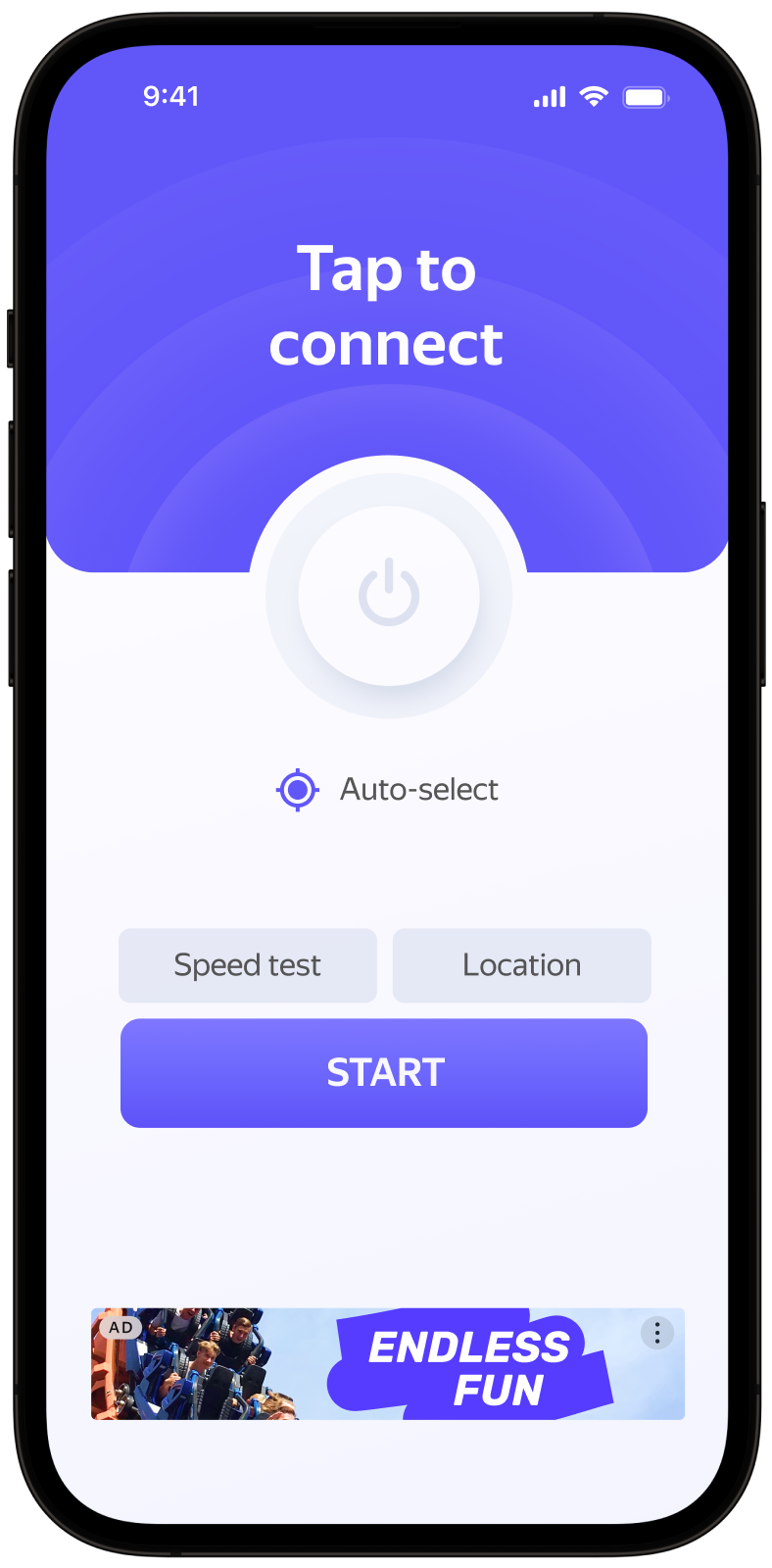
This guide covers the process of integrating adaptive inline banners into Android apps using the Jetpack Compose extension. Besides code samples and instructions, it contains recommendations and links to additional resources.
Prerequisite
- Follow the SDK integration steps described under Quick start.
- First, you need to initialize the advertising SDK.
- Make sure you have the latest Yandex Mobile Ads SDK version. If you're using mediation, update to the most recent single build version.
To use Jetpack Compose, add the following dependency to build.gradle.kts:
dependencies {
    implementation("com.yandex.android:mobileads:8.5.0")
    implementation("com.yandex.android:mobileads-compose:8.5.0")

    // Compose BOM (at least 2024.01.00)
    implementation(platform("androidx.compose:compose-bom:2025.03.00"))
}
Implementation
Key steps to integrate an adaptive inline banner:
- Use a
Bannercomposable with theBannerSize.Inlinesize. - If needed, pass
BannerEventsto track ad events.
Specifics of adaptive inline banner integration
-
All calls to Yandex Mobile Ads SDK methods must be made from the main thread.
-
To make sure video ads display correctly on the app screen, enable hardware acceleration. Hardware acceleration is enabled by default, but some apps may choose to disable it. If your app disables hardware acceleration, we recommend enabling it for Activity classes that use ads.
-
If the
onAdFailedToLoad()callback returns an error, don't try to load a new ad again. If you have to, limit the number of ad loading retries to avoid unsuccessful requests and connection issues. -
For adaptive inline banners to work properly, make your app layouts adaptive. Otherwise, your ads might render incorrectly.
-
Adaptive inline banners work best when utilizing the full available width. In most cases, this will be the full width of the device screen. Consider the padding parameters set in your app and the display's safe area.
-
Adaptive inline banners are designed to be placed in scrollable content. Their height can be the same as the device screen or limited by the maximum height, depending on the API.
-
Use
BannerSize.Inline(width, maxHeight)to define the ad size, specifying width and maximum height in dp asDptypes (for example,320.dp). The context for this calculation is resolved automatically within the composable. -
Create the banner state with
rememberBannerAdState()and trigger loading by explicitly callingloadAd(). If theadSizechanges, theBannerAdViewis recreated automatically.
Rules for rendering interstitial inline banners
-
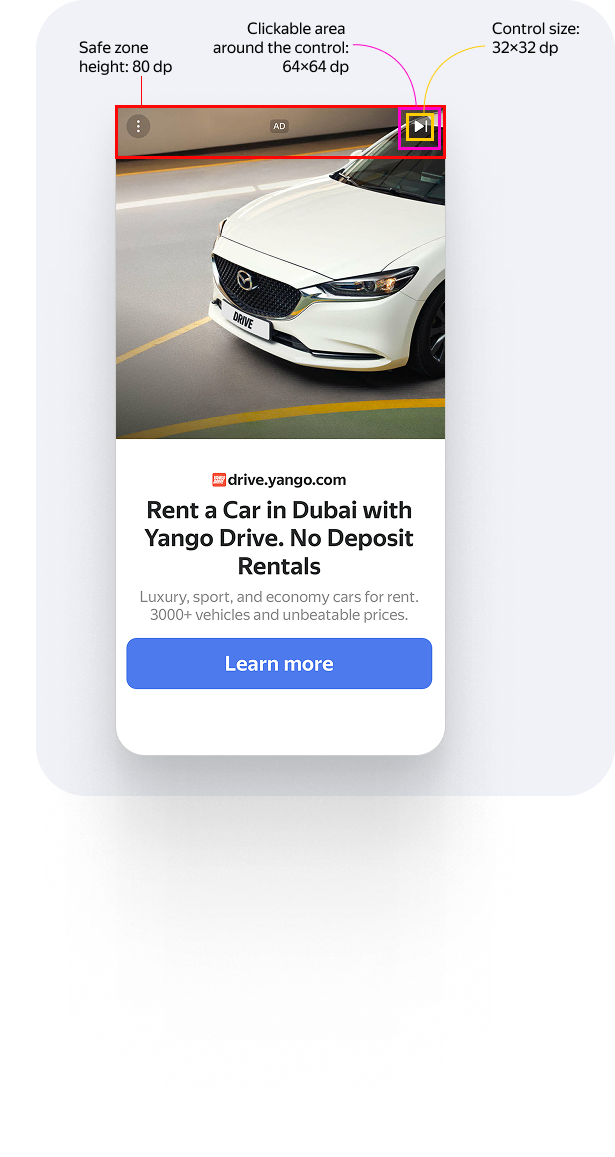
The height of the top non-clickable safe zone is 80 dp. Controls within the zone can be clickable.
-
Visual elements (assets) must be at least 32×32 dp in size. These include the Close button as well as all other icons.
-
Clickable area around assets must be at least 64×64 dp. For example, if an asset measures 32×32 dp, the padding around it must ensure that the total clickable area is 64×64 dp.
-
If a control appears with a delay, you must display a timer or progress bar until the element loads.
For example
Loading and rendering ads
To display an inline banner, create the state using rememberBannerAdState() with the BannerSize.Inline size, then pass it to the Banner composable. Trigger loading by explicitly calling loadAd().
To load ads, you need the ad placement ID obtained in the Yandex Advertising Network interface.
You can expand the ad request parameters using AdRequest.Builder(). To do this, pass information about the user's interests, page context, location, and other additional data in the request. Context can greatly improve ad relevance. To learn more, see Ad targeting.
Sample adaptive inline banner
Once loaded, the banner is displayed automatically:
@Composable
fun MyScreen() {
    val bannerState = rememberBannerAdState(
        adSize = BannerSize.Inline(width = 320.dp, maxHeight = 400.dp),
    )

    LaunchedEffect(Unit) {
        bannerState.loadAd(AdRequest.Builder("your-ad-unit-id").build())
    }

    Banner(
        state = bannerState,
        modifier = Modifier.fillMaxWidth(),
    )
}
To track ad events, pass BannerEvents when creating the state:
@Composable
fun MyScreen() {
    val bannerState = rememberBannerAdState(
        adSize = BannerSize.Inline(width = 320.dp, maxHeight = 400.dp),
        events = BannerEvents(
            onAdLoaded = { Log.d("YandexAds", "Banner loaded") },
            onAdFailedToLoad = { error -> Log.e("YandexAds", error.description) },
            onAdClicked = { Log.d("YandexAds", "Banner click") },
            onImpression = { data -> Log.d("YandexAds", "Impression: ${data?.rawData}") },
        ),
    )

    LaunchedEffect(Unit) {
        bannerState.loadAd(AdRequest.Builder("your-ad-unit-id").build())
    }

    Banner(
        state = bannerState,
        modifier = Modifier.fillMaxWidth(),
    )
}
If you serve ads through Adfox, then after the banner ad response, the campaignId, bannerId, and placeId data can be accessed from the BannerAdView objects using the adAttributes property of the AdAttributes type.
Testing adaptive inline banner integration
Using demo ad units for ad testing
Use test ads to check your adaptive inline banner integration and the app itself. To make sure that test ads are returned for each ad request, you can use a special demo ad placement ID.
Demo adUnitId: demo-banner-yandex.
Warning
Before publishing your app in the store, make sure to replace the demo placement ID with the real ID you obtained in the Yandex Advertising Network interface.
For the list of all available demo ad placement IDs, see Demo ad units for testing.
Testing ad integration
You can check if your adaptive inline banners are integrated correctly using the SDK's built-in analyzer. A detailed report with the test results will appear in the log.
To view the report, search for the keyword “YandexAds” in Logcat, a tool for debugging Android apps.
adb logcat -v brief '*:S YandexAds'
If the integration is successful, the following message is returned:
adb logcat -v brief '*:S YandexAds'
mobileads$ adb logcat -v brief '*:S YandexAds'
I/YandexAds(13719): [Integration] Ad type banner was integrated successfully
If there are any banner integration issues, you'll get a detailed issue report and troubleshooting recommendations.
Additional resources
- Link to GitHub.