---
metadata:
- name: generator
content: Diplodoc Platform v5.52.0
alternate:
- https://ads.yandex.com/helpcenter/en/dev/android/compose/interstitial.md
- https://ads.yandex.com/helpcenter/ru/dev/android/compose/interstitial.md
- https://ads.yandex.com/helpcenter/zh/dev/android/compose/interstitial.md
- href: en/dev/android/compose/interstitial.md
type: text/markdown
title: Markdown version
- href: ../llms.txt
type: text/markdown
title: llms.txt
---
> **Documentation Index:** Fetch the complete configuration index at https://ads.yandex.com/helpcenter/en/llms.txt
# Interstitial ads
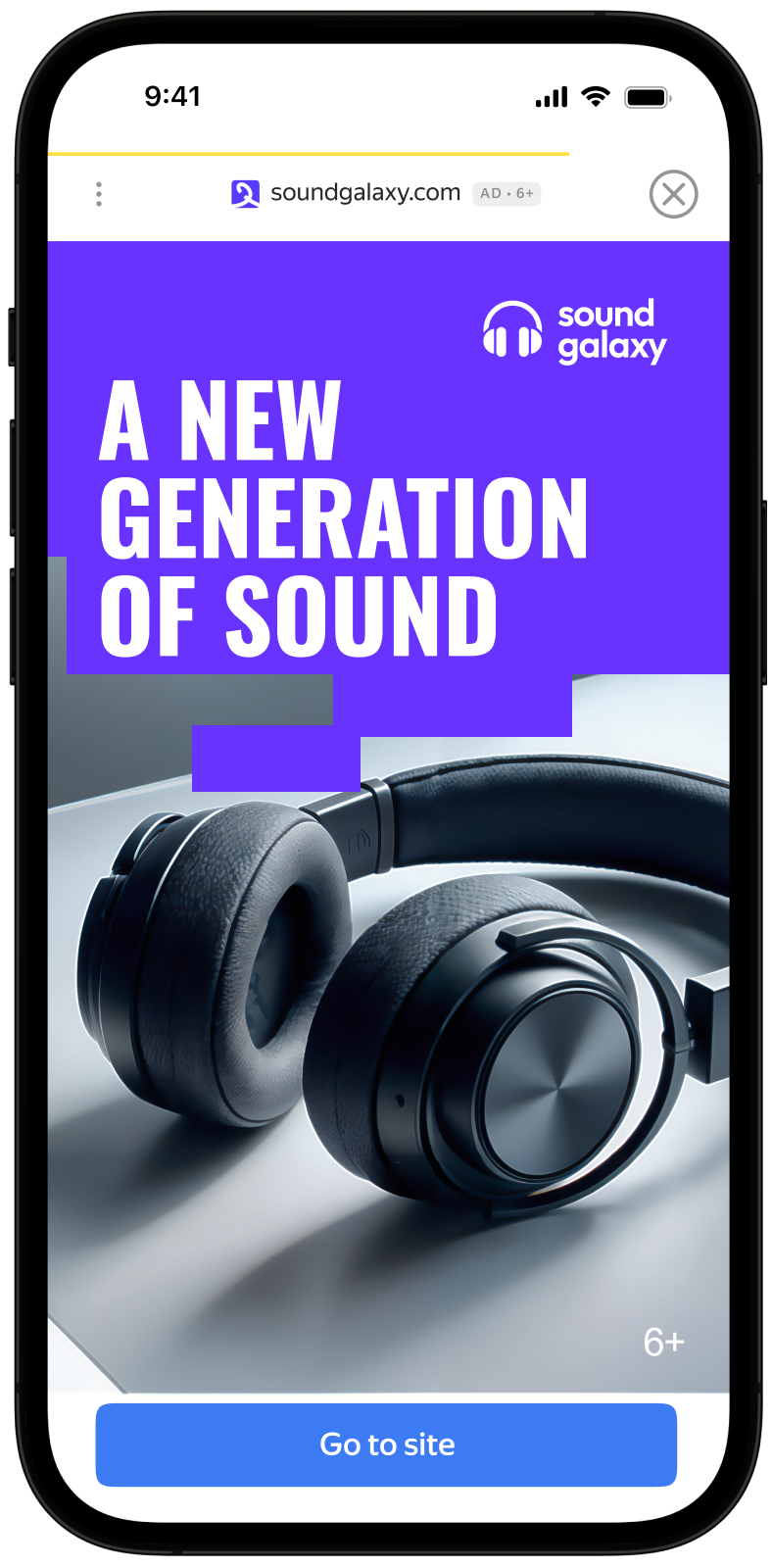
Interstitial advertising is a full-screen ad format embedded within the app content during natural pauses, such as transitioning between game levels or completing a target action.
When an app displays an interstitial ad, the user can either click through to the advertiser's site or close the ad and return to the app.
During interstitial ad impressions, the user's attention is fully focused on the ad, which results in a higher cost for such impressions.
{% cut "Appearance" %}
 {% endcut %}
This guide covers the process of integrating interstitial ads into Android apps using the Jetpack Compose extension. Besides code samples and instructions, it contains recommendations and links to additional resources.
## Prerequisite {#pre}
1. Follow the SDK integration steps described under [Quick start](https://ads.yandex.com/helpcenter/en/dev/android/quick-start.md).
2. First, you need to [initialize](https://ads.yandex.com/helpcenter/en/dev/android/quick-start.md#init) the advertising SDK.
3. Make sure you have the [latest Yandex Mobile Ads SDK version](https://ads.yandex.com/helpcenter/en/dev/android/changelog-android.md). If you're using mediation, update to the most recent [single build version](https://ads.yandex.com/helpcenter/en/dev/android/changelog-android.md).
To use Jetpack Compose, add the following dependency to `build.gradle.kts`:
```kotlin
dependencies {
implementation("com.yandex.android:mobileads:8.2.0")
implementation("com.yandex.android:mobileads-compose:8.2.0")
// Compose BOM (at least 2024.01.00)
implementation(platform("androidx.compose:compose-bom:2025.03.00"))
}
```
## Implementation {#implement}
Key steps for integrating interstitial ads:
1. Use `rememberInterstitialAdLoader()` to create an ad loader.
2. Load the ad using the `loadAd()` suspend function and handle the `InterstitialAdLoadResult` result.
3. Register an `InterstitialAdEventListener` to listen for ad event callbacks.
4. Display the `InterstitialAd` object.
## Features of interstitial ad integration {#features}
1. All calls to Yandex Mobile Ads SDK methods must be made from the main thread.
2. If an `InterstitialAdLoadResult.Failure` error occurs, don't try to load a new ad again. If you have to, limit the number of ad loading retries to avoid unsuccessful requests and connection issues.
3. To prevent it from being garbage collected, maintain a strong reference to the ad throughout the lifetime of the screen where the ad interaction is taking place.
4. When the composable leaves the tree, `cancelLoading()` is called automatically. You don't need to release the loader's resources explicitly.
## Loading the ad {#load}
To load interstitial ads, use `rememberInterstitialAdLoader()`. Ads are loaded via the `loadAd()` suspend function, which returns `InterstitialAdLoadResult`.
To load an ad, you need the ad placement ID obtained in the Yandex Advertising Network interface (adUnitId).
You can expand the ad request parameters using `AdRequestConfiguration.Builder()`. To do this, pass information about the user's interests, page context, location, and other additional data in the request. Context can greatly improve the ad quality. To learn more, see [Ad targeting](https://ads.yandex.com/helpcenter/en/dev/android/target.md).
### Example of loading an interstitial ad
```kotlin
import com.yandex.mobile.ads.common.AdRequestConfiguration
import com.yandex.mobile.ads.compose.rememberInterstitialAdLoader
import com.yandex.mobile.ads.interstitial.InterstitialAdLoadResult
@Composable
fun MyScreen(activity: Activity) {
var interstitialAd by remember { mutableStateOf(null) }
val loader = rememberInterstitialAdLoader()
LaunchedEffect(Unit) {
val adRequestConfiguration = AdRequestConfiguration.Builder("your-ad-unit-id").build()
when (val result = loader.loadAd(adRequestConfiguration)) {
is InterstitialAdLoadResult.Success -> interstitialAd = result.ad
is InterstitialAdLoadResult.Failure -> {
// Ad failed to load with AdRequestError.
// Attempting to load a new ad from here is strongly discouraged.
}
}
}
}
```
If you serve ads through Adfox, then after the banner ad response, the `campaignId`, `bannerId`, and `placeId` data can be accessed from the `interstitialAdLoader` objects using the `adAttributes` property of the `AdAttributes` type.
## Displaying ads {#ad-view}
Interstitial ads should be displayed during natural pauses in the app's usage. This includes impressions between game levels or when a user completes a certain action. For example, after downloading a file.
Before displaying ads, set an `InterstitialAdEventListener` to listen for ad event callbacks.
```kotlin
@Composable
fun MyScreen(activity: Activity) {
var interstitialAd by remember { mutableStateOf(null) }
val loader = rememberInterstitialAdLoader()
LaunchedEffect(Unit) {
val adRequestConfiguration = AdRequestConfiguration.Builder("your-ad-unit-id").build()
when (val result = loader.loadAd(adRequestConfiguration)) {
is InterstitialAdLoadResult.Success -> interstitialAd = result.ad
is InterstitialAdLoadResult.Failure -> {
// Ad failed to load with AdRequestError.
}
}
}
LaunchedEffect(interstitialAd) {
interstitialAd?.apply {
setAdEventListener(object : InterstitialAdEventListener {
override fun onAdShown() {
// Called when ad is shown.
}
override fun onAdFailedToShow(adError: AdError) {
// Called when an InterstitialAd failed to show.
loadInterstitialAd()
}
override fun onAdDismissed() {
// Called when ad is dismissed.
// Now you can preload the next interstitial ad.
loadInterstitialAd()
}
override fun onAdClicked() {
// Called when a click is recorded for an ad.
}
override fun onAdImpression(impressionData: ImpressionData?) {
// Called when an impression is recorded for an ad.
}
})
show(activity)
}
}
}
```
## Testing interstitial ad integration {#test}
### Using demo ad units for ad testing {#demo-blocks}
Use test ads to check your interstitial ad integration and the app itself. To make sure that test ads are returned for each ad request, you can use a special demo ad placement ID.
Demo adUnitId: `demo-interstitial-yandex`.
{% note warning %}
Before publishing your app in the store, make sure to replace the demo placement ID with the real ID you obtained in the Yandex Advertising Network interface.
{% endnote %}
For the list of all available demo ad placement IDs, see [Demo ad units for testing](https://ads.yandex.com/helpcenter/en/dev/android/demo-blocks.md).
### Testing ad integration {#test-int}
You can check if your interstitial ads are integrated correctly using the SDK's built-in analyzer. A detailed report with the test results will appear in the log.
To view the report, search for the keyword “YandexAds” in [Logcat](https://developer.android.com/studio/command-line/logcat), a tool for debugging Android apps.
```bash
adb logcat -v brief '*:S YandexAds'
```
If the integration is successful, the following message is returned:
```bash
adb logcat -v brief '*:S YandexAds'
mobileads$ adb logcat -v brief '*:S YandexAds'
I/YandexAds(13719): [Integration] Ad type interstitial was integrated successfully
```
If there are any interstitial ad integration issues, you'll get a detailed issue report and troubleshooting recommendations.
## Additional resources {#resources}
*
Link to [GitHub](https://github.com/yandexmobile/yandex-ads-sdk-android).
{% endcut %}
This guide covers the process of integrating interstitial ads into Android apps using the Jetpack Compose extension. Besides code samples and instructions, it contains recommendations and links to additional resources.
## Prerequisite {#pre}
1. Follow the SDK integration steps described under [Quick start](https://ads.yandex.com/helpcenter/en/dev/android/quick-start.md).
2. First, you need to [initialize](https://ads.yandex.com/helpcenter/en/dev/android/quick-start.md#init) the advertising SDK.
3. Make sure you have the [latest Yandex Mobile Ads SDK version](https://ads.yandex.com/helpcenter/en/dev/android/changelog-android.md). If you're using mediation, update to the most recent [single build version](https://ads.yandex.com/helpcenter/en/dev/android/changelog-android.md).
To use Jetpack Compose, add the following dependency to `build.gradle.kts`:
```kotlin
dependencies {
implementation("com.yandex.android:mobileads:8.2.0")
implementation("com.yandex.android:mobileads-compose:8.2.0")
// Compose BOM (at least 2024.01.00)
implementation(platform("androidx.compose:compose-bom:2025.03.00"))
}
```
## Implementation {#implement}
Key steps for integrating interstitial ads:
1. Use `rememberInterstitialAdLoader()` to create an ad loader.
2. Load the ad using the `loadAd()` suspend function and handle the `InterstitialAdLoadResult` result.
3. Register an `InterstitialAdEventListener` to listen for ad event callbacks.
4. Display the `InterstitialAd` object.
## Features of interstitial ad integration {#features}
1. All calls to Yandex Mobile Ads SDK methods must be made from the main thread.
2. If an `InterstitialAdLoadResult.Failure` error occurs, don't try to load a new ad again. If you have to, limit the number of ad loading retries to avoid unsuccessful requests and connection issues.
3. To prevent it from being garbage collected, maintain a strong reference to the ad throughout the lifetime of the screen where the ad interaction is taking place.
4. When the composable leaves the tree, `cancelLoading()` is called automatically. You don't need to release the loader's resources explicitly.
## Loading the ad {#load}
To load interstitial ads, use `rememberInterstitialAdLoader()`. Ads are loaded via the `loadAd()` suspend function, which returns `InterstitialAdLoadResult`.
To load an ad, you need the ad placement ID obtained in the Yandex Advertising Network interface (adUnitId).
You can expand the ad request parameters using `AdRequestConfiguration.Builder()`. To do this, pass information about the user's interests, page context, location, and other additional data in the request. Context can greatly improve the ad quality. To learn more, see [Ad targeting](https://ads.yandex.com/helpcenter/en/dev/android/target.md).
### Example of loading an interstitial ad
```kotlin
import com.yandex.mobile.ads.common.AdRequestConfiguration
import com.yandex.mobile.ads.compose.rememberInterstitialAdLoader
import com.yandex.mobile.ads.interstitial.InterstitialAdLoadResult
@Composable
fun MyScreen(activity: Activity) {
var interstitialAd by remember { mutableStateOf(null) }
val loader = rememberInterstitialAdLoader()
LaunchedEffect(Unit) {
val adRequestConfiguration = AdRequestConfiguration.Builder("your-ad-unit-id").build()
when (val result = loader.loadAd(adRequestConfiguration)) {
is InterstitialAdLoadResult.Success -> interstitialAd = result.ad
is InterstitialAdLoadResult.Failure -> {
// Ad failed to load with AdRequestError.
// Attempting to load a new ad from here is strongly discouraged.
}
}
}
}
```
If you serve ads through Adfox, then after the banner ad response, the `campaignId`, `bannerId`, and `placeId` data can be accessed from the `interstitialAdLoader` objects using the `adAttributes` property of the `AdAttributes` type.
## Displaying ads {#ad-view}
Interstitial ads should be displayed during natural pauses in the app's usage. This includes impressions between game levels or when a user completes a certain action. For example, after downloading a file.
Before displaying ads, set an `InterstitialAdEventListener` to listen for ad event callbacks.
```kotlin
@Composable
fun MyScreen(activity: Activity) {
var interstitialAd by remember { mutableStateOf(null) }
val loader = rememberInterstitialAdLoader()
LaunchedEffect(Unit) {
val adRequestConfiguration = AdRequestConfiguration.Builder("your-ad-unit-id").build()
when (val result = loader.loadAd(adRequestConfiguration)) {
is InterstitialAdLoadResult.Success -> interstitialAd = result.ad
is InterstitialAdLoadResult.Failure -> {
// Ad failed to load with AdRequestError.
}
}
}
LaunchedEffect(interstitialAd) {
interstitialAd?.apply {
setAdEventListener(object : InterstitialAdEventListener {
override fun onAdShown() {
// Called when ad is shown.
}
override fun onAdFailedToShow(adError: AdError) {
// Called when an InterstitialAd failed to show.
loadInterstitialAd()
}
override fun onAdDismissed() {
// Called when ad is dismissed.
// Now you can preload the next interstitial ad.
loadInterstitialAd()
}
override fun onAdClicked() {
// Called when a click is recorded for an ad.
}
override fun onAdImpression(impressionData: ImpressionData?) {
// Called when an impression is recorded for an ad.
}
})
show(activity)
}
}
}
```
## Testing interstitial ad integration {#test}
### Using demo ad units for ad testing {#demo-blocks}
Use test ads to check your interstitial ad integration and the app itself. To make sure that test ads are returned for each ad request, you can use a special demo ad placement ID.
Demo adUnitId: `demo-interstitial-yandex`.
{% note warning %}
Before publishing your app in the store, make sure to replace the demo placement ID with the real ID you obtained in the Yandex Advertising Network interface.
{% endnote %}
For the list of all available demo ad placement IDs, see [Demo ad units for testing](https://ads.yandex.com/helpcenter/en/dev/android/demo-blocks.md).
### Testing ad integration {#test-int}
You can check if your interstitial ads are integrated correctly using the SDK's built-in analyzer. A detailed report with the test results will appear in the log.
To view the report, search for the keyword “YandexAds” in [Logcat](https://developer.android.com/studio/command-line/logcat), a tool for debugging Android apps.
```bash
adb logcat -v brief '*:S YandexAds'
```
If the integration is successful, the following message is returned:
```bash
adb logcat -v brief '*:S YandexAds'
mobileads$ adb logcat -v brief '*:S YandexAds'
I/YandexAds(13719): [Integration] Ad type interstitial was integrated successfully
```
If there are any interstitial ad integration issues, you'll get a detailed issue report and troubleshooting recommendations.
## Additional resources {#resources}
*
Link to [GitHub](https://github.com/yandexmobile/yandex-ads-sdk-android).