---
metadata:
- name: generator
content: Diplodoc Platform v5.50.6
alternate:
- https://ads.yandex.com/helpcenter/en/dev/android7/adaptive-inline-banner.md
- https://ads.yandex.com/helpcenter/ru/dev/android7/adaptive-inline-banner.md
---
> **Documentation Index:** Fetch the complete configuration index at https://ads.yandex.com/helpcenter/en/llms.txt
# Adaptive inline banner
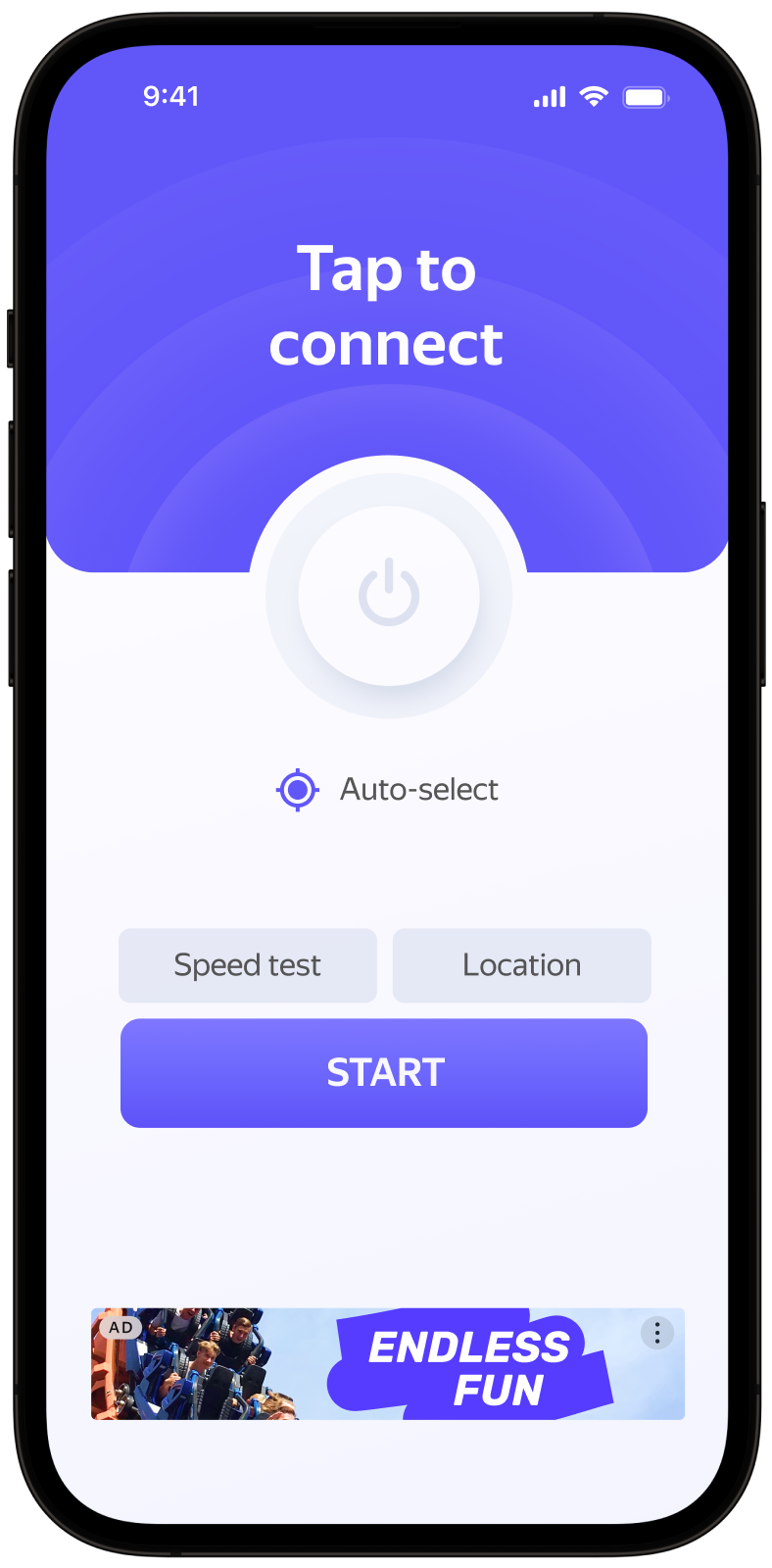
Adaptive inline banners are a flexible format of banner advertising, providing maximum efficiency by optimizing the size of the ad on each device.
This ad type lets developers set a maximum allowable width and height for the ad, though the optimal ad size is still determined automatically. To select the best ad size, built-in adaptive banners use the maximum height rather than the fixed height. That provides room for improving performance.
Typically, that format is used in feed-based apps or contexts where it's okay to focus primarily on the ad.
{% cut "Appearance" %}
 {% endcut %}
This guide shows how to integrate adaptive inline banners into Android apps.
In addition to code examples and instructions, it contains format-specific recommendations and links to additional resources.
## Prerequisite {#pre}
1. Follow the SDK integration steps described in [Quick start](https://ads.yandex.com/helpcenter/en/dev/android7/quick-start.md).
2. [Initialize](https://ads.yandex.com/helpcenter/en/dev/android7/quick-start.md#init) your ad SDK in advance.
3. Make sure you're running the latest [Yandex Mobile Ads SDK](https://ads.yandex.com/helpcenter/en/dev/android7/changelog-android.md) version. If you're using mediation, make sure you're also running the latest version of the [unified build](https://ads.yandex.com/helpcenter/en/dev/android7/changelog-android.md).
## Implementation {#implement}
Key steps for integrating adaptive inline banners:
* Create and configure a view for displaying banner ads.
* Register a callback method listener.
* Load the ad.
* Pass [additional settings](https://ads.yandex.com/helpcenter/en/dev/android7/target-adfox.md) if you're using Adfox.
## Features of adaptive inline banner integration {#features}
1. All calls to Yandex Mobile Ads SDK methods must be made from the main thread.
2. To successfully display video ads on your app's screen, you need to enable [hardware acceleration](https://developer.android.com/guide/topics/graphics/hardware-accel). Hardware acceleration is enabled by default, but some apps disable it. If that applies to your app, we recommend enabling hardware acceleration for the activity classes that use ads.
3. If you received an error in the `onAdFailedToLoad()` callback, don't try to load a new ad again. If there's no other option, limit the number of ad load retries. That will help avoid constant unsuccessful requests and connection issues when limitations arise.
4. To ensure that adaptive inline banners function correctly, [make your app layouts adaptive](https://developer.android.com/guide/topics/large-screens/support-different-screen-sizes). Otherwise, your ads might render incorrectly.
5. Adaptive inline banners work best when using all the available width. In most cases, that's the full width of the device screen. Make sure to include all padding and safe display areas applicable to your app.
6. Adaptive inline banners are designed for placement in scrollable content. It can have the same height as the device screen or be limited to the maximum height depending on the API.
7. To get the size of the ad, use the `BannerAdSize.inlineSize(context, adWidth, maxAdHeight)` method, which accepts the ad context, the available width of the ad container, and the maximum acceptable ad height as arguments.
8. The `BannerAdSize` object, calculated using the `BannerAdSize.inlineSize(context, adWidth, maxAdHeight)` method, contains technical data for selecting the most effective ad sizes on the backend. The height of the ad may change every time it's loaded. The actual width and height of the ad are available after receiving a successful ad load message.
## Rules for rendering fullscreen inline banners {#banner-assets}
1. The height of the top non-clickable safe zone is 80 dp. Controls within the zone can be clickable.
1. Visual elements (assets) must be at least 32×32 dp in size. These include the Close button as well as all other icons.
1. Clickable area around assets must be at least 64×64 dp. For example, if an asset measures 32×32 dp, the padding around it must ensure that the total clickable area is 64×64 dp.
1. If a control appears with a delay, you must display a timer or progress bar until the element loads.
{% cut "Example" %}

{% endcut %}
## Adding an ad view to the app layout {#add-view}
To display banner ads, you need to add `BannerAdView` to the app layout. You can do that programmatically or using an XML file.
Example of adding `BannerAdView` to the app screen layout:
```xml
# activity.xml
...
...
```
You can also create a `BannerAdView` object programmatically:
{% list tabs %}
- Kotlin
```kotlin
val bannerAd = BannerAdView(this)
```
- Java
```java
final BannerAdView bannerAd = new BannerAdView(this);
```
{% endlist %}
## Loading and rendering ads {#load}
After creating `BannerAdView` and adding it to the app screen, the ad needs to be loaded. The ad size must also be calculated for each device before loading adaptive inline banners.
That operation is performed automatically via the SDK API: `BannerAdSize.inlineSize(context, adWidth, maxAdHeight)`. Pass the context, the available width of the ad container, and the maximum acceptable ad height as arguments. Adaptive inline banners work best when utilizing the full available screen width. In most cases, this will be the full width of the device screen. Be sure to consider the padding parameters set in your app and the display's safe area:
{% list tabs %}
- Kotlin
```kotlin
private val adSize: BannerAdSize
get() {
val screenHeight = resources.displayMetrics.run { heightPixels / density }.roundToInt()
// Calculate the width of the ad, taking into account the padding in the ad container.
var adWidthPixels = binding.adContainerView.width
if (adWidthPixels == 0) {
// If the ad hasn't been laid out, default to the full screen width
adWidthPixels = resources.displayMetrics.widthPixels
}
val adWidth = (adWidthPixels / resources.displayMetrics.density).roundToInt()
val maxAdHeight = screenHeight / 2
return BannerAdSize.inlineSize(context, adWidth, maxAdHeight)
}
```
- Java
```java
@NonNull
private BannerAdSize getAdSize() {
final DisplayMetrics displayMetrics = getResources().getDisplayMetrics();
final int screenHeight = Math.round(displayMetrics.heightPixels / displayMetrics.density);
// Calculate the width of the ad, taking into account the padding in the ad container.
int adWidthPixels = mBinding.adContainerView.getWidth();
if (adWidthPixels == 0) {
// If the ad hasn't been laid out, default to the full screen width
adWidthPixels = displayMetrics.widthPixels;
}
final int adWidth = Math.round(adWidthPixels / displayMetrics.density);
// Determine the maximum allowable ad height. The current value is given as an example.
final int maxAdHeight = screenHeight / 2;
return BannerAdSize.inlineSize(this, adWidth, maxAdHeight);
}
```
{% endlist %}
To load an ad, you also need the Activity context and the ad unit ID (adUnitId) from the Yandex Advertising Network interface.
To notify when ads load or fail to load and track the life cycle of adaptive inline banners, set the `BannerAdEventListener` callback method listener for the `BannerAdView` class object.
You can expand the ad request parameters through `AdRequest.Builder()` by passing user interests, contextual app data, location details, or other data in the request. Delivering additional contextual data in the request can significantly improve your ad quality. Read more in the [Ad Targeting](https://ads.yandex.com/helpcenter/en/dev/android7/target.md) section.
The following example shows how to load an adaptive inline banner. After successfully loading, the banner will be displayed automatically:
{% list tabs %}
- Kotlin
```kotlin
class AdaptiveInlineBannerAdActivity : AppCompatActivity(R.layout.activity_inline_banner_ad) {
private var bannerAd: BannerAdView? = null
private lateinit var binding: ActivityInlineBannerAdBinding
private val adSize: BannerAdSize
get() {
val screenHeight = resources.displayMetrics.run { heightPixels / density }.roundToInt()
// Calculate the width of the ad, taking into account the padding in the ad container.
var adWidthPixels = binding.adContainerView.width
if (adWidthPixels == 0) {
// If the ad hasn't been laid out, default to the full screen width
adWidthPixels = resources.displayMetrics.widthPixels
}
val adWidth = (adWidthPixels / resources.displayMetrics.density).roundToInt()
// Determine the maximum allowable ad height. The current value is given as an example.
val maxAdHeight = screenHeight / 2
return BannerAdSize.inlineSize(context, adWidth, maxAdHeight)
}
override fun onCreate(savedInstanceState: Bundle?) {
super.onCreate(savedInstanceState)
binding = ActivityInlineBannerAdBinding.inflate(layoutInflater)
setContentView(binding.root)
// Since we're loading the banner based on the adContainerView size,
// we need to wait until this view is laid out before we can get the width
binding.adContainerView.viewTreeObserver.addOnGlobalLayoutListener(object :
ViewTreeObserver.OnGlobalLayoutListener {
override fun onGlobalLayout() {
binding.adContainerView.viewTreeObserver.removeOnGlobalLayoutListener(this);
bannerAd = loadBannerAd(adSize)
}
})
}
private fun loadBannerAd(adSize: BannerAdSize): BannerAdView {
return binding.banner.apply {
setAdSize(adSize)
setAdUnitId("your-ad-unit-id")
setBannerAdEventListener(object : BannerAdEventListener {
override fun onAdLoaded() {
// If this callback occurs after the activity is destroyed, you
// must call destroy and return or you may get a memory leak.
// Note `isDestroyed` is a method on Activity.
if (isDestroyed) {
bannerAd?.destroy()
return
}
}
override fun onAdFailedToLoad(adRequestError: AdRequestError) {
// Ad failed to load with AdRequestError.
// Attempting to load a new ad from the onAdFailedToLoad() method is strongly discouraged.
}
override fun onAdClicked() {
// Called when a click is recorded for an ad.
}
override fun onLeftApplication() {
// Called when user is about to leave application (e.g., to go to the browser), as a result of clicking on the ad.
}
override fun onReturnedToApplication() {
// Called when user returned to application after click.
}
override fun onImpression(impressionData: ImpressionData?) {
// Called when an impression is recorded for an ad.
}
})
loadAd(
AdRequest.Builder()
// Methods in the AdRequest.Builder class can be used here to specify individual options settings.
.build()
)
}
}
}
```
- Java
```java
public class AdaptiveInlineBannerAdActivity extends AppCompatActivity {
@Nullable
private BannerAdView mBannerAd = null;
private ActivityInlineBannerAdBinding mBinding;
public AdaptiveInlineBannerAdActivity() {
super(R.layout.activity_inline_banner_ad);
}
@Override
protected void onCreate(@Nullable Bundle savedInstanceState) {
super.onCreate(savedInstanceState);
mBinding = ActivityInlineBannerAdBinding.inflate(getLayoutInflater());
setContentView(mBinding.getRoot());
// Since we're loading the banner based on the adContainerView size,
// we need to wait until this view is laid out before we can get the width
mBinding.adContainerView.getViewTreeObserver().addOnGlobalLayoutListener(
new ViewTreeObserver.OnGlobalLayoutListener() {
@Override
public void onGlobalLayout() {
mBinding.adContainerView.getViewTreeObserver().removeOnGlobalLayoutListener(this);
mBannerAd = loadBannerAd(getAdSize());
}
}
);
}
@NonNull
private BannerAdSize getAdSize() {
final DisplayMetrics displayMetrics = getResources().getDisplayMetrics();
final int screenHeight = Math.round(displayMetrics.heightPixels / displayMetrics.density);
// Calculate the width of the ad, taking into account the padding in the ad container.
int adWidthPixels = mBinding.adContainerView.getWidth();
if (adWidthPixels == 0) {
// If the ad hasn't been laid out, default to the full screen width
adWidthPixels = displayMetrics.widthPixels;
}
final int adWidth = Math.round(adWidthPixels / displayMetrics.density);
// Determine the maximum allowable ad height. The current value is given as an example.
final int maxAdHeight = screenHeight / 2;
return BannerAdSize.inlineSize(this, adWidth, maxAdHeight);
}
@NonNull
private BannerAdView loadBannerAd(@NonNull final BannerAdSize adSize) {
final BannerAdView bannerAd = mBinding.banner;
bannerAd.setAdSize(adSize);
bannerAd.setAdUnitId("your-ad-unit-id");
bannerAd.setBannerAdEventListener(new BannerAdEventListener() {
@Override
public void onAdLoaded() {
// If this callback occurs after the activity is destroyed, you
// must call destroy and return or you may get a memory leak.
// Note `isDestroyed` is a method on Activity.
if (isDestroyed() && mBannerAd != null) {
mBannerAd.destroy();
}
}
@Override
public void onAdFailedToLoad(@NonNull final AdRequestError adRequestError) {
// Ad failed to load with AdRequestError.
// Attempting to load a new ad from the onAdFailedToLoad() method is strongly discouraged.
}
@Override
public void onAdClicked() {
// Called when a click is recorded for an ad.
}
@Override
public void onLeftApplication() {
// Called when user is about to leave application (e.g., to go to the browser), as a result of clicking on the ad.
}
@Override
public void onReturnedToApplication() {
// Called when user returned to application after click.
}
@Override
public void onImpression(@Nullable ImpressionData impressionData) {
// Called when an impression is recorded for an ad.
}
});
final AdRequest adRequest = new AdRequest.Builder()
// Methods in the AdRequest.Builder class can be used here to specify individual options settings.
.build();
bannerAd.loadAd(adRequest);
return bannerAd;
}
}
```
{% endlist %}
If you serve ads through Adfox, then after the banner ad response, the `campaignId`, `bannerId`, and `placeId` data can be accessed from the `BannerAdView` objects using the `adAttributes` property of the `AdAttributes` type.
## Releasing resources {#destroy}
If the callback method was called after the end of the Activity lifecycle, release the resources by calling the `destroy()` function for the ad object:
{% list tabs %}
- Kotlin
```kotlin
private fun loadBannerAd(adSize: BannerAdSize): BannerAdView {
return binding.banner.apply {
setBannerAdEventListener(object : BannerAdEventListener {
override fun onAdLoaded() {
// If this callback occurs after the activity is destroyed, you
// must call destroy and return or you may get a memory leak.
// Note `isDestroyed` is a method on Activity.
if (isDestroyed) {
bannerAd?.destroy()
return
}
}
...
})
...
}
}
```
- Java
```java
@NonNull
private BannerAdView loadBannerAd(@NonNull final BannerAdSize adSize) {
final BannerAdView bannerAd = mBinding.banner;
bannerAd.setBannerAdEventListener(new BannerAdEventListener() {
@Override
public void onAdLoaded() {
// If this callback occurs after the activity is destroyed, you
// must call destroy and return or you may get a memory leak.
// Note `isDestroyed` is a method on Activity.
if (isDestroyed() && mBannerAd != null) {
mBannerAd.destroy();
}
}
...
});
...
return bannerAd;
}
```
{% endlist %}
## Testing adaptive inline banner integration {#test}
### Using demo ad units for ad testing {#demo-blocks}
We recommend using test ads to test your adaptive inline banner integration and your app itself.
To guarantee that test ads are returned for every ad request, we created a special demo ad placement ID. Use it to check your ad integration.
Demo adUnitId: `demo-banner-yandex`.
{% note warning %}
Before publishing your app in the store, make sure to replace the demo ad placement ID with a real one obtained from the Yandex Advertising Network interface.
{% endnote %}
You can find the list of available demo ad placement IDs in the [Demo ad units for testing](https://ads.yandex.com/helpcenter/en/dev/android7/demo-blocks.md) section.
### Testing ad integration {#test-int}
You can test your adaptive inline banner integration using the SDK's built-in analyzer.
The tool makes sure your ads are integrated properly and outputs a detailed report to the log.
To view the report, search for the “YandexAds” keyword in the [Logcat](https://developer.android.com/studio/command-line/logcat) tool for Android app debugging.
```bash
adb logcat -v brief '*:S YandexAds'
```
If the integration is successful, you'll see this message:
```bash
adb logcat -v brief '*:S YandexAds'
mobileads$ adb logcat -v brief '*:S YandexAds'
I/YandexAds(13719): [Integration] Ad type banner was integrated successfully
```
If you're having problems integrating banner ads, you'll get a detailed report on the issues and recommendations for how to fix them.
## Additional resources {#resources}
*
Link to [GitHub](https://github.com/yandexmobile/yandex-ads-sdk-android).
{% endcut %}
This guide shows how to integrate adaptive inline banners into Android apps.
In addition to code examples and instructions, it contains format-specific recommendations and links to additional resources.
## Prerequisite {#pre}
1. Follow the SDK integration steps described in [Quick start](https://ads.yandex.com/helpcenter/en/dev/android7/quick-start.md).
2. [Initialize](https://ads.yandex.com/helpcenter/en/dev/android7/quick-start.md#init) your ad SDK in advance.
3. Make sure you're running the latest [Yandex Mobile Ads SDK](https://ads.yandex.com/helpcenter/en/dev/android7/changelog-android.md) version. If you're using mediation, make sure you're also running the latest version of the [unified build](https://ads.yandex.com/helpcenter/en/dev/android7/changelog-android.md).
## Implementation {#implement}
Key steps for integrating adaptive inline banners:
* Create and configure a view for displaying banner ads.
* Register a callback method listener.
* Load the ad.
* Pass [additional settings](https://ads.yandex.com/helpcenter/en/dev/android7/target-adfox.md) if you're using Adfox.
## Features of adaptive inline banner integration {#features}
1. All calls to Yandex Mobile Ads SDK methods must be made from the main thread.
2. To successfully display video ads on your app's screen, you need to enable [hardware acceleration](https://developer.android.com/guide/topics/graphics/hardware-accel). Hardware acceleration is enabled by default, but some apps disable it. If that applies to your app, we recommend enabling hardware acceleration for the activity classes that use ads.
3. If you received an error in the `onAdFailedToLoad()` callback, don't try to load a new ad again. If there's no other option, limit the number of ad load retries. That will help avoid constant unsuccessful requests and connection issues when limitations arise.
4. To ensure that adaptive inline banners function correctly, [make your app layouts adaptive](https://developer.android.com/guide/topics/large-screens/support-different-screen-sizes). Otherwise, your ads might render incorrectly.
5. Adaptive inline banners work best when using all the available width. In most cases, that's the full width of the device screen. Make sure to include all padding and safe display areas applicable to your app.
6. Adaptive inline banners are designed for placement in scrollable content. It can have the same height as the device screen or be limited to the maximum height depending on the API.
7. To get the size of the ad, use the `BannerAdSize.inlineSize(context, adWidth, maxAdHeight)` method, which accepts the ad context, the available width of the ad container, and the maximum acceptable ad height as arguments.
8. The `BannerAdSize` object, calculated using the `BannerAdSize.inlineSize(context, adWidth, maxAdHeight)` method, contains technical data for selecting the most effective ad sizes on the backend. The height of the ad may change every time it's loaded. The actual width and height of the ad are available after receiving a successful ad load message.
## Rules for rendering fullscreen inline banners {#banner-assets}
1. The height of the top non-clickable safe zone is 80 dp. Controls within the zone can be clickable.
1. Visual elements (assets) must be at least 32×32 dp in size. These include the Close button as well as all other icons.
1. Clickable area around assets must be at least 64×64 dp. For example, if an asset measures 32×32 dp, the padding around it must ensure that the total clickable area is 64×64 dp.
1. If a control appears with a delay, you must display a timer or progress bar until the element loads.
{% cut "Example" %}

{% endcut %}
## Adding an ad view to the app layout {#add-view}
To display banner ads, you need to add `BannerAdView` to the app layout. You can do that programmatically or using an XML file.
Example of adding `BannerAdView` to the app screen layout:
```xml
# activity.xml
...
...
```
You can also create a `BannerAdView` object programmatically:
{% list tabs %}
- Kotlin
```kotlin
val bannerAd = BannerAdView(this)
```
- Java
```java
final BannerAdView bannerAd = new BannerAdView(this);
```
{% endlist %}
## Loading and rendering ads {#load}
After creating `BannerAdView` and adding it to the app screen, the ad needs to be loaded. The ad size must also be calculated for each device before loading adaptive inline banners.
That operation is performed automatically via the SDK API: `BannerAdSize.inlineSize(context, adWidth, maxAdHeight)`. Pass the context, the available width of the ad container, and the maximum acceptable ad height as arguments. Adaptive inline banners work best when utilizing the full available screen width. In most cases, this will be the full width of the device screen. Be sure to consider the padding parameters set in your app and the display's safe area:
{% list tabs %}
- Kotlin
```kotlin
private val adSize: BannerAdSize
get() {
val screenHeight = resources.displayMetrics.run { heightPixels / density }.roundToInt()
// Calculate the width of the ad, taking into account the padding in the ad container.
var adWidthPixels = binding.adContainerView.width
if (adWidthPixels == 0) {
// If the ad hasn't been laid out, default to the full screen width
adWidthPixels = resources.displayMetrics.widthPixels
}
val adWidth = (adWidthPixels / resources.displayMetrics.density).roundToInt()
val maxAdHeight = screenHeight / 2
return BannerAdSize.inlineSize(context, adWidth, maxAdHeight)
}
```
- Java
```java
@NonNull
private BannerAdSize getAdSize() {
final DisplayMetrics displayMetrics = getResources().getDisplayMetrics();
final int screenHeight = Math.round(displayMetrics.heightPixels / displayMetrics.density);
// Calculate the width of the ad, taking into account the padding in the ad container.
int adWidthPixels = mBinding.adContainerView.getWidth();
if (adWidthPixels == 0) {
// If the ad hasn't been laid out, default to the full screen width
adWidthPixels = displayMetrics.widthPixels;
}
final int adWidth = Math.round(adWidthPixels / displayMetrics.density);
// Determine the maximum allowable ad height. The current value is given as an example.
final int maxAdHeight = screenHeight / 2;
return BannerAdSize.inlineSize(this, adWidth, maxAdHeight);
}
```
{% endlist %}
To load an ad, you also need the Activity context and the ad unit ID (adUnitId) from the Yandex Advertising Network interface.
To notify when ads load or fail to load and track the life cycle of adaptive inline banners, set the `BannerAdEventListener` callback method listener for the `BannerAdView` class object.
You can expand the ad request parameters through `AdRequest.Builder()` by passing user interests, contextual app data, location details, or other data in the request. Delivering additional contextual data in the request can significantly improve your ad quality. Read more in the [Ad Targeting](https://ads.yandex.com/helpcenter/en/dev/android7/target.md) section.
The following example shows how to load an adaptive inline banner. After successfully loading, the banner will be displayed automatically:
{% list tabs %}
- Kotlin
```kotlin
class AdaptiveInlineBannerAdActivity : AppCompatActivity(R.layout.activity_inline_banner_ad) {
private var bannerAd: BannerAdView? = null
private lateinit var binding: ActivityInlineBannerAdBinding
private val adSize: BannerAdSize
get() {
val screenHeight = resources.displayMetrics.run { heightPixels / density }.roundToInt()
// Calculate the width of the ad, taking into account the padding in the ad container.
var adWidthPixels = binding.adContainerView.width
if (adWidthPixels == 0) {
// If the ad hasn't been laid out, default to the full screen width
adWidthPixels = resources.displayMetrics.widthPixels
}
val adWidth = (adWidthPixels / resources.displayMetrics.density).roundToInt()
// Determine the maximum allowable ad height. The current value is given as an example.
val maxAdHeight = screenHeight / 2
return BannerAdSize.inlineSize(context, adWidth, maxAdHeight)
}
override fun onCreate(savedInstanceState: Bundle?) {
super.onCreate(savedInstanceState)
binding = ActivityInlineBannerAdBinding.inflate(layoutInflater)
setContentView(binding.root)
// Since we're loading the banner based on the adContainerView size,
// we need to wait until this view is laid out before we can get the width
binding.adContainerView.viewTreeObserver.addOnGlobalLayoutListener(object :
ViewTreeObserver.OnGlobalLayoutListener {
override fun onGlobalLayout() {
binding.adContainerView.viewTreeObserver.removeOnGlobalLayoutListener(this);
bannerAd = loadBannerAd(adSize)
}
})
}
private fun loadBannerAd(adSize: BannerAdSize): BannerAdView {
return binding.banner.apply {
setAdSize(adSize)
setAdUnitId("your-ad-unit-id")
setBannerAdEventListener(object : BannerAdEventListener {
override fun onAdLoaded() {
// If this callback occurs after the activity is destroyed, you
// must call destroy and return or you may get a memory leak.
// Note `isDestroyed` is a method on Activity.
if (isDestroyed) {
bannerAd?.destroy()
return
}
}
override fun onAdFailedToLoad(adRequestError: AdRequestError) {
// Ad failed to load with AdRequestError.
// Attempting to load a new ad from the onAdFailedToLoad() method is strongly discouraged.
}
override fun onAdClicked() {
// Called when a click is recorded for an ad.
}
override fun onLeftApplication() {
// Called when user is about to leave application (e.g., to go to the browser), as a result of clicking on the ad.
}
override fun onReturnedToApplication() {
// Called when user returned to application after click.
}
override fun onImpression(impressionData: ImpressionData?) {
// Called when an impression is recorded for an ad.
}
})
loadAd(
AdRequest.Builder()
// Methods in the AdRequest.Builder class can be used here to specify individual options settings.
.build()
)
}
}
}
```
- Java
```java
public class AdaptiveInlineBannerAdActivity extends AppCompatActivity {
@Nullable
private BannerAdView mBannerAd = null;
private ActivityInlineBannerAdBinding mBinding;
public AdaptiveInlineBannerAdActivity() {
super(R.layout.activity_inline_banner_ad);
}
@Override
protected void onCreate(@Nullable Bundle savedInstanceState) {
super.onCreate(savedInstanceState);
mBinding = ActivityInlineBannerAdBinding.inflate(getLayoutInflater());
setContentView(mBinding.getRoot());
// Since we're loading the banner based on the adContainerView size,
// we need to wait until this view is laid out before we can get the width
mBinding.adContainerView.getViewTreeObserver().addOnGlobalLayoutListener(
new ViewTreeObserver.OnGlobalLayoutListener() {
@Override
public void onGlobalLayout() {
mBinding.adContainerView.getViewTreeObserver().removeOnGlobalLayoutListener(this);
mBannerAd = loadBannerAd(getAdSize());
}
}
);
}
@NonNull
private BannerAdSize getAdSize() {
final DisplayMetrics displayMetrics = getResources().getDisplayMetrics();
final int screenHeight = Math.round(displayMetrics.heightPixels / displayMetrics.density);
// Calculate the width of the ad, taking into account the padding in the ad container.
int adWidthPixels = mBinding.adContainerView.getWidth();
if (adWidthPixels == 0) {
// If the ad hasn't been laid out, default to the full screen width
adWidthPixels = displayMetrics.widthPixels;
}
final int adWidth = Math.round(adWidthPixels / displayMetrics.density);
// Determine the maximum allowable ad height. The current value is given as an example.
final int maxAdHeight = screenHeight / 2;
return BannerAdSize.inlineSize(this, adWidth, maxAdHeight);
}
@NonNull
private BannerAdView loadBannerAd(@NonNull final BannerAdSize adSize) {
final BannerAdView bannerAd = mBinding.banner;
bannerAd.setAdSize(adSize);
bannerAd.setAdUnitId("your-ad-unit-id");
bannerAd.setBannerAdEventListener(new BannerAdEventListener() {
@Override
public void onAdLoaded() {
// If this callback occurs after the activity is destroyed, you
// must call destroy and return or you may get a memory leak.
// Note `isDestroyed` is a method on Activity.
if (isDestroyed() && mBannerAd != null) {
mBannerAd.destroy();
}
}
@Override
public void onAdFailedToLoad(@NonNull final AdRequestError adRequestError) {
// Ad failed to load with AdRequestError.
// Attempting to load a new ad from the onAdFailedToLoad() method is strongly discouraged.
}
@Override
public void onAdClicked() {
// Called when a click is recorded for an ad.
}
@Override
public void onLeftApplication() {
// Called when user is about to leave application (e.g., to go to the browser), as a result of clicking on the ad.
}
@Override
public void onReturnedToApplication() {
// Called when user returned to application after click.
}
@Override
public void onImpression(@Nullable ImpressionData impressionData) {
// Called when an impression is recorded for an ad.
}
});
final AdRequest adRequest = new AdRequest.Builder()
// Methods in the AdRequest.Builder class can be used here to specify individual options settings.
.build();
bannerAd.loadAd(adRequest);
return bannerAd;
}
}
```
{% endlist %}
If you serve ads through Adfox, then after the banner ad response, the `campaignId`, `bannerId`, and `placeId` data can be accessed from the `BannerAdView` objects using the `adAttributes` property of the `AdAttributes` type.
## Releasing resources {#destroy}
If the callback method was called after the end of the Activity lifecycle, release the resources by calling the `destroy()` function for the ad object:
{% list tabs %}
- Kotlin
```kotlin
private fun loadBannerAd(adSize: BannerAdSize): BannerAdView {
return binding.banner.apply {
setBannerAdEventListener(object : BannerAdEventListener {
override fun onAdLoaded() {
// If this callback occurs after the activity is destroyed, you
// must call destroy and return or you may get a memory leak.
// Note `isDestroyed` is a method on Activity.
if (isDestroyed) {
bannerAd?.destroy()
return
}
}
...
})
...
}
}
```
- Java
```java
@NonNull
private BannerAdView loadBannerAd(@NonNull final BannerAdSize adSize) {
final BannerAdView bannerAd = mBinding.banner;
bannerAd.setBannerAdEventListener(new BannerAdEventListener() {
@Override
public void onAdLoaded() {
// If this callback occurs after the activity is destroyed, you
// must call destroy and return or you may get a memory leak.
// Note `isDestroyed` is a method on Activity.
if (isDestroyed() && mBannerAd != null) {
mBannerAd.destroy();
}
}
...
});
...
return bannerAd;
}
```
{% endlist %}
## Testing adaptive inline banner integration {#test}
### Using demo ad units for ad testing {#demo-blocks}
We recommend using test ads to test your adaptive inline banner integration and your app itself.
To guarantee that test ads are returned for every ad request, we created a special demo ad placement ID. Use it to check your ad integration.
Demo adUnitId: `demo-banner-yandex`.
{% note warning %}
Before publishing your app in the store, make sure to replace the demo ad placement ID with a real one obtained from the Yandex Advertising Network interface.
{% endnote %}
You can find the list of available demo ad placement IDs in the [Demo ad units for testing](https://ads.yandex.com/helpcenter/en/dev/android7/demo-blocks.md) section.
### Testing ad integration {#test-int}
You can test your adaptive inline banner integration using the SDK's built-in analyzer.
The tool makes sure your ads are integrated properly and outputs a detailed report to the log.
To view the report, search for the “YandexAds” keyword in the [Logcat](https://developer.android.com/studio/command-line/logcat) tool for Android app debugging.
```bash
adb logcat -v brief '*:S YandexAds'
```
If the integration is successful, you'll see this message:
```bash
adb logcat -v brief '*:S YandexAds'
mobileads$ adb logcat -v brief '*:S YandexAds'
I/YandexAds(13719): [Integration] Ad type banner was integrated successfully
```
If you're having problems integrating banner ads, you'll get a detailed report on the issues and recommendations for how to fix them.
## Additional resources {#resources}
*
Link to [GitHub](https://github.com/yandexmobile/yandex-ads-sdk-android).