Interstitial ads
Interstitial advertising is a full-screen ad format embedded within the app content during natural pauses, such as transitioning between game levels or completing a target action.
When an app displays an interstitial ad, the user can either click through to the advertiser's site or close the ad and return to the app.
During interstitial ad impressions, the user's attention is fully focused on the ad, which results in a higher cost for such impressions.
Appearance
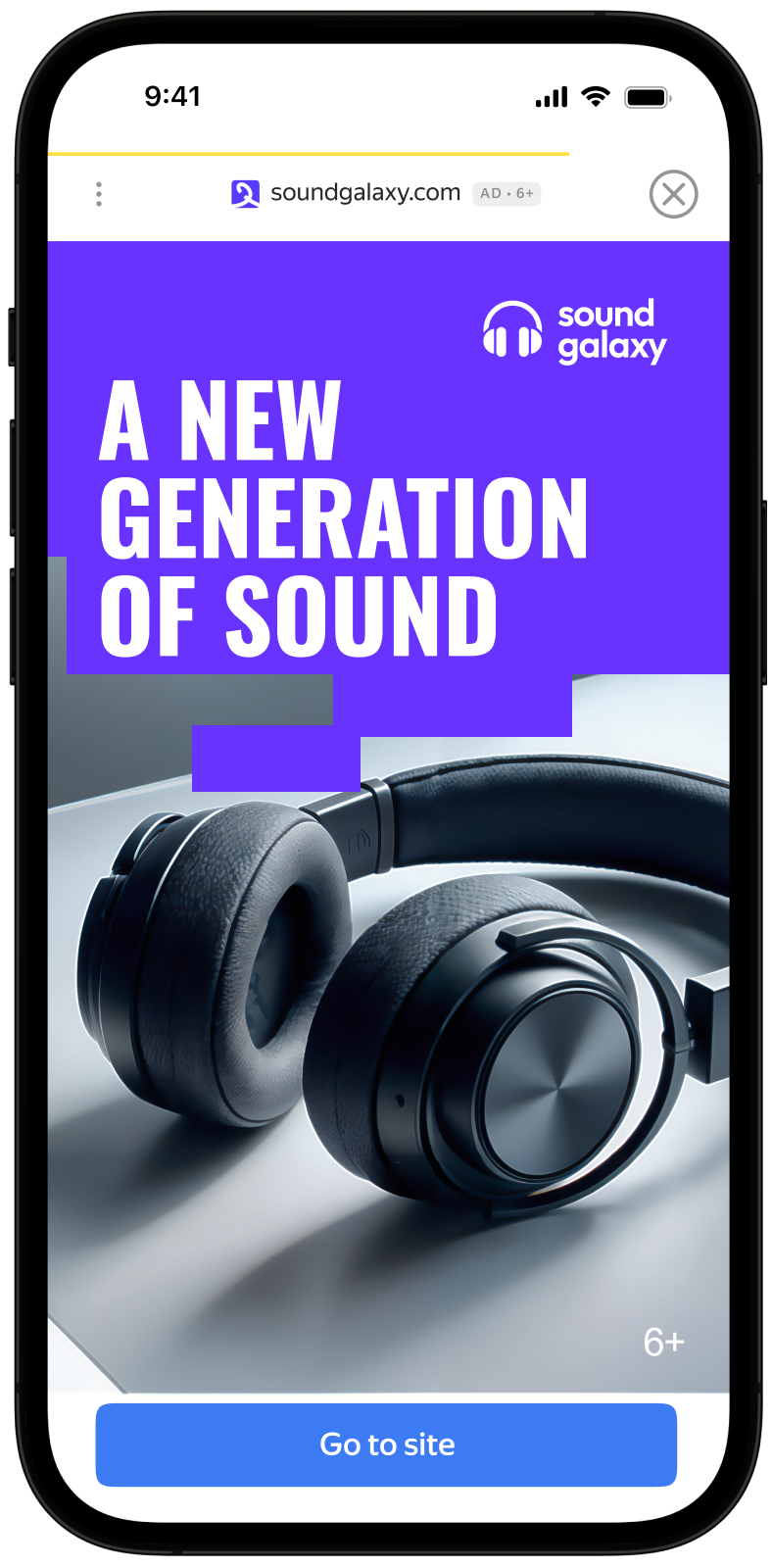
This guide shows you how to integrate interstitial ads into a Compose Multiplatform app. Besides code samples and instructions, it also contains format-specific recommendations and links to additional resources.
Prerequisite
- Follow the Yandex Mobile Ads Compose Multiplatform plugin integration steps described under Quick start.
- Make sure that you have the latest version of the Yandex Mobile Ads Compose Multiplatform plugin. If you're using mediation, update to the most recent single build version.
Implementation
Key steps for integrating interstitial ads:
- Create an ad loader using
rememberInterstitialAdLoader(). - Load the ad using the
loadAd()suspend function. - If needed, attach a
InterstitialAdEventListenerto the loaded ad before callingshow(). - Serve the ad using the
show()method.
Features of interstitial ad integration
If loading fails due to an exception or an error on your side, don't trigger a new request right away. If you can't avoid reloading, limit the number of attempts. This helps prevent endless failed requests and connection issues under poor network conditions.
Loading ads
Create an ad loader using rememberInterstitialAdLoader(), then call loadAd with an AdRequest containing the adUnitId as specified in the Yandex Advertising Network interface.
Customize the request parameters using AdRequest (such as targeting, parameters, and preferredTheme). Adding more context to your request greatly improves ad relevance. For more details, see Ad targeting.
Example of loading an interstitial ad:
@Composable
fun InterstitialBlock(adUnitId: String) {
    val loader = rememberInterstitialAdLoader()
    val scope = rememberCoroutineScope()
    var interstitialAd by remember { mutableStateOf<InterstitialAd?>(null) }
    var isLoading by remember { mutableStateOf(false) }

    Button(
        onClick = {
            isLoading = true
            scope.launch {
                try {
                    interstitialAd = loader.loadAd(AdRequest(adUnitId = adUnitId))
                } catch (e: AdLoadException) {
                    // Load error: e.error (AdRequestError). Unlimited retries are not recommended.
                }
                isLoading = false
            }
        },
        enabled = !isLoading,
    ) {
        Text(if (isLoading) "Loading..." else "Load interstitial ad")
    }

    Button(
        onClick = {
            interstitialAd?.show()
            interstitialAd = null
        },
        enabled = interstitialAd != null,
    ) {
        Text("Show interstitial ad")
    }
}
For debugging, you can use 'demo-interstitial-yandex' as the adUnitId.
Displaying ads
Show interstitial ads during natural pauses in the app's flow — for example, between game levels or after a target action (such as when a file download is complete).
To track lifecycle events, set an InterstitialAdEventListener on the InterstitialAd instance before calling show().
val ad = interstitialAd ?: return
ad.setAdEventListener(
    object : InterstitialAdEventListener {
        override fun onAdShown() {
            // Called when an ad is shown.
        }

        override fun onAdFailedToShow(adError: AdError) {
            // Called when an ad failed to show. Clear the reference and preload the next ad if needed.
        }

        override fun onAdDismissed() {
            // Called when ad is dismissed. Preload the next interstitial here if appropriate.
        }

        override fun onAdClicked() {
            // Called when a click is recorded for an ad.
        }

        override fun onAdImpression(impressionData: ImpressionData?) {
            // Called when an impression is recorded for an ad.
        }
    },
)
ad.show()
Releasing resources
Once onAdDismissed or onAdFailedToShow fire, release the references to the ad object and start loading the next creative if needed. Don't store strong references to ads that have already been served.
Testing interstitial ad integration
Using demo ad units for ad testing
Use test ads to check your interstitial ad integration and the app itself. To make sure that test ads are returned for each ad request, you can use a special demo ad placement ID.
Demo adUnitId: demo-interstitial-yandex.
Warning
Before publishing your app in the store, make sure to replace the demo placement ID with the real ID you obtained in the Yandex Advertising Network interface.
For the list of all available demo ad placement IDs, see Demo ad units for testing.
Testing ad integration
You can check if your interstitial ads are integrated correctly using the SDK's built-in analyzer. A detailed report with the test results will appear in the log.
To view the report, search for the keyword “YandexAds” in Logcat, a tool for debugging Android apps.
adb logcat -v brief '*:S YandexAds'
If the integration is successful, the following message is returned:
adb logcat -v brief '*:S YandexAds'
mobileads$ adb logcat -v brief '*:S YandexAds'
I/YandexAds(13719): [Integration] Ad type interstitial was integrated successfully
If there are any interstitial ad integration issues, you'll get a detailed issue report and troubleshooting recommendations.
Using demo ad units for ad testing
Use test ads to check your ad integration and the app itself. To make sure that test ads are returned for each ad request, you can use a special demo ad placement ID.
Demo adUnitId: demo-interstitial-yandex.
Warning
Before publishing your app in the store, make sure to replace the demo placement ID with the real ID you obtained in the Yandex Advertising Network interface.
For the list of all available demo ad placement IDs, see Demo ad units for testing.
Testing ad integration
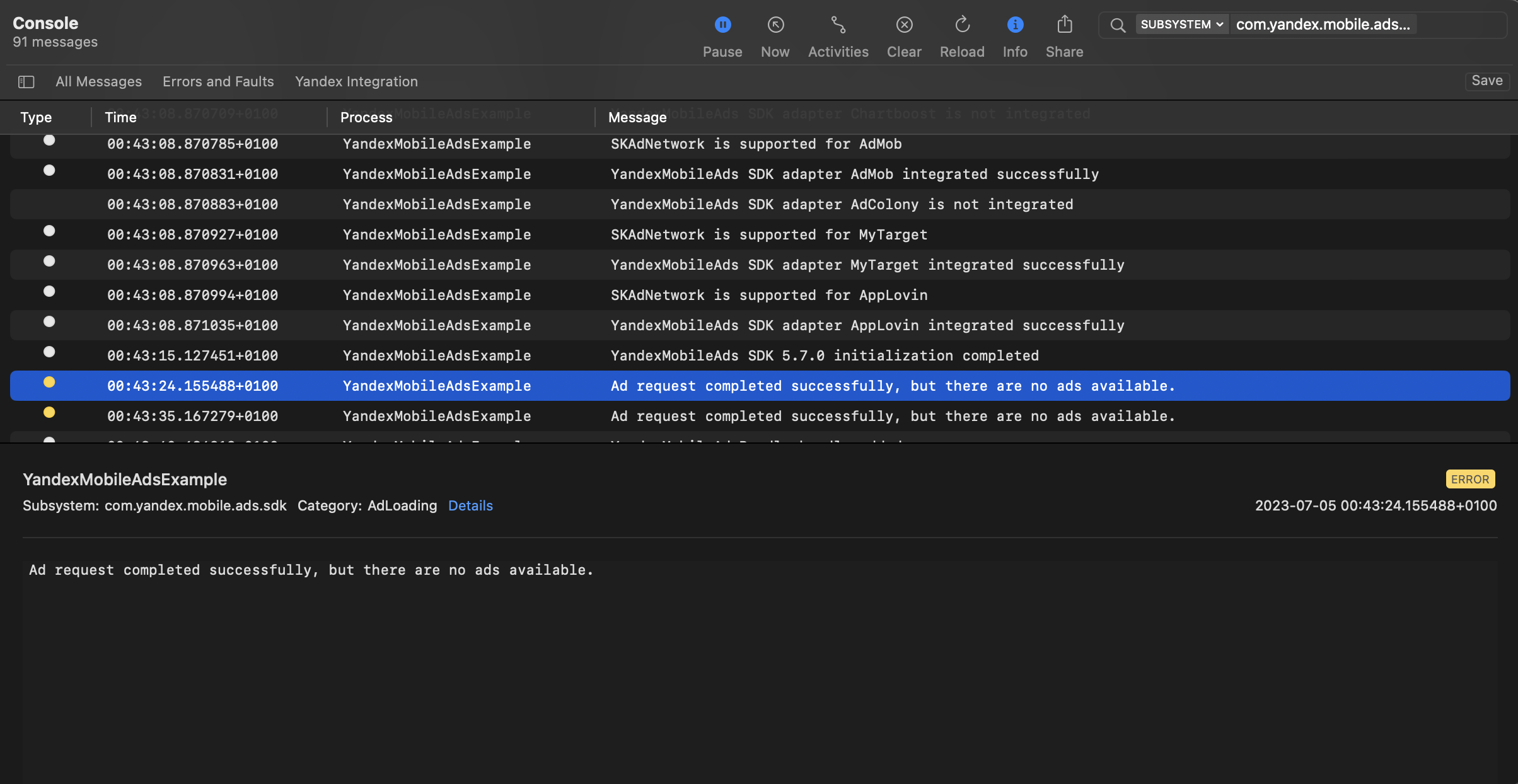
You can test your ad integration using the native Console tool.
To view detailed logs, call the YandexAds class's enableLogging method.
YandexAds.enableLogging()
To view SDK logs, go to the Console tool and set Subsystem = com.mobile.ads.ads.sdk. You can filter logs by category or error level.
If you're having problems integrating ads, you'll get a detailed report on the issues and recommendations for how to fix them.
Tips
Ad preloading
Loading an ad may take several seconds, depending on the number of ad networks connected in Mobile Mediation and the user's internet speed. We recommend preloading ads before displaying them.
Call the loadAd method in advance to instantly show the ad when it's needed.
If you want to start loading the next ad immediately after the current one is shown, link this process to the onAdDismissed event.
If you cache ads on too many screens that are unlikely to be shown, your ad effectiveness could drop. For example, if users complete 2-3 game levels per session, you shouldn't cache ads for 6-7 screens. Your ad viewability could decrease otherwise, and the advertising system might deprioritize your app.
To ensure caching benefits your app, monitor the “Show rate” or “View rate” metrics in the Yandex Advertising Network interface. If it's under 20%, you should probably revise your caching algorithm. The higher the percentage of impressions, the better.
Additional resources
- Link to GitHub.