Ad feed
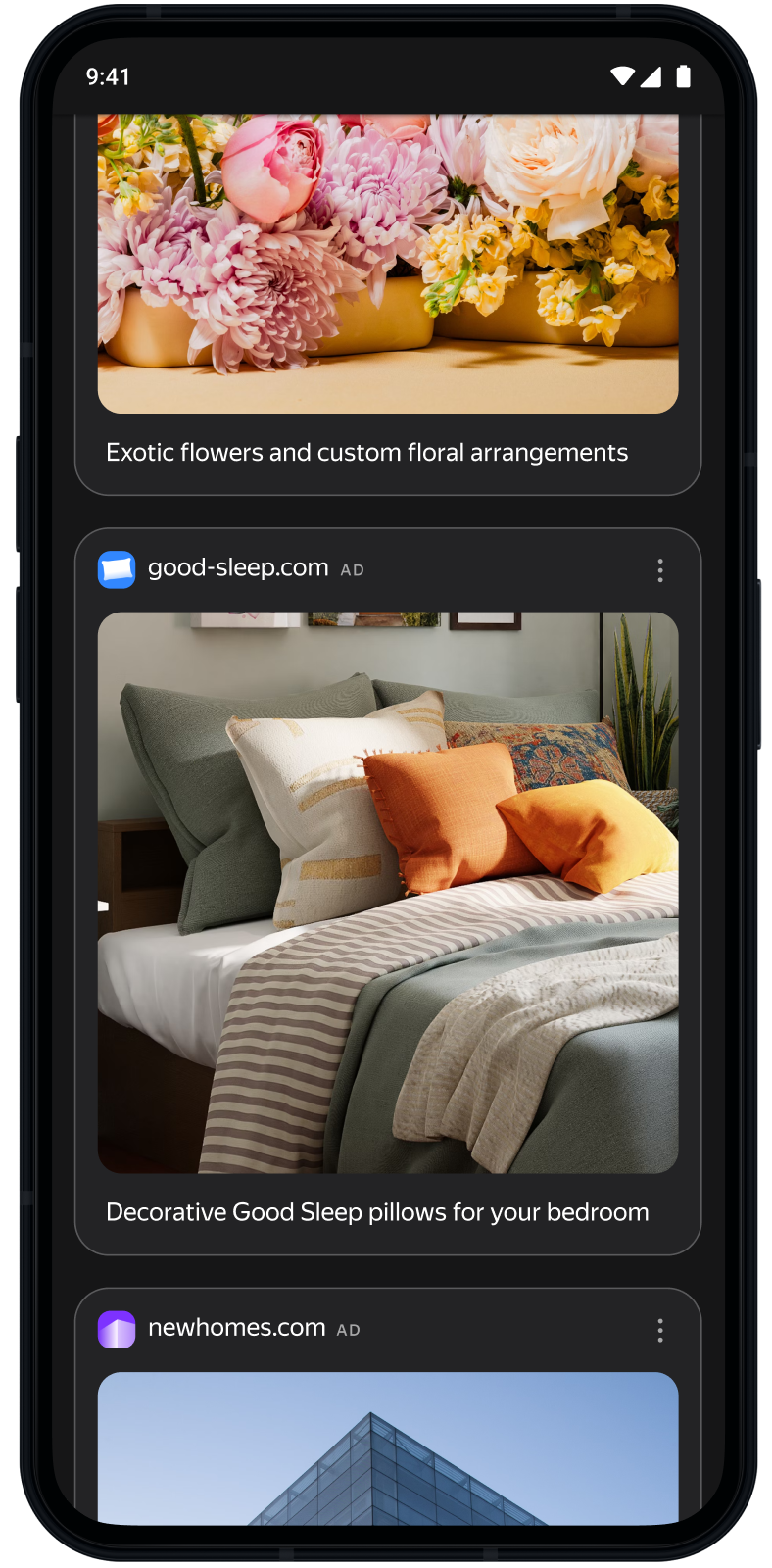
Ad feeds are units that consist of a sequence of ads. Feeds can be added to your app as its main content, or they may come after the existing content. Feeds may contain dozens of ads loaded in parts, multiple ads at a time.
This guide covers the process of integrating ad feeds into iOS apps. Besides code samples and instructions, it contains format-specific recommendations and links to additional resources.
Appearance
Prerequisite
- Follow the SDK integration steps described under Quick start.
- First, you need to initialize the advertising SDK.
- Make sure you're using the latest version of the Yandex Mobile Ads SDK, and if you're using mediation, the latest version of the unified build.
Implementation
Key steps for integrating ad feeds:
- Configure your ad feed's appearance using the
FeedAdAppearanceobject. - Create an ad feed object named
FeedAd, set up a delegate, and implement the requiredFeedAdDelegatemethods. - Load the ads.
- Create a
FeedAdCollectionViewAdapterand connect it toUICollectionView.
Specifics of ad feed integration
- All calls to Yandex Mobile Ads SDK methods must be made from the main thread.
- We recommend maintaining a strong reference to the
FeedAdandFeedAdCollectionViewAdapterobjects throughout the lifetime of the screen where the ad interaction is taking place.
Appearance customization
Create an ad feed's appearance configuration object named FeedAdAppearance.
The following parameters are available:
cardWidth(required): Sets the width of a served ad in points. Calculate the parameter value based on the screen width minus the required side padding.cardCornerRadius: Sets the radius of rounded corners for a served ad in points.
let feedMargin: CGFloat = 24
let cardWidth = view.bounds.width - 2 * feedMargin
let appearance = FeedAdAppearance(cardWidth: cardWidth, cardCornerRadius: 16)
Loading ads
Create an ad feed object named FeedAd. To do this, use an ad placement ID (adUnitId), obtained from the Yandex Advertising Network interface.
You can expand the ad request parameters using AdRequest. To do this, pass information about the user's interests, page context, location, and other additional data in the request. Adding extra context to ad requests can greatly improve ad relevance. To learn more, see Ad targeting.
Set up a delegate and implement the FeedAdDelegate methods for receiving notifications about ad loading results and ad events:
final class FeedAdViewController: UIViewController {
    private var feedAd: FeedAd?

    func loadAd() {
        let request = AdRequest(adUnitID: "R-M-XXXXXX-Y")
        let appearance = FeedAdAppearance(cardWidth: view.bounds.width)
        let feedAd = FeedAd(requestConfiguration: request, appearance: appearance)
        feedAd.delegate = self
        self.feedAd = feedAd
        feedAd.loadAd()
    }
}

extension FeedAdViewController: FeedAdDelegate {
    func feedAdDidLoad(_ feedAd: FeedAd) {
        // Called when an ad is successfully loaded
    }

    func feedAd(_ feedAd: FeedAd, didFailToLoadWithError error: Error) {
        // Called when ad loading fails
    }

    func feedAdDidClick(_ feedAd: FeedAd) {
        // Called when the user taps the ad
    }

    func feedAd(_ feedAd: FeedAd, didTrackImpression impressionData: ImpressionData?) {
        // Called when an impression is tracked
    }

    func feedAdDidUpdateDataSource(_ feedAd: FeedAd) {
        // Called when new ads are available — reload collection view
        collectionView.reloadData()
    }
}
Displaying ad feeds
To display an ad feed, use a FeedAdCollectionViewAdapter that provides a dataSource and a delegate for UICollectionView.
Before connecting the adapter, register the cell types by calling registerCells(in:). Make sure to call this method before you set the dataSource and the delegate.
As the main list
Link the adapter's dataSource and delegate directly to UICollectionView.
final class FeedAdViewController: UIViewController {
    private let collectionView = UICollectionView(
        frame: .zero,
        collectionViewLayout: UICollectionViewFlowLayout()
    )
    private var feedAdAdapter: FeedAdCollectionViewAdapter?

    func setupAdapter() {
        guard let feedAd else { return }
        let adapter = FeedAdCollectionViewAdapter(feedAd: feedAd)
        adapter.registerCells(in: collectionView)
        collectionView.dataSource = adapter.dataSource
        collectionView.delegate = adapter.delegate
        feedAdAdapter = adapter
    }
}
Alongside existing content
To display the ad feed together alongside existing content, implement the UICollectionViewDataSource manually. To do this, delegate the section of the ad feed to the adapter:
final class FeedAdViewController: UIViewController {
    private enum Section: Int {
        case content
        case feed
    }

    private var contentItems: [ContentItem] = []
    private var feedAdAdapter: FeedAdCollectionViewAdapter?

    func setupAdapter() {
        guard let feedAd else { return }
        let adapter = FeedAdCollectionViewAdapter(feedAd: feedAd)
        adapter.registerCells(in: collectionView)
        feedAdAdapter = adapter

        collectionView.dataSource = self
        collectionView.delegate = self
    }
}

extension FeedAdViewController: UICollectionViewDataSource {
    func numberOfSections(in collectionView: UICollectionView) -> Int {
        Section.allCases.count
    }

    func collectionView(_ collectionView: UICollectionView, numberOfItemsInSection section: Int) -> Int {
        switch Section(rawValue: section) {
        case .content:
            return contentItems.count
        case .feed:
            return feedAdAdapter?.dataSource.collectionView(collectionView, numberOfItemsInSection: section) ?? 0
        case .none:
            return 0
        }
    }

    func collectionView(_ collectionView: UICollectionView, cellForItemAt indexPath: IndexPath) -> UICollectionViewCell {
        switch Section(rawValue: indexPath.section) {
        case .content:
            // Return your content cell
            return dequeueContentCell(for: indexPath)
        case .feed:
            return feedAdAdapter?.dataSource.collectionView(collectionView, cellForItemAt: indexPath)
                ?? UICollectionViewCell()
        case .none:
            return UICollectionViewCell()
        }
    }
}

extension FeedAdViewController: UICollectionViewDelegateFlowLayout {
    func collectionView(
        _ collectionView: UICollectionView,
        layout collectionViewLayout: UICollectionViewLayout,
        sizeForItemAt indexPath: IndexPath
    ) -> CGSize {
        switch Section(rawValue: indexPath.section) {
        case .feed:
            return feedAdAdapter?.delegate.collectionView?(
                collectionView,
                layout: collectionViewLayout,
                sizeForItemAt: indexPath
            ) ?? .zero
        default:
            return CGSize(width: collectionView.bounds.width, height: 80)
        }
    }
}
Testing ad feed integration
Using demo ad units for ad testing
Use test ads to check your ad feed integration and the app itself.
To make sure that test ads are returned for each ad request, we created a special demo ad placement ID designed to help you test your ad integration.
Demo adUnitId: demo-feed-yandex.
Warning
Before publishing your app in the store, make sure to replace the demo placement ID with a real ID. You can obtain it in the Yandex Advertising Network interface.
For a full list of demo ad placement IDs, see Demo ad units for testing.
Testing ad integration
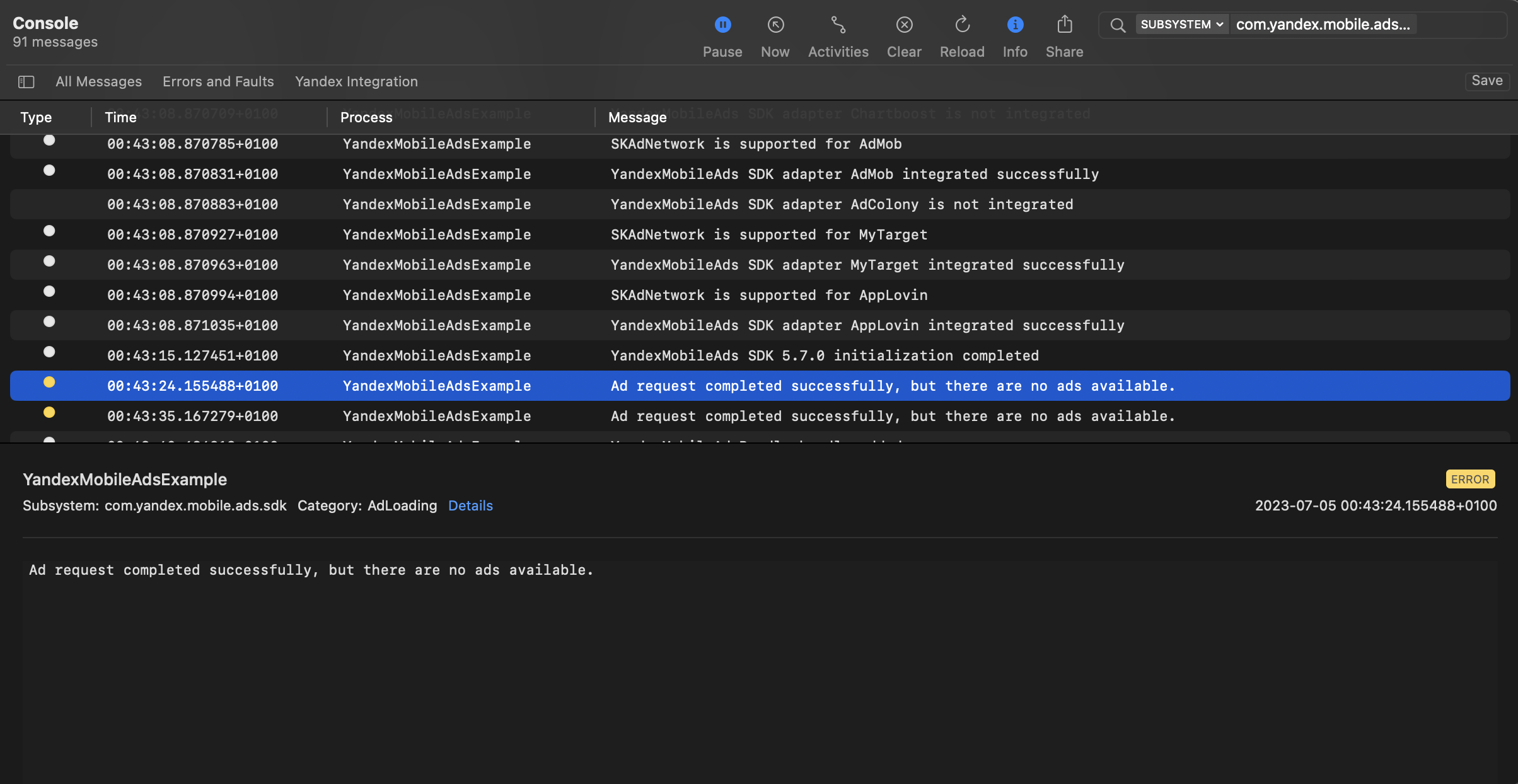
You can test your ad integration using the native Console tool.
To view detailed logs, call the YandexAds class's enableLogging method.
YandexAds.enableLogging()
To view SDK logs, go to the Console tool and set Subsystem = com.mobile.ads.ads.sdk. You can filter logs by category or error level.
If you're having problems integrating ads, you'll get a detailed report on the issues and recommendations for how to fix them.
Additional resources
- Link to GitHub.