---
metadata:
- name: generator
content: Diplodoc Platform v5.52.0
alternate:
- https://ads.yandex.com/helpcenter/en/dev/ios/feed-ad.md
- https://ads.yandex.com/helpcenter/ru/dev/ios/feed-ad.md
- https://ads.yandex.com/helpcenter/zh/dev/ios/feed-ad.md
- href: en/dev/ios/feed-ad.md
type: text/markdown
title: Markdown version
- href: llms.txt
type: text/markdown
title: llms.txt
---
> **Documentation Index:** Fetch the complete configuration index at https://ads.yandex.com/helpcenter/en/llms.txt
# Ad feed
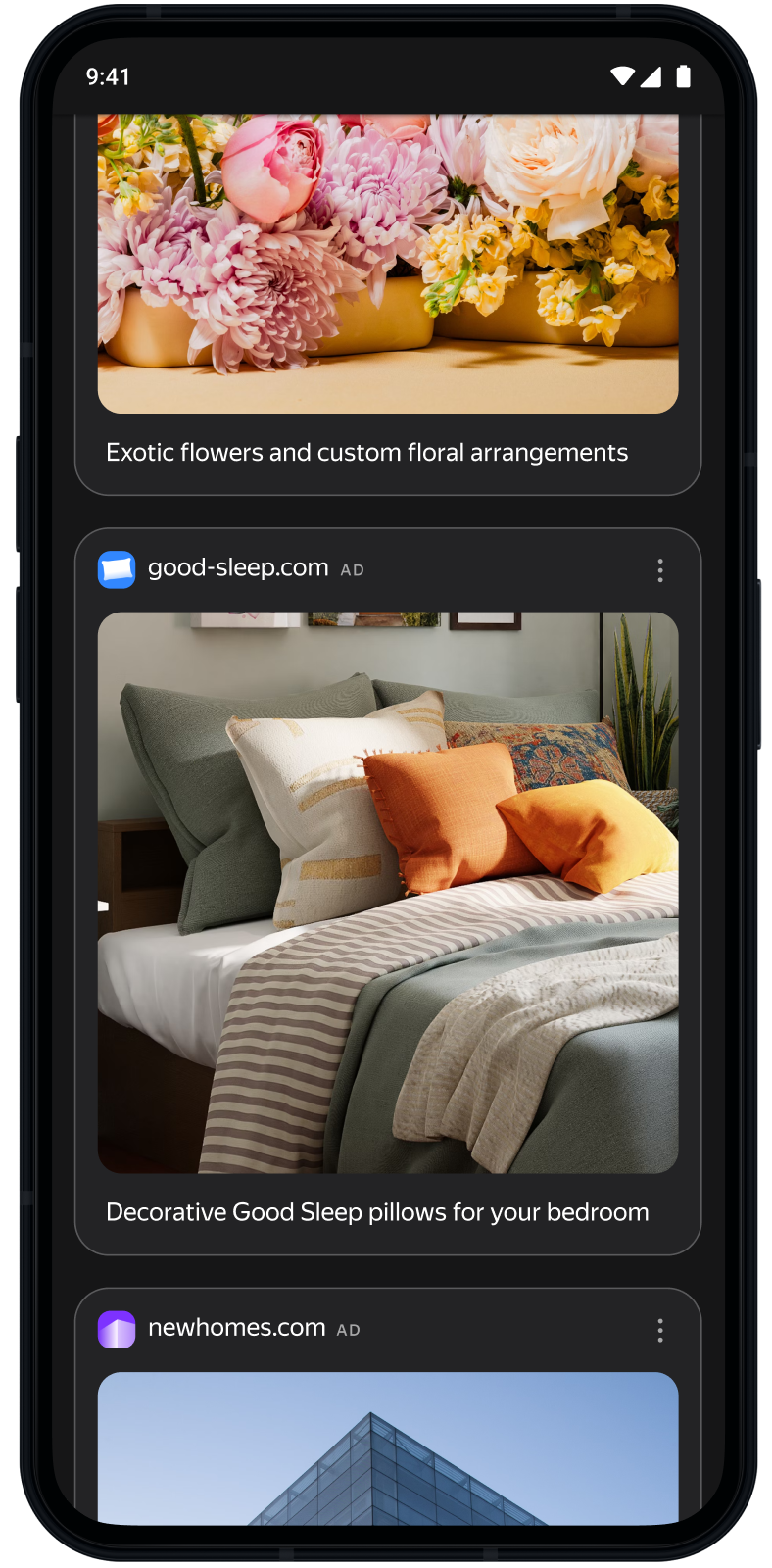
Ad feeds are units that consist of a sequence of ads. Feeds can be added to your app as its main content, or they may come after the existing content. Feeds may contain dozens of ads, which are loaded sequentially (several ads are loaded at once).
This guide explains how to integrate an ad feed into an iOS app. In addition to code samples and steps, it includes format recommendations and links to more resources.
{% cut "Appearance" %}
 {% endcut %}
## Prerequisite {#pre}
1. Follow the SDK integration steps described in [Quick start](https://ads.yandex.com/helpcenter/en/dev/ios/quick-start.md).
2. [Initialize](https://ads.yandex.com/helpcenter/en/dev/ios/quick-start.md#init) your ad SDK in advance.
3. Make sure you're running the latest [Yandex Mobile Ads SDK](https://ads.yandex.com/helpcenter/en/dev/platforms.md) version. If you're using mediation, make sure you're also running the latest version of the [unified build](https://ads.yandex.com/helpcenter/en/dev/platforms.md).
## Implementation {#implement}
Key steps for integrating an ad feed:
1. Configure the feed appearance with `FeedAdAppearance`.
2. Create a `FeedAd` object, set its delegate, and implement the required `FeedAdDelegate` methods.
3. Load ads.
4. Create a `FeedAdCollectionViewAdapter` and attach it to a `UICollectionView`.
## Ad feed integration notes {#features}
- Call all Yandex Mobile Ads SDK methods on the main thread.
- Keep strong references to `FeedAd` and `FeedAdCollectionViewAdapter` for as long as the screen that shows the feed is visible.
## Appearance
Create a `FeedAdAppearance` configuration object.
Available parameters:
- `cardWidth` (required): width of the served ad in points. Base this on the screen width minus side margins.
- `cardCornerRadius`: corner radius of the served ad in points.
```swift
let feedMargin: CGFloat = 24
let cardWidth = view.bounds.width - 2 * feedMargin
let appearance = FeedAdAppearance(cardWidth: cardWidth, cardCornerRadius: 16)
```
## Loading ads
Create a `FeedAd` with the ad unit ID (`adUnitId`) from the Yandex Advertising Network interface.
You can extend the request with `AdRequest` to pass user interests, page context, location, or other data. Extra context often improves ad quality. For details, see [Ad targeting](https://ads.yandex.com/helpcenter/en/dev/ios/target.md).
Set the delegate and implement `FeedAdDelegate` to handle load and ad events:
```swift
final class FeedAdViewController: UIViewController {
private var feedAd: FeedAd?
func loadAd() {
let request = AdRequest(adUnitID: "R-M-XXXXXX-Y")
let appearance = FeedAdAppearance(cardWidth: view.bounds.width)
let feedAd = FeedAd(requestConfiguration: request, appearance: appearance)
feedAd.delegate = self
self.feedAd = feedAd
feedAd.loadAd()
}
}
extension FeedAdViewController: FeedAdDelegate {
func feedAdDidLoad(_ feedAd: FeedAd) {
// Called when an ad is successfully loaded
}
func feedAd(_ feedAd: FeedAd, didFailToLoadWithError error: Error) {
// Called when ad loading fails
}
func feedAdDidClick(_ feedAd: FeedAd) {
// Called when the user taps the ad
}
func feedAd(_ feedAd: FeedAd, didTrackImpression impressionData: ImpressionData?) {
// Called when an impression is tracked
}
func feedAdDidUpdateDataSource(_ feedAd: FeedAd) {
// Called when new ads are available — reload collection view
collectionView.reloadData()
}
}
```
## Displaying the feed
Use `FeedAdCollectionViewAdapter` for `UICollectionView` `dataSource` and `delegate`.
Before attaching the adapter, call `registerCells(in:)` to register cell types. Do this before setting `dataSource` and `delegate`.
### As the main list
Set the adapter’s `dataSource` and `delegate` on the `UICollectionView`:
```swift
final class FeedAdViewController: UIViewController {
private let collectionView = UICollectionView(
frame: .zero,
collectionViewLayout: UICollectionViewFlowLayout()
)
private var feedAdAdapter: FeedAdCollectionViewAdapter?
func setupAdapter() {
guard let feedAd else { return }
let adapter = FeedAdCollectionViewAdapter(feedAd: feedAd)
adapter.registerCells(in: collectionView)
collectionView.dataSource = adapter.dataSource
collectionView.delegate = adapter.delegate
feedAdAdapter = adapter
}
}
```
### Alongside existing content
If you already implement `UICollectionViewDataSource`, delegate the feed section to the adapter:
```swift
final class FeedAdViewController: UIViewController {
private enum Section: Int, CaseIterable {
case content
case feed
}
private var contentItems: [ContentItem] = []
private var feedAdAdapter: FeedAdCollectionViewAdapter?
func setupAdapter() {
guard let feedAd else { return }
let adapter = FeedAdCollectionViewAdapter(feedAd: feedAd)
adapter.registerCells(in: collectionView)
feedAdAdapter = adapter
collectionView.dataSource = self
collectionView.delegate = self
}
}
extension FeedAdViewController: UICollectionViewDataSource {
func numberOfSections(in collectionView: UICollectionView) -> Int {
Section.allCases.count
}
func collectionView(_ collectionView: UICollectionView, numberOfItemsInSection section: Int) -> Int {
switch Section(rawValue: section) {
case .content:
return contentItems.count
case .feed:
return feedAdAdapter?.dataSource.collectionView(collectionView, numberOfItemsInSection: section) ?? 0
case .none:
return 0
}
}
func collectionView(_ collectionView: UICollectionView, cellForItemAt indexPath: IndexPath) -> UICollectionViewCell {
switch Section(rawValue: indexPath.section) {
case .content:
// Return your content cell
return dequeueContentCell(for: indexPath)
case .feed:
return feedAdAdapter?.dataSource.collectionView(collectionView, cellForItemAt: indexPath)
?? UICollectionViewCell()
case .none:
return UICollectionViewCell()
}
}
}
extension FeedAdViewController: UICollectionViewDelegateFlowLayout {
func collectionView(
_ collectionView: UICollectionView,
layout collectionViewLayout: UICollectionViewLayout,
sizeForItemAt indexPath: IndexPath
) -> CGSize {
switch Section(rawValue: indexPath.section) {
case .feed:
return feedAdAdapter?.delegate.collectionView?(
collectionView,
layout: collectionViewLayout,
sizeForItemAt: indexPath
) ?? .zero
default:
return CGSize(width: collectionView.bounds.width, height: 80)
}
}
}
```
## Testing the ad feed integration {#test}
### Using demo ad units
To verify your ad feed integration and test your app, use test ads.
To ensure test ads are returned on every request, use the special demo ad unit ID below.
Demo `adUnitId`: `demo-feed-yandex`.
{% note warning %}
Before you publish the app to the store, replace the demo ad unit ID with a real one from the Yandex Advertising Network interface.
{% endnote %}
The full list of demo ad unit IDs is in [Demo ad units for testing](https://ads.yandex.com/helpcenter/en/dev/ios/demo-blocks.md).
### Verifying the integration
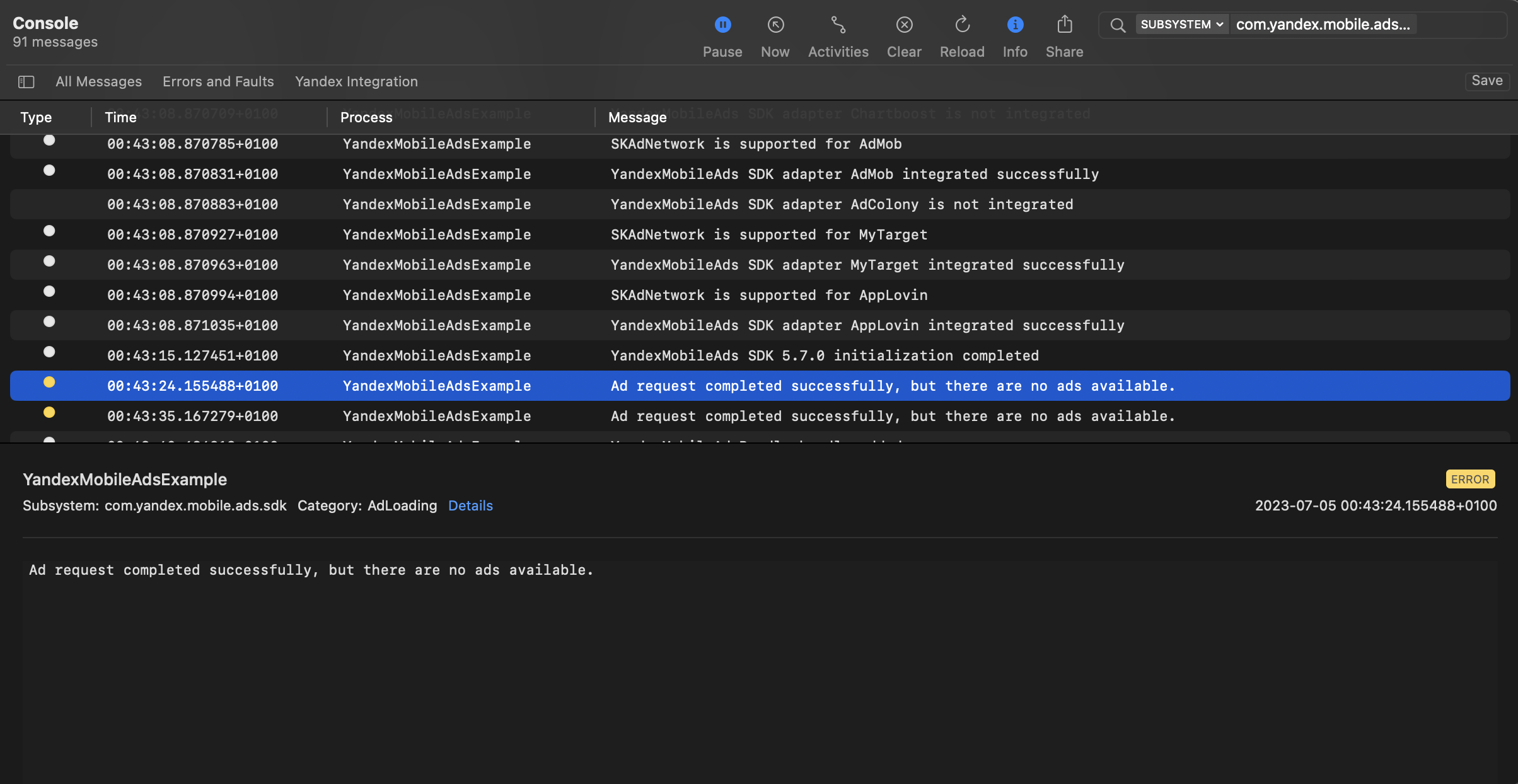
You can test your ad integration using the native Console tool.
To view detailed logs, call the `YandexAds` class's `enableLogging` method.
```swift
YandexAds.enableLogging()
```
To view SDK logs, go to the Console tool and set `Subsystem = com.mobile.ads.ads.sdk`. You can also filter logs by category and error level.
If you're having problems integrating ads, you'll get a detailed report on the issues and recommendations for how to fix them.
{% endcut %}
## Prerequisite {#pre}
1. Follow the SDK integration steps described in [Quick start](https://ads.yandex.com/helpcenter/en/dev/ios/quick-start.md).
2. [Initialize](https://ads.yandex.com/helpcenter/en/dev/ios/quick-start.md#init) your ad SDK in advance.
3. Make sure you're running the latest [Yandex Mobile Ads SDK](https://ads.yandex.com/helpcenter/en/dev/platforms.md) version. If you're using mediation, make sure you're also running the latest version of the [unified build](https://ads.yandex.com/helpcenter/en/dev/platforms.md).
## Implementation {#implement}
Key steps for integrating an ad feed:
1. Configure the feed appearance with `FeedAdAppearance`.
2. Create a `FeedAd` object, set its delegate, and implement the required `FeedAdDelegate` methods.
3. Load ads.
4. Create a `FeedAdCollectionViewAdapter` and attach it to a `UICollectionView`.
## Ad feed integration notes {#features}
- Call all Yandex Mobile Ads SDK methods on the main thread.
- Keep strong references to `FeedAd` and `FeedAdCollectionViewAdapter` for as long as the screen that shows the feed is visible.
## Appearance
Create a `FeedAdAppearance` configuration object.
Available parameters:
- `cardWidth` (required): width of the served ad in points. Base this on the screen width minus side margins.
- `cardCornerRadius`: corner radius of the served ad in points.
```swift
let feedMargin: CGFloat = 24
let cardWidth = view.bounds.width - 2 * feedMargin
let appearance = FeedAdAppearance(cardWidth: cardWidth, cardCornerRadius: 16)
```
## Loading ads
Create a `FeedAd` with the ad unit ID (`adUnitId`) from the Yandex Advertising Network interface.
You can extend the request with `AdRequest` to pass user interests, page context, location, or other data. Extra context often improves ad quality. For details, see [Ad targeting](https://ads.yandex.com/helpcenter/en/dev/ios/target.md).
Set the delegate and implement `FeedAdDelegate` to handle load and ad events:
```swift
final class FeedAdViewController: UIViewController {
private var feedAd: FeedAd?
func loadAd() {
let request = AdRequest(adUnitID: "R-M-XXXXXX-Y")
let appearance = FeedAdAppearance(cardWidth: view.bounds.width)
let feedAd = FeedAd(requestConfiguration: request, appearance: appearance)
feedAd.delegate = self
self.feedAd = feedAd
feedAd.loadAd()
}
}
extension FeedAdViewController: FeedAdDelegate {
func feedAdDidLoad(_ feedAd: FeedAd) {
// Called when an ad is successfully loaded
}
func feedAd(_ feedAd: FeedAd, didFailToLoadWithError error: Error) {
// Called when ad loading fails
}
func feedAdDidClick(_ feedAd: FeedAd) {
// Called when the user taps the ad
}
func feedAd(_ feedAd: FeedAd, didTrackImpression impressionData: ImpressionData?) {
// Called when an impression is tracked
}
func feedAdDidUpdateDataSource(_ feedAd: FeedAd) {
// Called when new ads are available — reload collection view
collectionView.reloadData()
}
}
```
## Displaying the feed
Use `FeedAdCollectionViewAdapter` for `UICollectionView` `dataSource` and `delegate`.
Before attaching the adapter, call `registerCells(in:)` to register cell types. Do this before setting `dataSource` and `delegate`.
### As the main list
Set the adapter’s `dataSource` and `delegate` on the `UICollectionView`:
```swift
final class FeedAdViewController: UIViewController {
private let collectionView = UICollectionView(
frame: .zero,
collectionViewLayout: UICollectionViewFlowLayout()
)
private var feedAdAdapter: FeedAdCollectionViewAdapter?
func setupAdapter() {
guard let feedAd else { return }
let adapter = FeedAdCollectionViewAdapter(feedAd: feedAd)
adapter.registerCells(in: collectionView)
collectionView.dataSource = adapter.dataSource
collectionView.delegate = adapter.delegate
feedAdAdapter = adapter
}
}
```
### Alongside existing content
If you already implement `UICollectionViewDataSource`, delegate the feed section to the adapter:
```swift
final class FeedAdViewController: UIViewController {
private enum Section: Int, CaseIterable {
case content
case feed
}
private var contentItems: [ContentItem] = []
private var feedAdAdapter: FeedAdCollectionViewAdapter?
func setupAdapter() {
guard let feedAd else { return }
let adapter = FeedAdCollectionViewAdapter(feedAd: feedAd)
adapter.registerCells(in: collectionView)
feedAdAdapter = adapter
collectionView.dataSource = self
collectionView.delegate = self
}
}
extension FeedAdViewController: UICollectionViewDataSource {
func numberOfSections(in collectionView: UICollectionView) -> Int {
Section.allCases.count
}
func collectionView(_ collectionView: UICollectionView, numberOfItemsInSection section: Int) -> Int {
switch Section(rawValue: section) {
case .content:
return contentItems.count
case .feed:
return feedAdAdapter?.dataSource.collectionView(collectionView, numberOfItemsInSection: section) ?? 0
case .none:
return 0
}
}
func collectionView(_ collectionView: UICollectionView, cellForItemAt indexPath: IndexPath) -> UICollectionViewCell {
switch Section(rawValue: indexPath.section) {
case .content:
// Return your content cell
return dequeueContentCell(for: indexPath)
case .feed:
return feedAdAdapter?.dataSource.collectionView(collectionView, cellForItemAt: indexPath)
?? UICollectionViewCell()
case .none:
return UICollectionViewCell()
}
}
}
extension FeedAdViewController: UICollectionViewDelegateFlowLayout {
func collectionView(
_ collectionView: UICollectionView,
layout collectionViewLayout: UICollectionViewLayout,
sizeForItemAt indexPath: IndexPath
) -> CGSize {
switch Section(rawValue: indexPath.section) {
case .feed:
return feedAdAdapter?.delegate.collectionView?(
collectionView,
layout: collectionViewLayout,
sizeForItemAt: indexPath
) ?? .zero
default:
return CGSize(width: collectionView.bounds.width, height: 80)
}
}
}
```
## Testing the ad feed integration {#test}
### Using demo ad units
To verify your ad feed integration and test your app, use test ads.
To ensure test ads are returned on every request, use the special demo ad unit ID below.
Demo `adUnitId`: `demo-feed-yandex`.
{% note warning %}
Before you publish the app to the store, replace the demo ad unit ID with a real one from the Yandex Advertising Network interface.
{% endnote %}
The full list of demo ad unit IDs is in [Demo ad units for testing](https://ads.yandex.com/helpcenter/en/dev/ios/demo-blocks.md).
### Verifying the integration
You can test your ad integration using the native Console tool.
To view detailed logs, call the `YandexAds` class's `enableLogging` method.
```swift
YandexAds.enableLogging()
```
To view SDK logs, go to the Console tool and set `Subsystem = com.mobile.ads.ads.sdk`. You can also filter logs by category and error level.
If you're having problems integrating ads, you'll get a detailed report on the issues and recommendations for how to fix them.
 ## Additional resources {#resources}
*
Link to [GitHub](https://github.com/yandexmobile/yandex-ads-sdk-ios/blob/master/Examples/YandexMobileAdsExample/YandexMobileAdsExample/Adapters/Yandex/FeedAd/YandexFeedAdAdapter.swift).
## Additional resources {#resources}
*
Link to [GitHub](https://github.com/yandexmobile/yandex-ads-sdk-ios/blob/master/Examples/YandexMobileAdsExample/YandexMobileAdsExample/Adapters/Yandex/FeedAd/YandexFeedAdAdapter.swift).