---
metadata:
- name: generator
content: Diplodoc Platform v5.50.6
alternate:
- https://ads.yandex.com/helpcenter/en/dev/ios/support-ios14.md
- https://ads.yandex.com/helpcenter/ru/dev/ios/support-ios14.md
- https://ads.yandex.com/helpcenter/zh/dev/ios/support-ios14.md
---
> **Documentation Index:** Fetch the complete configuration index at https://ads.yandex.com/helpcenter/en/llms.txt
# Support for iOS 14
Starting January 2021, Apple [restricts access to IDFA on iOS 14](https://developer.apple.com/news/?id=hx9s63c5). This means that Apple will no longer provide IDFA by default. IDFA (Identifier for Advertisers) is a unique device ID that is used for ad attribution and retargeting.
The Yandex Mobile Ads SDK uses IDFA to maximize publisher revenue by displaying more relevant ads.
To receive the IDFA, the app developer must now explicitly ask for the user's permission. You can do this using the [AppTrackingTransparency framework](#tech).
It works similar to requests for sending push notifications.
## Requesting permission to access IDFA {#request-idfa}
When starting the app, check the permission status using the [trackingAuthorizationStatus](https://developer.apple.com/documentation/apptrackingtransparency/attrackingmanager/3547038-trackingauthorizationstatus) property. Further recommendations depend on whether the user disabled access to the IDFA.
### The user didn't disable access to the IDFA {#no-access-ban}
The app can show the user an IDFA access permission request only once, so it's important to convince the user to grant the permission.
Strategy for working with users:
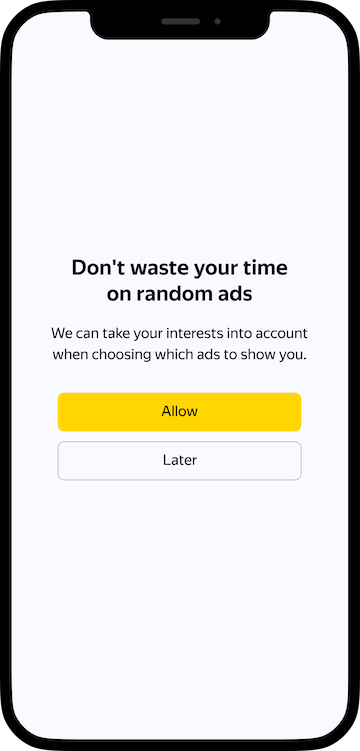
1. Before showing a system dialog, display a dialog box explaining:
- What exactly is requested.
- How it will be used.
- Why the user should allow access.
You can add on-screen buttons like **Allow** and **Not Now**.
{% note info %}
If the user agrees to grant permission in the app's dialog box with the explanation, it's highly likely that they will give consent in the system dialog. If the user refuses to grant permission in the dialog box with explanations, you'll be able to display this dialog box again.
{% endnote %}
{% cut "Sample dialog box with explanations" %}
 {% endcut %}
2. Request access to the IDFA via [App Tracking Transparency](#tech).
### The user disabled access to the IDFA {#access-ban-exists}
The user may have refused to grant permission to the IDFA in the system dialog.
Strategy for working with users:
1. In the app, display a dialog box explaining:
- What exactly is requested.
- How it will be used.
- Why the user should allow access.
You can add on-screen buttons like **Allow** and **Not Now**.
{% cut "Sample dialog box with explanations" %}
{% endcut %}
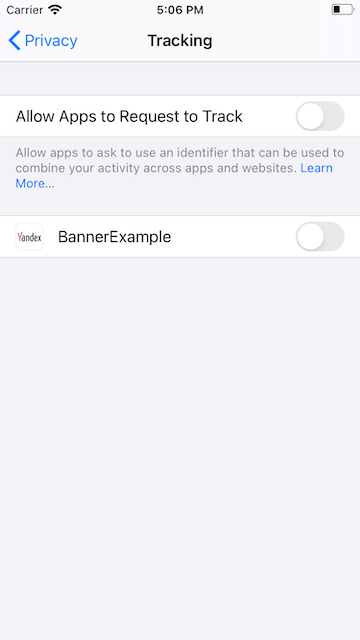
2. Redirect the user to the settings via [UIApplication.openSettingsUrlString](https://developer.apple.com/documentation/uikit/uiapplication/1623042-opensettingsurlstring).
{% cut "Sample user settings with access disabled" %}
{% endcut %}
2. Request access to the IDFA via [App Tracking Transparency](#tech).
### The user disabled access to the IDFA {#access-ban-exists}
The user may have refused to grant permission to the IDFA in the system dialog.
Strategy for working with users:
1. In the app, display a dialog box explaining:
- What exactly is requested.
- How it will be used.
- Why the user should allow access.
You can add on-screen buttons like **Allow** and **Not Now**.
{% cut "Sample dialog box with explanations" %}
{% endcut %}
2. Redirect the user to the settings via [UIApplication.openSettingsUrlString](https://developer.apple.com/documentation/uikit/uiapplication/1623042-opensettingsurlstring).
{% cut "Sample user settings with access disabled" %}
 {% endcut %}
## Requesting permission to access the IDFA via App Tracking Transparency {#tech}
In iOS 14, use a new framework named [App Tracking Transparency](https://developer.apple.com/documentation/apptrackingtransparency) to show the system dialog in your app. The user will choose to allow or deny access to IDFA in it.
{% note info %}
This system dialog can only be displayed once each time the app is installed. If the user selects **Ask App Not to Track**, you won't be able to show the dialog for this app again.
{% endnote %}
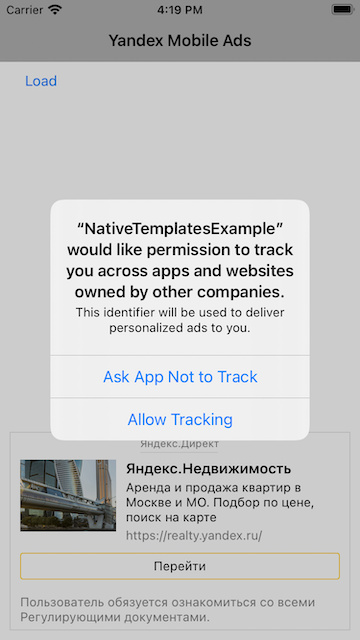
1. You can't change the system dialog, but you can add text with explanations to it. To do this, add the `NSUserTrackingUsageDescription` key to Info.plist. For example:
```xml
NSUserTrackingUsageDescription
This identifier will be used to deliver personalized ads to you.
```
Text from Info.plist will be shown to the user in the system dialog. In the text, explain to the user why the app requests permission to use the IDFA.
2. To display a dialog box requesting permission to access the IDFA, call the [requestTrackingAuthorization(completionHandler:)](https://developer.apple.com/documentation/apptrackingtransparency/attrackingmanager/3547037-requesttrackingauthorization) method.
{% cut "Sample system dialog box" %}
{% endcut %}
## Requesting permission to access the IDFA via App Tracking Transparency {#tech}
In iOS 14, use a new framework named [App Tracking Transparency](https://developer.apple.com/documentation/apptrackingtransparency) to show the system dialog in your app. The user will choose to allow or deny access to IDFA in it.
{% note info %}
This system dialog can only be displayed once each time the app is installed. If the user selects **Ask App Not to Track**, you won't be able to show the dialog for this app again.
{% endnote %}
1. You can't change the system dialog, but you can add text with explanations to it. To do this, add the `NSUserTrackingUsageDescription` key to Info.plist. For example:
```xml
NSUserTrackingUsageDescription
This identifier will be used to deliver personalized ads to you.
```
Text from Info.plist will be shown to the user in the system dialog. In the text, explain to the user why the app requests permission to use the IDFA.
2. To display a dialog box requesting permission to access the IDFA, call the [requestTrackingAuthorization(completionHandler:)](https://developer.apple.com/documentation/apptrackingtransparency/attrackingmanager/3547037-requesttrackingauthorization) method.
{% cut "Sample system dialog box" %}
 {% endcut %}
3. Before loading ads, wait until a callback is received. The Yandex Mobile Ads SDK will then be able to use the IDFA in requests for ads.
```swift
import AppTrackingTransparency
// ...
func requestTrackingAuthorization() {
ATTrackingManager.requestTrackingAuthorization { status in
// Start ad loading
}
}
```
4. To check the App Tracking Transparency authorization status, use the [trackingAuthorizationStatus](https://developer.apple.com/documentation/apptrackingtransparency/attrackingmanager/3547038-trackingauthorizationstatus) property.
Read more about App Tracking Transparency in the [Apple](https://developer.apple.com/documentation/apptrackingtransparency) documentation.
{% endcut %}
3. Before loading ads, wait until a callback is received. The Yandex Mobile Ads SDK will then be able to use the IDFA in requests for ads.
```swift
import AppTrackingTransparency
// ...
func requestTrackingAuthorization() {
ATTrackingManager.requestTrackingAuthorization { status in
// Start ad loading
}
}
```
4. To check the App Tracking Transparency authorization status, use the [trackingAuthorizationStatus](https://developer.apple.com/documentation/apptrackingtransparency/attrackingmanager/3547038-trackingauthorizationstatus) property.
Read more about App Tracking Transparency in the [Apple](https://developer.apple.com/documentation/apptrackingtransparency) documentation.