Adaptive inline banner (SwiftUI)
An adaptive inline banner is a flexible banner ad format that ensures maximum efficiency by optimizing ad size for each device.
With this ad type, developers can set the maximum allowable ad width and height, and the system determines the optimal ad size automatically. To choose the best ad size, adaptive inline banners use a maximum height instead of a fixed one. This helps improve performance.
This format is ideal for feed-style apps or layouts where ads can be the main focus.
Appearance
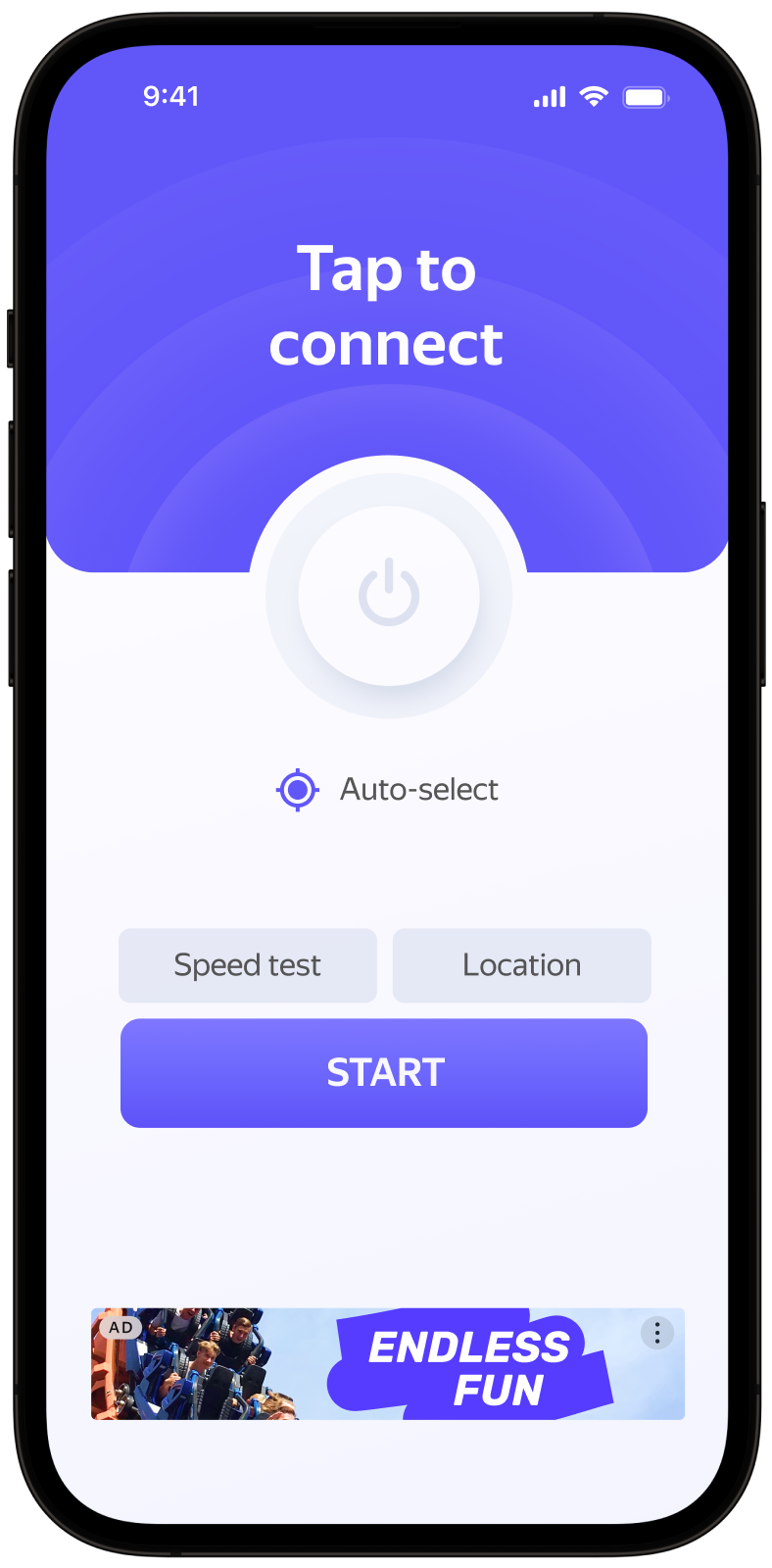
This guide shows you how to integrate an adaptive inline banner into an iOS app using SwiftUI. Besides code samples and instructions, it contains recommendations and links to additional resources.
Prerequisite
- Follow the SDK integration steps described under Quick start.
- First, you need to initialize the advertising SDK.
- Make sure you're using the latest version of the Yandex Mobile Ads SDK, and if you're using mediation, the latest version of the unified build.
Implementation
Key steps to integrate an adaptive inline banner in SwiftUI:
- Create a
BannerStateusingBannerSize.inline(width:maxHeight:)and anAdRequestwith your ad unit ID. - Add
Banner(state:)to yourViewhierarchy, passing thisBannerState. - Subscribe to events using the
.onAdLoadand.onAdFailuremodifiers, and optionally.onAdClickand.onAdImpressionif needed. - Pass additional settings via the
AdRequestparameters insideBannerStateif you're working with Adfox. - Display the ad. Loading starts when the
Bannerappears on the screen with the specifiedBannerState. Once successfully loaded, the ad height updates automatically.
Specifics of adaptive inline banner integration
-
If the
.onAdFailurecallback returns an error, don't try to load a new ad again. If you have to, limit the number of ad loading retries to avoid unsuccessful requests and connection issues. -
To ensure adaptive inline banners work correctly, define their size using SwiftUI. Use
BannerSize.inline(width:maxHeight:)and the parent container's constraints (such as width and padding). Locking only the externalframewithout supporting adaptive height can cause the ad to render incorrectly. -
Adaptive inline banners work best when utilizing the full available width. In most cases, this will be the full width of the device screen. Consider the padding parameters set in your app and the display's safe area.
-
Adaptive inline banners are designed to be placed in scrollable content. Their height can be the same as the device screen or limited by the maximum height, depending on the API.
-
For inline banners in SwiftUI, use
Banner(state:)withBannerState(size: .inline(width:maxHeight:), request:). Thewidthparameter specifies the available width of the container, whilemaxHeightdefines the maximum allowed height for the ad (equivalent to usingBannerAdSize.inline(withWidth:maxHeight:)in UIKit). -
The final ad area remains consistent for the same device and size parameters. Once loaded, the height updates automatically within the internal layout of the
Banner.
Creating and displaying a banner
To display a banner ad, add Banner(state:) to your SwiftUI hierarchy and pass a BannerState configured with a .inline(width:maxHeight:) size and an AdRequest containing your ad unit ID.
Set width based on the width of the screen or parent container, making sure to account for padding and safe areas.
You'll also need an ad unit ID (adUnitId) obtained from the Yandex Advertising Network interface.
SwiftUI screen example:
import SwiftUI
import YandexMobileAds

struct InlineBannerView: View {
    @State private var bannerState: BannerState?

    var body: some View {
        VStack {
            if let bannerState {
                Banner(state: bannerState)
                    .onAdLoad { _ in
                        // Ad loaded successfully
                    }
                    .onAdFailure { error in
                        // Load error
                    }
            }

            Button("Load banner") {
                bannerState = BannerState(
                    size: .inline(width: 320, maxHeight: 320),
                    request: AdRequest(adUnitID: "R-M-XXXXX-YY")
                )
            }
        }
    }
}
Loading ads
Loading begins when a Banner with a specified BannerState appears in the hierarchy or a new BannerState instance is supplied. Each call to the BannerState(size:request:) initializer creates a new state and triggers ad loading.
To receive notifications about successful or failed ad loads, as well as to track clicks and impressions, use the following modifiers:
onAdLoadonAdFailureonAdClickonAdImpression
You can expand the ad request parameters using AdRequest. To do this, pass information about the user's interests, page context, location, and other additional data in the request. Context can greatly improve ad relevance. To learn more, see Ad targeting.
For example
Set a new BannerState to trigger a load (.onAdLoad is called after a successful load):
struct InlineBannerView: View {
    @State private var bannerState: BannerState?

    func loadAd() {
        bannerState = BannerState(
            size: .inline(width: 320, maxHeight: 320),
            request: AdRequest(adUnitID: "R-M-XXXXX-YY")
        )
    }

    var body: some View {
        VStack {
            if let bannerState {
                Banner(state: bannerState)
                    .onAdLoad { _ in }
                    .onAdFailure { _ in }
            }
            Button("Load", action: loadAd)
        }
    }
}
Ad display
After a successful load, the ad appears inside the Banner. The banner size updates automatically after the creative is received. Position the Banner where you want it in your feed or stack, such as inside a ScrollView and VStack with the necessary padding.
struct InlineBannerView: View {
    @State private var bannerState: BannerState?

    var body: some View {
        ScrollView {
            VStack {
                // Feed content
                Text("Content")

                if let bannerState {
                    Banner(state: bannerState)
                        .onAdLoad { _ in }
                        .onAdFailure { _ in }
                }
            }
            .padding()
        }
    }
}
Testing adaptive inline banner integration
Using demo ad units for ad testing
Use test ads to check your ad integration and the app itself. To make sure that test ads are returned for each ad request, you can use a special demo ad placement ID.
Demo adUnitId: demo-banner-yandex.
Warning
Before publishing your app in the store, make sure to replace the demo placement ID with the real ID you obtained in the Yandex Advertising Network interface.
For the list of all available demo ad placement IDs, see Demo ad units for testing.
Testing ad integration
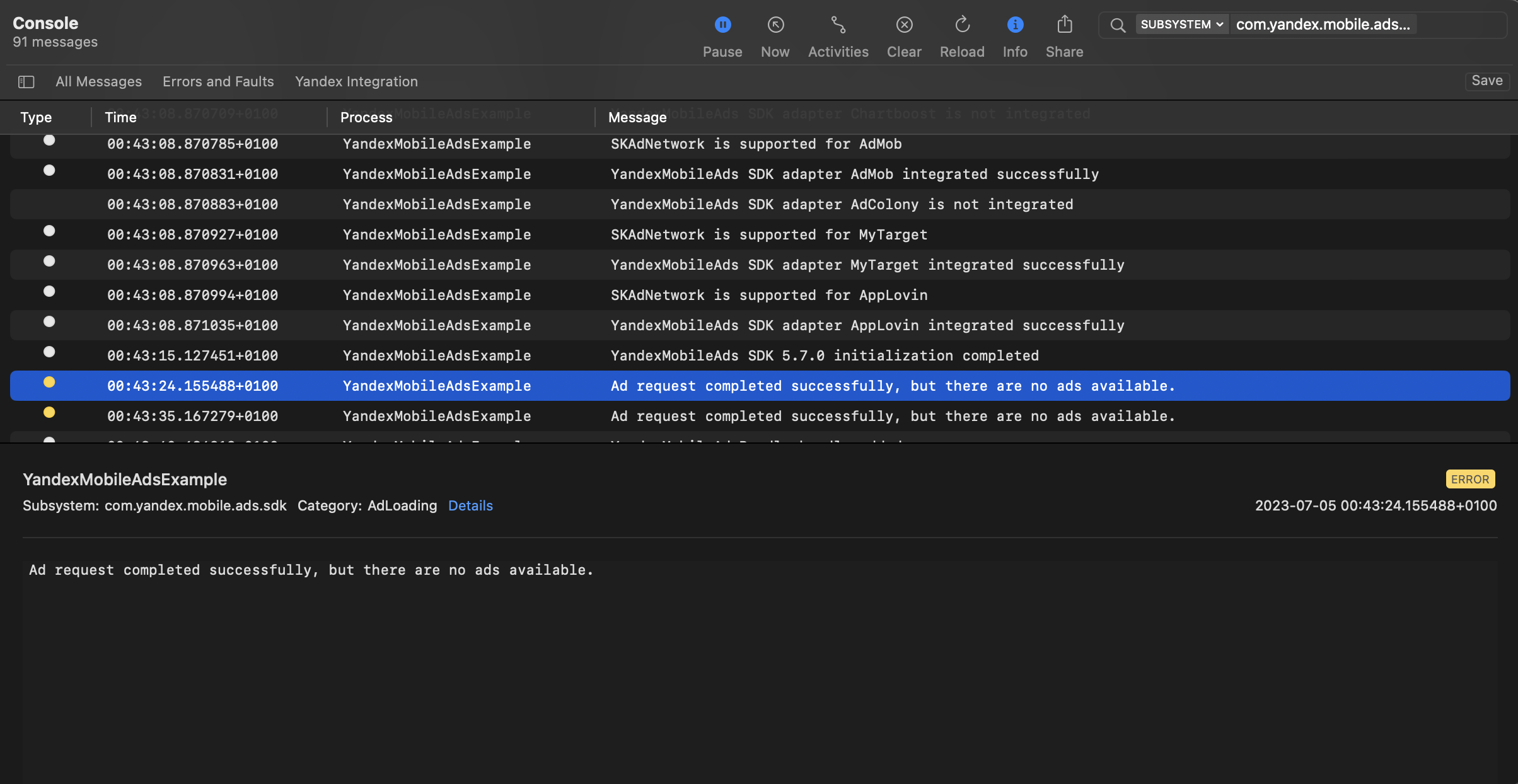
You can test your ad integration using the native Console tool.
To view detailed logs, call the YandexAds class's enableLogging method.
YandexAds.enableLogging()
To view SDK logs, go to the Console tool and set Subsystem = com.mobile.ads.ads.sdk. You can filter logs by category or error level.
If you're having problems integrating ads, you'll get a detailed report on the issues and recommendations for how to fix them.
Additional resources
- Link to GitHub.