App open ads (SwiftUI)
App open ads are a special ad format for monetizing app load screens. These ads can be closed at any time and are designed to be served:
- When the app is launched.
- When the app is brought to the foreground.
- When returning to the app from the background.
This guide shows you how to integrate app open ads into an iOS app using SwiftUI. Besides code samples and instructions, it contains recommendations and links to additional resources.
Appearance
The ad contains a Go to the app button, which appears at the top. It indicates to users that they're currently in your app and lets them close the ad. Here's an example of an ad layout:
Prerequisite
- Follow the SDK integration steps described under Quick start.
- First, you need to initialize the advertising SDK.
- Make sure you're using the latest version of the Yandex Mobile Ads SDK, and if you're using mediation, the latest version of the unified build.
Terms
- Cold start: Launching the app when it isn't present in RAM. This creates a new app session.
- Hot start: Bringing the app from the background to the foreground. This occurs when the app is paused in RAM and resumes its active state.
Implementation
- Initialize the SDK on app startup.
- Add the
.appOpenAd(request:onEvent:)modifier to your rootview(for example, insideWindowGroup). - Manage loading via
Binding<AdRequest?>. A non-nil value triggers an ad load. - Once loaded, the ad will automatically display when the app enters the foreground, as long as the
requestisn't reset. - Use
onEvent(AppOpenAdEvent) to monitor lifecycle events. - The
requestautomatically resets tonilwhen the ad is closed, fails to load, or fails to display. Create a newAdRequestwhen it's time to load the next ad, such as in your scene phase change handler.
Key steps
-
Initialize the SDK on app startup.
// Wait for the SDK to initialize before loading any ads YandexAds.initializeSDK(completionHandler: completionHandler) -
Add the modifier to the root view and store the request state.
You'll need the ad placement ID obtained in the Yandex Advertising Network interface (
AD_UNIT_ID).You can expand the ad request parameters using
AdRequest. To do this, pass information about the user's interests, page context, location, and other additional data in the request. Context can greatly improve ad relevance. To learn more, see Ad targeting.Example for iOS 14+ with
ScenePhase(reloading after resetting therequesttonil):import SwiftUI import YandexMobileAds @main struct MyApp: App { @State private var adRequest: AdRequest? @Environment(\.scenePhase) private var scenePhase var body: some Scene { WindowGroup { ContentView() .appOpenAd(request: $adRequest) { event in if case .didFailToLoad = event { // Use a delayed retry if needed. See the recommendations below for details. } } } .onChange(of: scenePhase) { if scenePhase == .active, adRequest == nil { adRequest = AdRequest(adUnitID: "demo-appopenad-yandex") } } } }For iOS 13, use
UIApplication.didBecomeActiveNotificationor equivalent lifecycle logic instead ofscenePhaseto create a newAdRequestafter setting it tonil. -
Load and display events are handled via
onEvent:.appOpenAd(request: $adRequest) { event in switch event { case .didLoad: // The ad is ready and will display the next time the app enters the foreground break case .didShow: break case .didDismiss: // The modifier has already reset the request break case .didFailToShow: break case .didFailToLoad: // The request has been reset. Immediate cyclic reloading is not recommended. break case .didClick: break case .didTrackImpression(_): break } }Note
If the ad has already been served, calling the
show(from:)method will return a display error inAppOpenAdDelegate.appOpenAd(_:didFailToShowError:).
Features of app open ad integration
- Ads may take a long time to load, so avoid increasing the cold start time if the ad hasn't loaded.
- Preload ads for subsequent hot start impressions in advance. Loading won't occur as long as
nilis passed in theBinding. Set anAdRequestonly when you need to prepare an ad for display in the background. - We don't recommend loading app open ads alongside other ad formats at app launch, as your app may already be busy loading its own essential data. Concurrent requests can overload the device and increase ad load times.
- If an error occurs in the
.didFailToLoadevent, avoid triggering another ad load right away. If you have to, limit the number of ad loading retries to avoid unsuccessful requests and connection issues.
Testing App Open Ad integration
Using demo ad units for ad testing
Use test ads to check your ad integration at app launch and during your testing process. To make sure that test ads are returned for each ad request, you can use a special demo ad placement ID.
Demo adUnitId: demo-appopenad-yandex.
Warning
Before publishing your app in the store, make sure to replace the demo placement ID with the real ID you obtained in the Yandex Advertising Network interface.
For the list of all available demo ad placement IDs, see Demo ad units for testing.
Testing ad integration
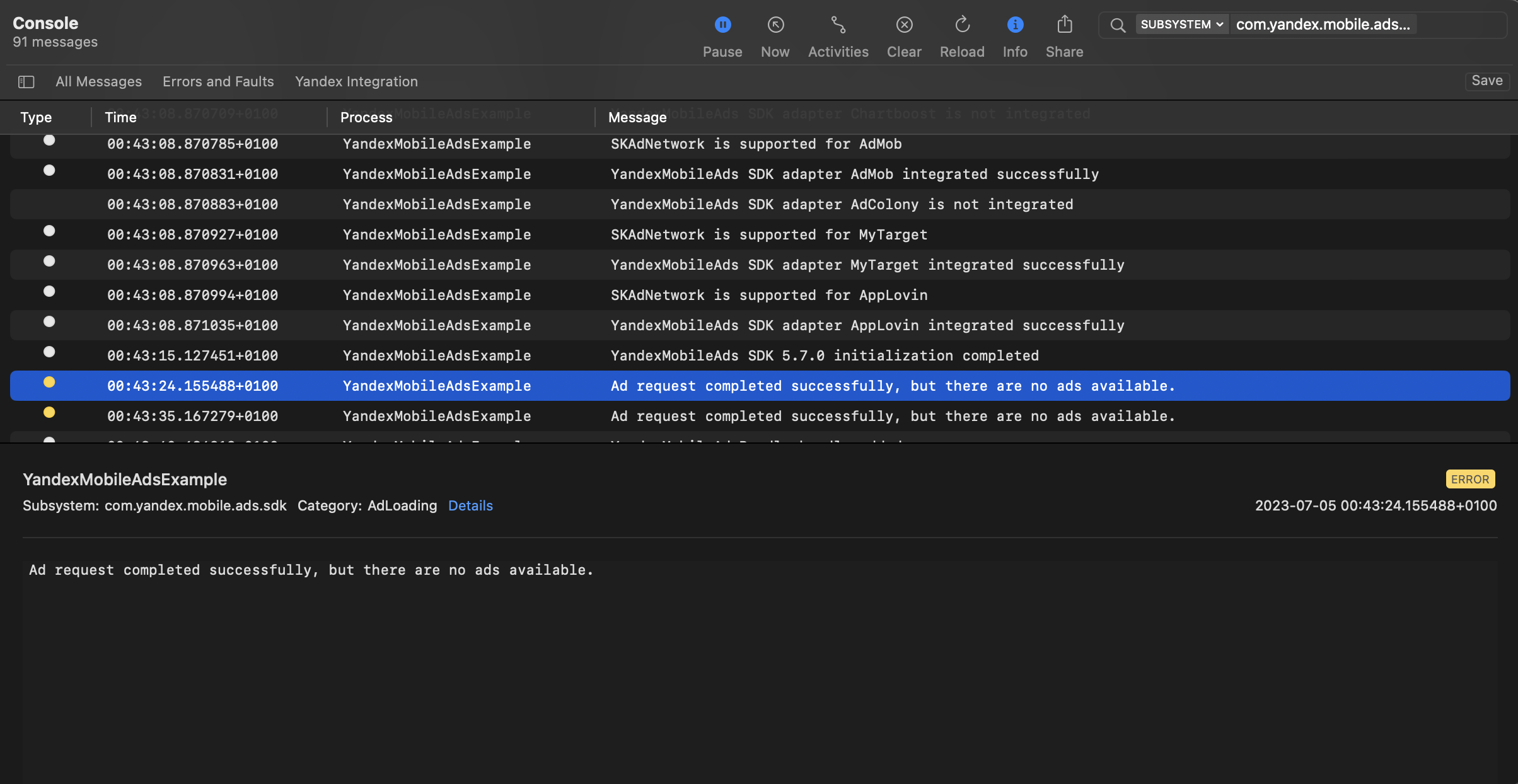
You can test your ad integration using the native Console tool.
To view detailed logs, call the YandexAds class's enableLogging method.
YandexAds.enableLogging()
To view SDK logs, go to the Console tool and set Subsystem = com.mobile.ads.ads.sdk. You can filter logs by category or error level.
If you're having problems integrating ads, you'll get a detailed report on the issues and recommendations for how to fix them.
Recommendations
- We don't recommend showing App Open Ads before the app reaches the splash screen. Splash screens improve the user experience. This way, the user can be sure they opened the right app.
On this screen, you can also warn users about the upcoming ad. Use a loading indicator or a text message informing the user that they can continue viewing the app content after the ad.
- Make sure to account for the delay between the ad request and the impression.
If there's a delay between the ad request and the impression, the user may see an ad that is unrelated to the app content. One solution is to show the splash screen before displaying the main app content and to begin ad impressions from that screen. We don't recommend displaying an ad if the app has already opened content after the splash screen.
- Avoid displaying ads immediately after the app is installed. Wait until the new user opens the app and uses it a few times.
Show the ad only to users who meet specific in-app criteria. For example, if they completed a specific level, opened the app a certain number of times, or don't participate in reward offers.
-
Avoid serving an ad at every cold or hot app start. Adjust the frequency of impressions based on user behavior.
-
Display ads only if the app has been running in the background for a certain time (for example, 30 seconds, 2 minutes, or 15 minutes).
-
Run a test. Each app requires an individual approach to maximize revenue. To account for changes in user behavior and engagement, we recommend periodically testing different display strategies for in-app ads.
Additional resources
- Link to GitHub.