---
metadata:
- name: generator
content: Diplodoc Platform v5.55.0
alternate:
- https://ads.yandex.com/helpcenter/en/dev/ios/swiftui/app-open-ad.md
- https://ads.yandex.com/helpcenter/ru/dev/ios/swiftui/app-open-ad.md
- https://ads.yandex.com/helpcenter/zh/dev/ios/swiftui/app-open-ad.md
- href: en/dev/ios/swiftui/app-open-ad.md
type: text/markdown
title: Markdown version
- href: ../llms.txt
type: text/markdown
title: llms.txt
---
> **Documentation Index:** Fetch the complete configuration index at https://ads.yandex.com/helpcenter/en/llms.txt
[//]: # (This page is also translated into Brazilian Portuguese — pt-BR)
# App open ad (SwiftUI)
App open ads are a special ad format for monetizing app load screens. These ads can be closed at any time and are designed to be served:
* When the app is launched.
* When the app is brought to the foreground.
* When returning to the app from the background.
This guide shows how to integrate an app open ad into an iOS app using **SwiftUI**. In addition to code examples and instructions, it provides recommendations on using this ad format and links to additional resources.
## Appearance
App open ads display a **Go to the app** button so users know they are in your app and can close the ad. Here is an example of how the ad looks:
## Prerequisite {#pre}
1. Follow the SDK integration steps described in [Quick start](https://ads.yandex.com/helpcenter/en/dev/ios/quick-start.md).
2. [Initialize](https://ads.yandex.com/helpcenter/en/dev/ios/quick-start.md#init) your ad SDK in advance.
3. Make sure you're running the latest [Yandex Mobile Ads SDK](https://ads.yandex.com/helpcenter/en/dev/platforms.md) version. If you're using mediation, make sure you're also running the latest version of the [unified build](https://ads.yandex.com/helpcenter/en/dev/platforms.md).
### Terms
* **Cold start** — launching the app when it is not in memory, creating a new app session.
* **Warm start** — bringing the app from background (when the app is suspended in memory) to foreground.
## Implementation {#implement}
1. Initialize the SDK when the app starts.
2. Add the `.appOpenAd(request:onEvent:)` modifier to the root `View` (for example, inside `WindowGroup`).
3. Control loading via `Binding`: a non-nil value starts loading.
4. After a successful load, the ad is shown **automatically** when the app enters the active state (foreground), while `request` has not been reset.
5. Handle lifecycle events in `onEvent` (`AppOpenAdEvent`).
6. After the ad is dismissed, a show error occurs, or a load error occurs, `request` is reset to `nil` — set a new `AdRequest` when the next load is needed (often in the scene phase change handler).
### Key steps
1. Initialize the SDK when the app starts.
```swift
// wait for SDK initialization before loading ads
YandexAds.initializeSDK(completionHandler: completionHandler)
```
2. Attach the modifier to the root view and store the request state.
You will need the ad unit ID obtained from the Yandex Advertising Network interface (`AD_UNIT_ID`).
You can extend the ad request parameters via `AdRequest` by passing user interest data, page context data, location, or other additional data. Additional contextual data in the request can significantly improve ad quality. For more information, see [Ad targeting](https://ads.yandex.com/helpcenter/en/dev/ios/target.md).
Example for **iOS 14+** with `ScenePhase` (reload after `request` is reset to `nil`):
```swift
import SwiftUI
import YandexMobileAds
@main
struct MyApp: App {
@State private var adRequest: AdRequest?
@Environment(\.scenePhase) private var scenePhase
var body: some Scene {
WindowGroup {
ContentView()
.appOpenAd(request: $adRequest) { event in
if case .didFailToLoad = event {
// if necessary — delayed retry, see recommendations below
}
}
}
.onChange(of: scenePhase) {
if scenePhase == .active, adRequest == nil {
adRequest = AdRequest(adUnitID: "demo-appopenad-yandex")
}
}
}
}
```
On **iOS 13**, instead of `scenePhase`, use the `UIApplication.didBecomeActiveNotification` notification or equivalent lifecycle logic to set a new `AdRequest` after `nil`.
3. Load and show events arrive in `onEvent`:
```swift
.appOpenAd(request: $adRequest) { event in
switch event {
case .didLoad:
// Ad is ready; display will occur on next foreground
break
case .didShow:
break
case .didDismiss:
// request has already been reset by the modifier
break
case .didFailToShow:
break
case .didFailToLoad:
// request has been reset; immediate retry in a loop is not recommended
break
case .didClick:
break
case .didTrackImpression(_):
break
}
}
```
{% note info %}
If the ad has already been served, calling the `show(from:)` method will return a display error in `AppOpenAdDelegate.appOpenAd(_:didFailToShowError:)`.
{% endnote %}
## App open ad integration notes {#features}
1. Loading may take considerable time, so do not delay the cold start if the ad has not loaded.
2. Pre-load the ad in advance for subsequent display on warm start. While `nil` is passed in the binding, loading is not performed — set `AdRequest` when background preparation of the ad for display is needed.
3. It is not recommended to load App Open Ad and other ad formats simultaneously at app startup, as the app may be downloading required data at that moment. This can overload the device and internet connection, making ad loading slower.
4. If you receive an error in the `.didFailToLoad` event, do not attempt to immediately load a new ad in a loop. If you must retry, limit the number of reload attempts to avoid continuous failed requests and connection issues under restricted conditions.
## Testing app open ad integration {#test}
### Using demo ad units for ad testing {#demo-blocks}
We recommend using test ads to test your integration for app open ads and your app itself.
To guarantee that test ads are returned for every ad request, we created a special demo ad placement ID. Use it to check your ad integration.
Demo adUnitId: `demo-appopenad-yandex`.
{% note warning %}
Before publishing your app in the store, make sure to replace the demo ad placement ID with a real one obtained from the Yandex Advertising Network interface.
{% endnote %}
You can find the list of available demo ad placement IDs in the [Demo ad units for testing](https://ads.yandex.com/helpcenter/en/dev/ios/demo-blocks.md) section.
### Verifying correct ad integration
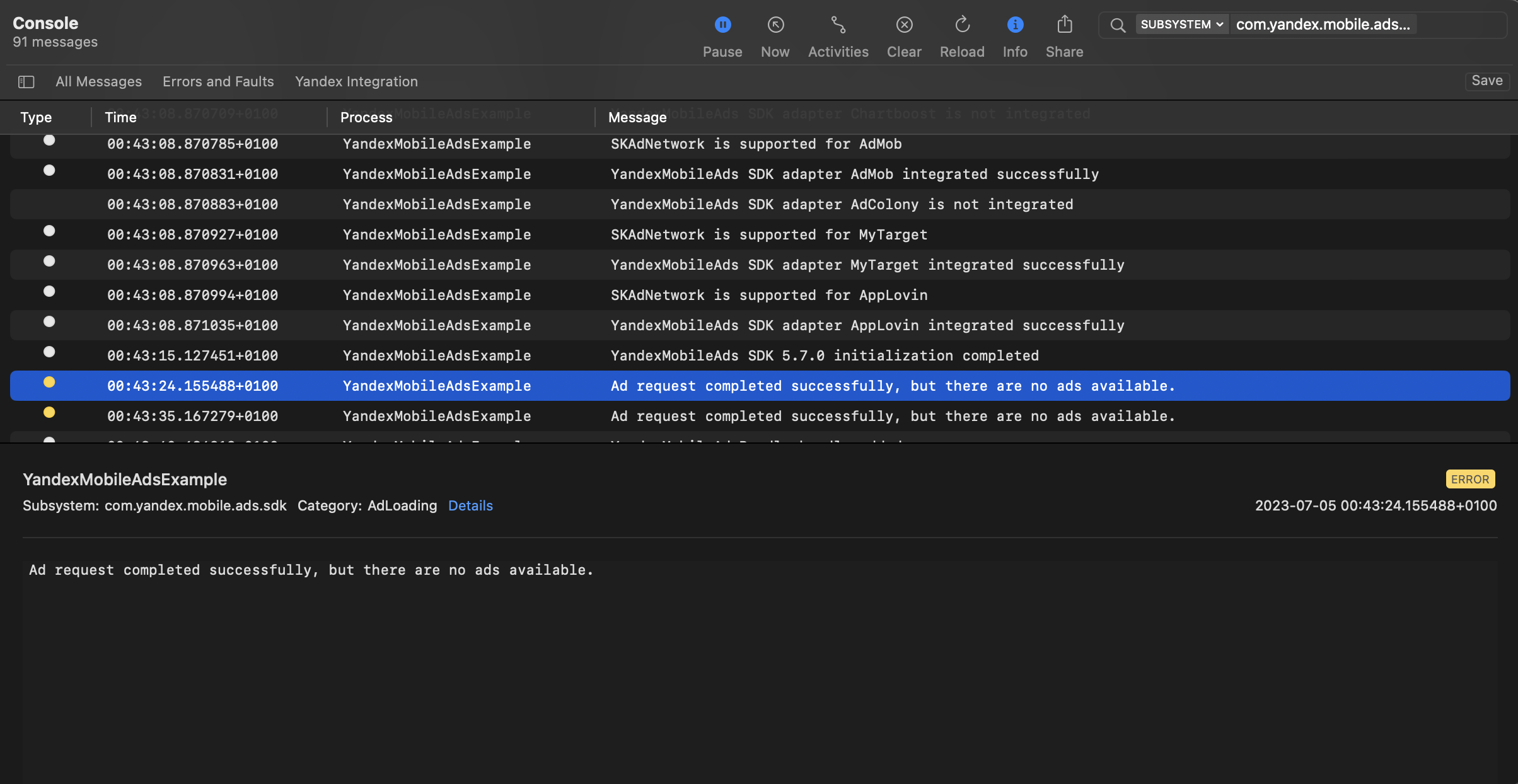
You can test your ad integration using the native Console tool.
To view detailed logs, call the `YandexAds` class's `enableLogging` method.
```swift
YandexAds.enableLogging()
```
To view SDK logs, go to the Console tool and set `Subsystem = com.mobile.ads.ads.sdk`. You can also filter logs by category and error level.
If you're having problems integrating ads, you'll get a detailed report on the issues and recommendations for how to fix them.
 ## Recommendations
1. Do not show an app open ad before the loading screen (Splash screen).
Showing a loading screen makes the app experience more pleasant and straightforward for the user. This prevents the user from being surprised or confused, as they will know exactly which app they opened. On this screen, you can also warn users about upcoming ads using a loading indicator or a text message telling the user that app content will resume after the ad.
2. If there is a delay between the ad request and its display, the user may briefly open your app and then unexpectedly see an ad unrelated to the content. This can negatively affect the user experience, so it is worth avoiding such situations. One option is to use a loading screen before displaying the main app content and to start showing the ad from that screen. If the app opens some content after the loading screen, it is better not to show the ad at that point.
3. Wait for new users to open the app and use it several times before showing an app open ad. Show the ad only to users who have met certain criteria in the app (for example, completed a certain level, opened the app a certain number of times, are not participating in reward offers, etc.). Do not show the ad immediately after app installation.
4. Regulate display frequency based on user behavior in the app. Do not show an ad on every cold/warm start.
5. Show the ad only if the app has been in the background for a certain period of time (for example, 30 seconds, 2 minutes, 15 minutes).
6. It is important that you conduct testing, as each app is unique and requires its own approach to maximize revenue without reducing retention or time spent in the app. User behavior and engagement can change over time, so it is recommended to periodically test app open ad display strategies in your app.
## Additional resources {#resources}
*
Link to [GitHub](https://github.com/yandexmobile/yandex-ads-sdk-ios/blob/master/Examples/YandexMobileAdsExample/YandexMobileAdsExample/Yandex/AppOpenAd/AppOpenAdViewController.swift).
## Recommendations
1. Do not show an app open ad before the loading screen (Splash screen).
Showing a loading screen makes the app experience more pleasant and straightforward for the user. This prevents the user from being surprised or confused, as they will know exactly which app they opened. On this screen, you can also warn users about upcoming ads using a loading indicator or a text message telling the user that app content will resume after the ad.
2. If there is a delay between the ad request and its display, the user may briefly open your app and then unexpectedly see an ad unrelated to the content. This can negatively affect the user experience, so it is worth avoiding such situations. One option is to use a loading screen before displaying the main app content and to start showing the ad from that screen. If the app opens some content after the loading screen, it is better not to show the ad at that point.
3. Wait for new users to open the app and use it several times before showing an app open ad. Show the ad only to users who have met certain criteria in the app (for example, completed a certain level, opened the app a certain number of times, are not participating in reward offers, etc.). Do not show the ad immediately after app installation.
4. Regulate display frequency based on user behavior in the app. Do not show an ad on every cold/warm start.
5. Show the ad only if the app has been in the background for a certain period of time (for example, 30 seconds, 2 minutes, 15 minutes).
6. It is important that you conduct testing, as each app is unique and requires its own approach to maximize revenue without reducing retention or time spent in the app. User behavior and engagement can change over time, so it is recommended to periodically test app open ad display strategies in your app.
## Additional resources {#resources}
*
Link to [GitHub](https://github.com/yandexmobile/yandex-ads-sdk-ios/blob/master/Examples/YandexMobileAdsExample/YandexMobileAdsExample/Yandex/AppOpenAd/AppOpenAdViewController.swift).