Interstitial ads (SwiftUI)
Interstitial advertising is a full-screen ad format embedded within the app content during natural pauses, such as transitioning between game levels or completing a target action.
When an app displays an interstitial ad, the user can either click through to the advertiser's site or close the ad and return to the app.
During interstitial ad impressions, the user's attention is fully focused on the ad, which results in a higher cost for such impressions.
Appearance
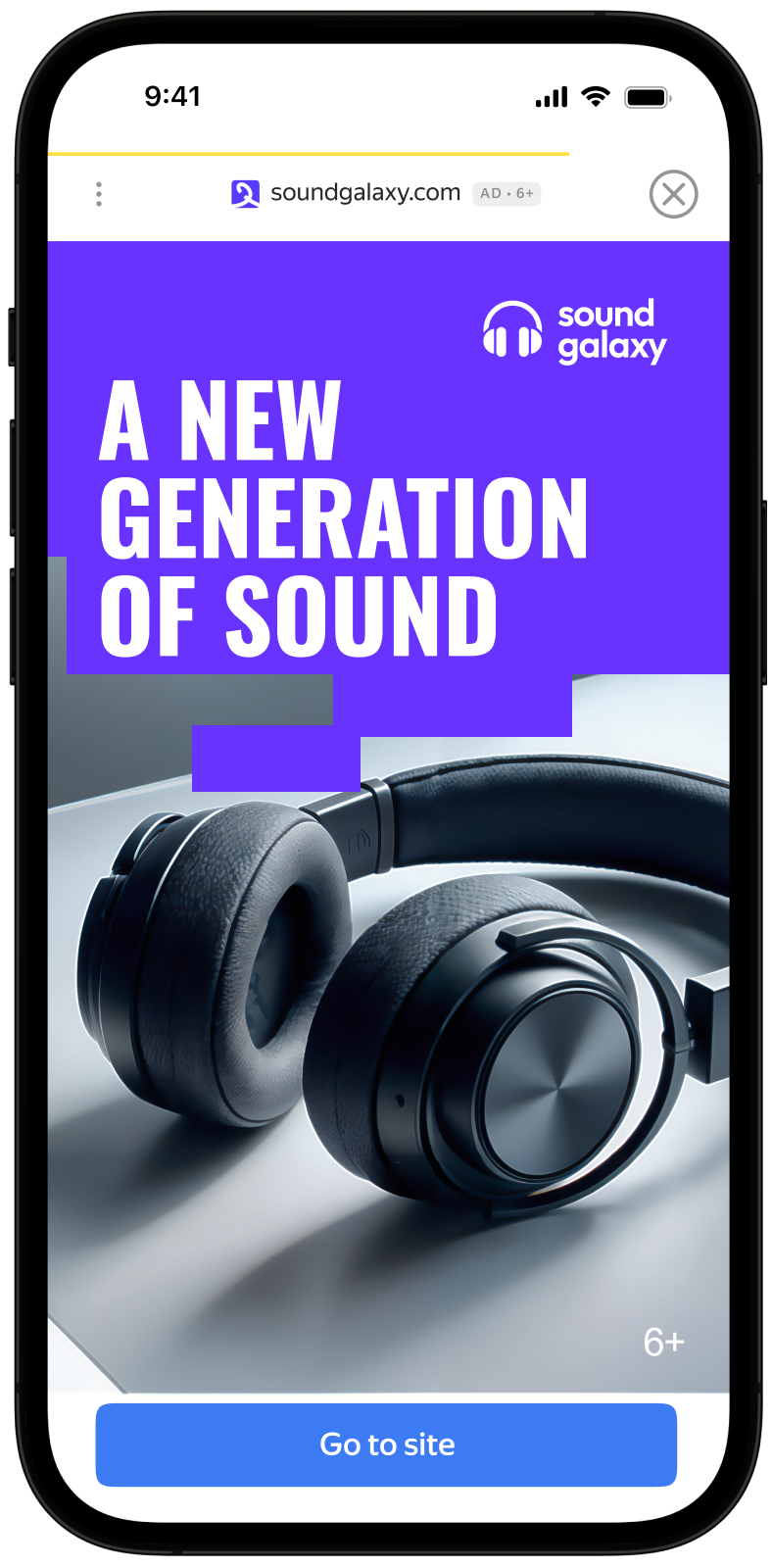
This guide shows you how to integrate interstitial ads into an iOS app using SwiftUI. Besides code samples and instructions, it contains recommendations and links to additional resources.
AI-assisted integration
Install the Yandex Mobile Ads SDK skills and ask your assistant:
Show a Yandex interstitial after a level is completed
Prerequisite
- Follow the SDK integration steps described under Quick start.
- First, you need to initialize the advertising SDK.
- Make sure you're using the latest version of the Yandex Mobile Ads SDK, and if you're using mediation, the latest version of the unified build.
Implementation
Key steps to integrate interstitial ads using SwiftUI:
- Add the
.interstitialAd(isPresented:request:onEvent:)modifier to your root or targetview. - Manage ad loading using a
Binding<AdRequest?>. A non-nil value triggers an ad load. - Manage the ad display using a
Binding<Bool>. When set totrue, the ad will serve immediately if loaded, or wait until it's ready. - Pass additional settings via the
AdRequestparameters if you're using Adfox. - Handle the ad lifecycle within the
onEvent(InterstitialAdEvent) closure.
Features of interstitial ad integration
-
If the
.didFailToLoadevent returns an error, don't try to load a new ad again. If you need to retry loading from an error handler, limit the number of attempts. This helps prevent endless failed ad requests during network issues. -
To prevent losing the loading state, ensure the modifier remains attached to a
viewthat persists across the entire display flow, such as your main screen or navigation root.
Loading and displaying an ad
For interstitial ads in SwiftUI, use an AdRequest with your ad unit ID and two states:
- Optional request
- Display flag
Use the onEvent closure with the InterstitialAdEvent enum to get notified about successful loads, impressions, closing, and errors.
import SwiftUI
import YandexMobileAds

struct InterstitialView: View {
    @State private var adRequest: AdRequest?
    @State private var isPresented = false

    var body: some View {
        VStack {
            Button("Load and show") {
                adRequest = AdRequest(adUnitID: "R-M-XXXXX-YY")
            }
        }
        .interstitialAd(isPresented: $isPresented, request: $adRequest) { event in
            switch event {
            case .didLoad:
                isPresented = true
            case .didDismiss, .didFailToShow, .didFailToLoad:
                adRequest = nil
            default:
                break
            }
        }
    }
}
You can obtain your ad unit ID (adUnitId) in the Yandex Advertising Network interface.
You can expand the ad request parameters using AdRequest. To do this, pass the user's interests, page context, location, or other additional data to the initializer. Context can greatly improve ad relevance. To learn more, see Ad targeting.
For example
Manually initiate loading and show the ad once it's ready:
struct InterstitialView: View {
    @State private var adRequest: AdRequest?
    @State private var isPresented = false

    func loadAd() {
        adRequest = AdRequest(adUnitID: "R-M-XXXXX-YY")
    }

    func showAd() {
        isPresented = true
    }

    var body: some View {
        VStack {
            Button("Load", action: loadAd)
            Button("Show", action: showAd)
        }
        .interstitialAd(isPresented: $isPresented, request: $adRequest) { event in
            if case .didLoad = event {
                // You can call showAd() or set isPresented = true
            }
        }
    }
}
If you set isPresented = true before the ad is ready, the ad will serve automatically after it's loaded.
Displaying ads
Serve interstitial ads during natural pauses in the app's flow — for example, between levels in a game or following a key action. For example, after downloading a file.
Once the ad loads successfully, you'll receive a .didLoad event. Set isPresented = true to display the ad, or set this flag in advance.
The isPresented flag automatically resets to false after the ad is dismissed, fails to show, or fails to load.
Testing interstitial ad integration
Using demo ad units for ad testing
Use test ads to check your ad integration and the app itself. To make sure that test ads are returned for each ad request, you can use a special demo ad placement ID.
Demo adUnitId: demo-interstitial-yandex.
Warning
Before publishing your app in the store, make sure to replace the demo placement ID with the real ID you obtained in the Yandex Advertising Network interface.
For the list of all available demo ad placement IDs, see Demo ad units for testing.
Testing ad integration
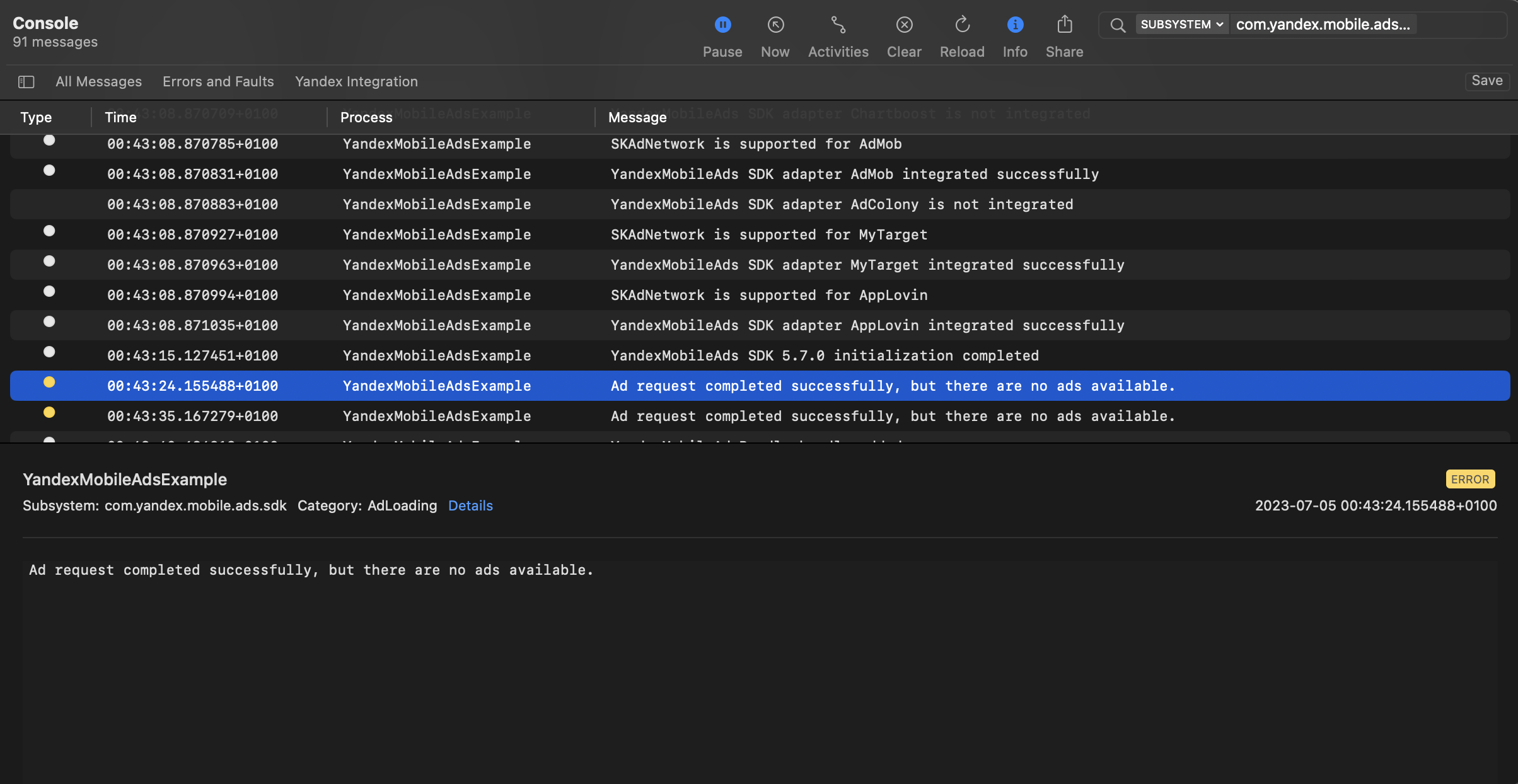
You can test your ad integration using the native Console tool.
To view detailed logs, call the YandexAds class's enableLogging method.
YandexAds.enableLogging()
To view SDK logs, go to the Console tool and set Subsystem = com.mobile.ads.ads.sdk. You can filter logs by category or error level.
If you're having problems integrating ads, you'll get a detailed report on the issues and recommendations for how to fix them.
Additional resources
- Link to GitHub.