---
metadata:
- name: generator
content: Diplodoc Platform v5.55.0
alternate:
- https://ads.yandex.com/helpcenter/en/dev/ios/swiftui/interstitial.md
- https://ads.yandex.com/helpcenter/ru/dev/ios/swiftui/interstitial.md
- https://ads.yandex.com/helpcenter/zh/dev/ios/swiftui/interstitial.md
- href: en/dev/ios/swiftui/interstitial.md
type: text/markdown
title: Markdown version
- href: ../llms.txt
type: text/markdown
title: llms.txt
---
> **Documentation Index:** Fetch the complete configuration index at https://ads.yandex.com/helpcenter/en/llms.txt
[//]: # (This page is also translated into Brazilian Portuguese — pt-BR)
# Interstitial ad (SwiftUI)
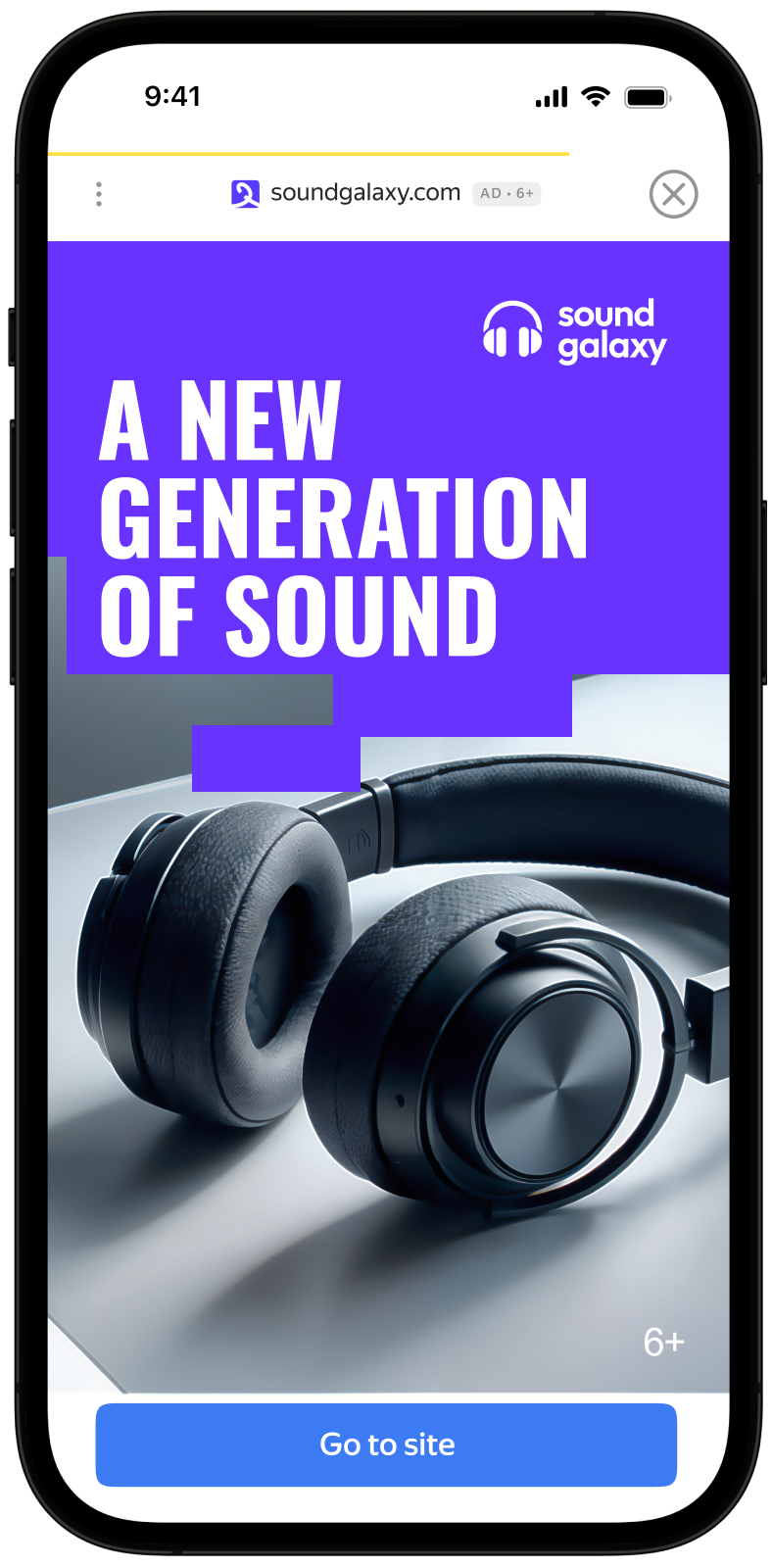
Interstitial advertising is a full-screen ad format embedded within the app content during natural pauses, such as transitioning between game levels or completing a target action.
When an app shows an interstitial ad, the user has a choice: either tap the ad and go to the advertiser's website, or close the ad and return to the app.
Interstitial ads capture the user's full attention on the ad, which is why their CPM is higher.
{% cut "Appearance" %}
 {% endcut %}
This guide shows how to integrate interstitial ads into an iOS app using **SwiftUI**. In addition to code examples and instructions, it provides recommendations on using this ad format and links to additional resources.
## Prerequisite {#pre}
1. Follow the SDK integration steps described in [Quick start](https://ads.yandex.com/helpcenter/en/dev/ios/quick-start.md).
2. [Initialize](https://ads.yandex.com/helpcenter/en/dev/ios/quick-start.md#init) your ad SDK in advance.
3. Make sure you're running the latest [Yandex Mobile Ads SDK](https://ads.yandex.com/helpcenter/en/dev/platforms.md) version. If you're using mediation, make sure you're also running the latest version of the [unified build](https://ads.yandex.com/helpcenter/en/dev/platforms.md).
## Implementation {#implement}
Key steps for integrating interstitial ads in SwiftUI:
- Attach the `.interstitialAd(isPresented:request:onEvent:)` modifier to the root (or relevant) `View`.
- Control loading via `Binding`: a non-nil value starts loading.
- Control display via `Binding`: a value of `true` shows the already-loaded ad (if loading is still in progress, display will be deferred until ready).
- Pass [additional settings](https://ads.yandex.com/helpcenter/en/dev/ios/target-adfox.md) if you are working via Adfox (via `AdRequest` parameters).
- Handle the lifecycle in the `onEvent` closure (`InterstitialAdEvent`).
## Interstitial ad integration notes {#features}
1. Attempting to load a new ad upon receiving an error in the `.didFailToLoad` event is strongly discouraged. If you need to retry loading from the error handler, limit the number of reload attempts to avoid continuous failed ad requests in case of network connection restrictions.
2. Keep the modifier on a view that lives throughout the display scenario (for example, on a screen or navigation root) to avoid losing the load state.
## Loading and showing ads
For interstitial ads in SwiftUI, use `AdRequest` with the ad unit ID and two states: an optional request and a display flag.
To receive notifications about successful or failed loading, display, dismissal, and errors, use the `onEvent` closure with the `InterstitialAdEvent` enum.
```swift
import SwiftUI
import YandexMobileAds
struct InterstitialView: View {
@State private var adRequest: AdRequest?
@State private var isPresented = false
var body: some View {
VStack {
Button("Load and show") {
adRequest = AdRequest(adUnitID: "R-M-XXXXX-YY")
}
}
.interstitialAd(isPresented: $isPresented, request: $adRequest) { event in
switch event {
case .didLoad:
isPresented = true
case .didDismiss, .didFailToShow, .didFailToLoad:
adRequest = nil
default:
break
}
}
}
}
```
The ad unit ID (adUnitId) is obtained from the Yandex Advertising Network interface.
You can extend the ad request parameters via `AdRequest` by passing user interest data, page context data, location, or other additional data in the initializer. Additional contextual data in the request can significantly improve ad quality. For more information, see [Ad targeting](https://ads.yandex.com/helpcenter/en/dev/ios/target.md).
Example: separately initiate loading, then show the ad when ready:
```swift
struct InterstitialView: View {
@State private var adRequest: AdRequest?
@State private var isPresented = false
func loadAd() {
adRequest = AdRequest(adUnitID: "R-M-XXXXX-YY")
}
func showAd() {
isPresented = true
}
var body: some View {
VStack {
Button("Load", action: loadAd)
Button("Show", action: showAd)
}
.interstitialAd(isPresented: $isPresented, request: $adRequest) { event in
if case .didLoad = event {
// You can call showAd() or set isPresented = true
}
}
}
}
```
If `isPresented = true` is set before loading completes, the display will be performed automatically after a successful load.
## Showing the ad
Interstitial ads should be displayed during natural pauses in app usage. A good example is between game levels or after completing a target action, such as after a file download completes.
After a successful load, the `.didLoad` event arrives — set `isPresented = true` to show the ad (or set the display flag in advance, see above).
The `isPresented` flag is reset to `false` after the ad is dismissed, a show error occurs, or a load error occurs.
## Testing interstitial ad integration
### Using demo blocks for ad testing
We recommend using test ads to test your ad integration and your app itself.
To guarantee that test ads are returned for every ad request, we created a special demo ad placement ID. Use it to check your ad integration.
Demo adUnitId: `demo-interstitial-yandex`.
{% note warning %}
Make sure that before placing the application in the store, you replaced the demo ad placement ID with a real one, obtained in the Yandex Advertising Network interface.
{% endnote %}
You can find the list of available demo ad placement IDs in the [Demo ad units for testing](https://ads.yandex.com/helpcenter/en/dev/ios/demo-blocks.md) section.
### Verifying correct ad integration
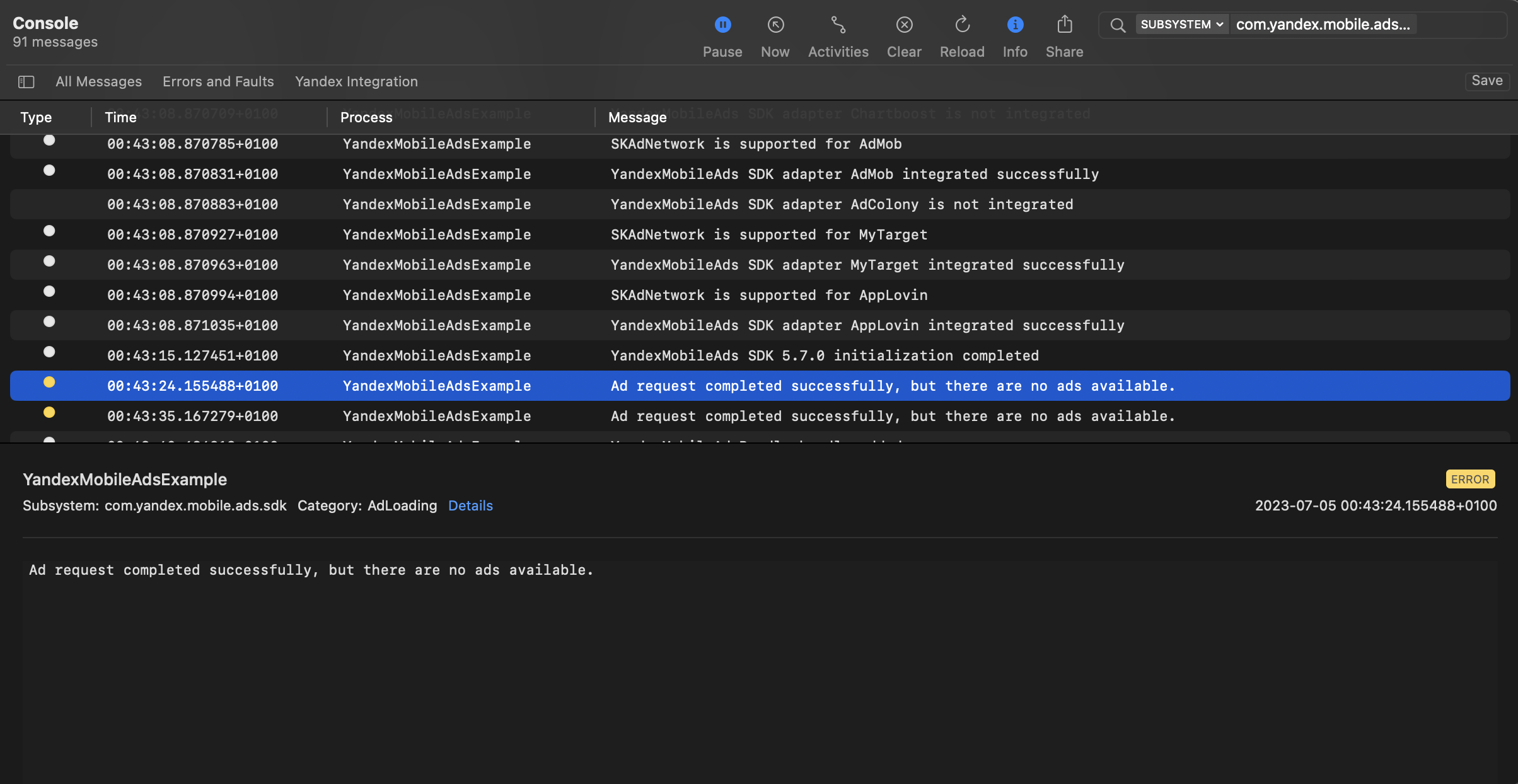
You can test your ad integration using the native Console tool.
To view detailed logs, call the `YandexAds` class's `enableLogging` method.
```swift
YandexAds.enableLogging()
```
To view SDK logs, go to the Console tool and set `Subsystem = com.mobile.ads.ads.sdk`. You can also filter logs by category and error level.
If you're having problems integrating ads, you'll get a detailed report on the issues and recommendations for how to fix them.
{% endcut %}
This guide shows how to integrate interstitial ads into an iOS app using **SwiftUI**. In addition to code examples and instructions, it provides recommendations on using this ad format and links to additional resources.
## Prerequisite {#pre}
1. Follow the SDK integration steps described in [Quick start](https://ads.yandex.com/helpcenter/en/dev/ios/quick-start.md).
2. [Initialize](https://ads.yandex.com/helpcenter/en/dev/ios/quick-start.md#init) your ad SDK in advance.
3. Make sure you're running the latest [Yandex Mobile Ads SDK](https://ads.yandex.com/helpcenter/en/dev/platforms.md) version. If you're using mediation, make sure you're also running the latest version of the [unified build](https://ads.yandex.com/helpcenter/en/dev/platforms.md).
## Implementation {#implement}
Key steps for integrating interstitial ads in SwiftUI:
- Attach the `.interstitialAd(isPresented:request:onEvent:)` modifier to the root (or relevant) `View`.
- Control loading via `Binding`: a non-nil value starts loading.
- Control display via `Binding`: a value of `true` shows the already-loaded ad (if loading is still in progress, display will be deferred until ready).
- Pass [additional settings](https://ads.yandex.com/helpcenter/en/dev/ios/target-adfox.md) if you are working via Adfox (via `AdRequest` parameters).
- Handle the lifecycle in the `onEvent` closure (`InterstitialAdEvent`).
## Interstitial ad integration notes {#features}
1. Attempting to load a new ad upon receiving an error in the `.didFailToLoad` event is strongly discouraged. If you need to retry loading from the error handler, limit the number of reload attempts to avoid continuous failed ad requests in case of network connection restrictions.
2. Keep the modifier on a view that lives throughout the display scenario (for example, on a screen or navigation root) to avoid losing the load state.
## Loading and showing ads
For interstitial ads in SwiftUI, use `AdRequest` with the ad unit ID and two states: an optional request and a display flag.
To receive notifications about successful or failed loading, display, dismissal, and errors, use the `onEvent` closure with the `InterstitialAdEvent` enum.
```swift
import SwiftUI
import YandexMobileAds
struct InterstitialView: View {
@State private var adRequest: AdRequest?
@State private var isPresented = false
var body: some View {
VStack {
Button("Load and show") {
adRequest = AdRequest(adUnitID: "R-M-XXXXX-YY")
}
}
.interstitialAd(isPresented: $isPresented, request: $adRequest) { event in
switch event {
case .didLoad:
isPresented = true
case .didDismiss, .didFailToShow, .didFailToLoad:
adRequest = nil
default:
break
}
}
}
}
```
The ad unit ID (adUnitId) is obtained from the Yandex Advertising Network interface.
You can extend the ad request parameters via `AdRequest` by passing user interest data, page context data, location, or other additional data in the initializer. Additional contextual data in the request can significantly improve ad quality. For more information, see [Ad targeting](https://ads.yandex.com/helpcenter/en/dev/ios/target.md).
Example: separately initiate loading, then show the ad when ready:
```swift
struct InterstitialView: View {
@State private var adRequest: AdRequest?
@State private var isPresented = false
func loadAd() {
adRequest = AdRequest(adUnitID: "R-M-XXXXX-YY")
}
func showAd() {
isPresented = true
}
var body: some View {
VStack {
Button("Load", action: loadAd)
Button("Show", action: showAd)
}
.interstitialAd(isPresented: $isPresented, request: $adRequest) { event in
if case .didLoad = event {
// You can call showAd() or set isPresented = true
}
}
}
}
```
If `isPresented = true` is set before loading completes, the display will be performed automatically after a successful load.
## Showing the ad
Interstitial ads should be displayed during natural pauses in app usage. A good example is between game levels or after completing a target action, such as after a file download completes.
After a successful load, the `.didLoad` event arrives — set `isPresented = true` to show the ad (or set the display flag in advance, see above).
The `isPresented` flag is reset to `false` after the ad is dismissed, a show error occurs, or a load error occurs.
## Testing interstitial ad integration
### Using demo blocks for ad testing
We recommend using test ads to test your ad integration and your app itself.
To guarantee that test ads are returned for every ad request, we created a special demo ad placement ID. Use it to check your ad integration.
Demo adUnitId: `demo-interstitial-yandex`.
{% note warning %}
Make sure that before placing the application in the store, you replaced the demo ad placement ID with a real one, obtained in the Yandex Advertising Network interface.
{% endnote %}
You can find the list of available demo ad placement IDs in the [Demo ad units for testing](https://ads.yandex.com/helpcenter/en/dev/ios/demo-blocks.md) section.
### Verifying correct ad integration
You can test your ad integration using the native Console tool.
To view detailed logs, call the `YandexAds` class's `enableLogging` method.
```swift
YandexAds.enableLogging()
```
To view SDK logs, go to the Console tool and set `Subsystem = com.mobile.ads.ads.sdk`. You can also filter logs by category and error level.
If you're having problems integrating ads, you'll get a detailed report on the issues and recommendations for how to fix them.
 ## Additional resources {#resources}
*
Link to [GitHub](https://github.com/yandexmobile/yandex-ads-sdk-ios/blob/master/Examples/YandexMobileAdsExample/YandexMobileAdsExample/Yandex/Interstitial/InterstitialAdViewController.swift).
## Additional resources {#resources}
*
Link to [GitHub](https://github.com/yandexmobile/yandex-ads-sdk-ios/blob/master/Examples/YandexMobileAdsExample/YandexMobileAdsExample/Yandex/Interstitial/InterstitialAdViewController.swift).