---
metadata:
- name: generator
content: Diplodoc Platform v5.57.3
alternate:
- https://ads.yandex.com/helpcenter/en/dev/ios7/adaptive-sticky-banner.md
- https://ads.yandex.com/helpcenter/ru/dev/ios7/adaptive-sticky-banner.md
- href: en/dev/ios7/adaptive-sticky-banner.md
type: text/markdown
title: Markdown version
- href: llms.txt
type: text/markdown
title: llms.txt
---
> **Documentation Index:** Fetch the complete configuration index at https://ads.yandex.com/helpcenter/en/llms.txt
# Adaptive sticky banner
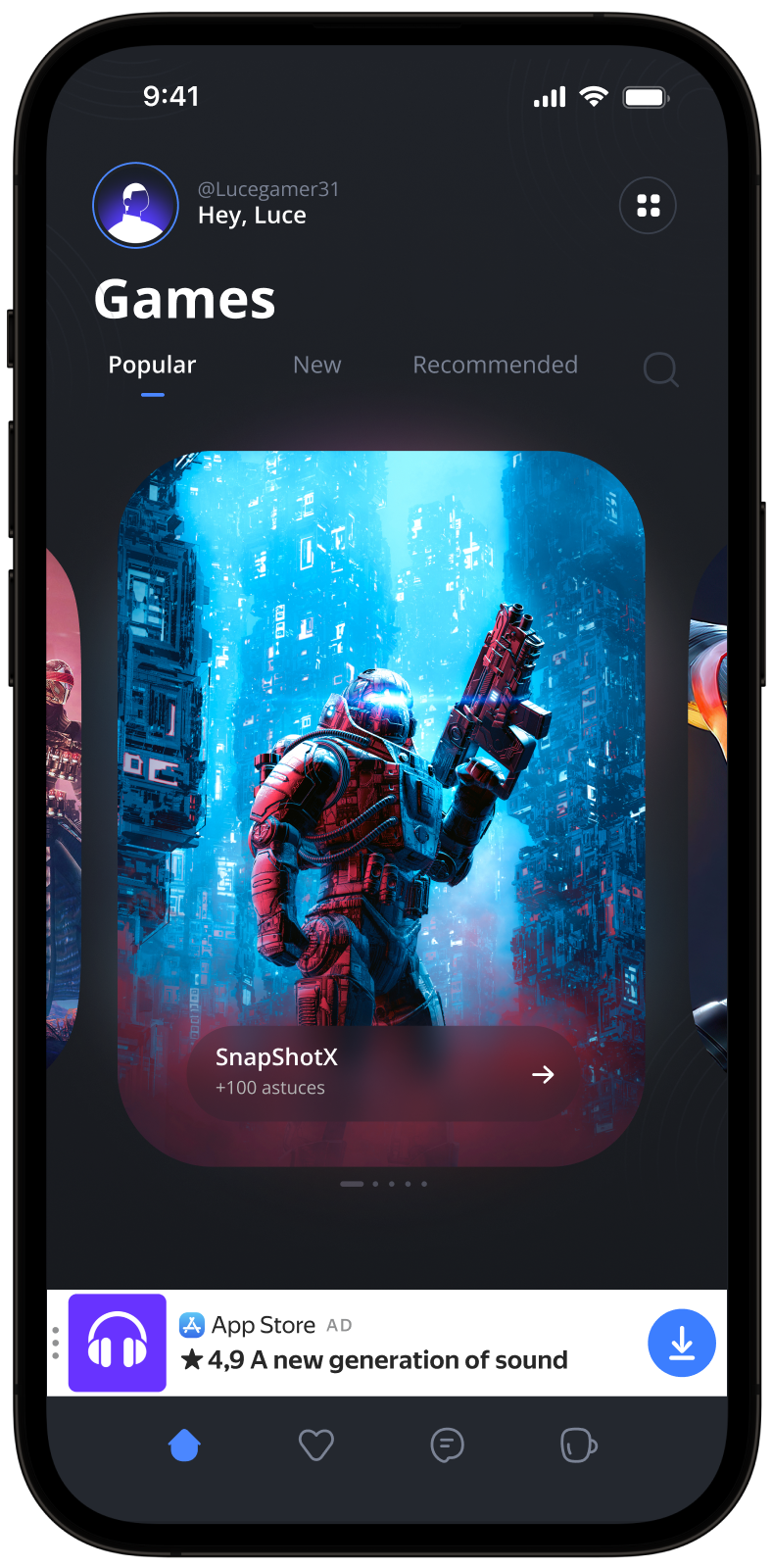
An adaptive sticky banner is a small, automatically updated ad placed at the bottom or top of the app screen. The banner doesn't overlap the main app content and is often used in gaming apps.
The adaptive sticky banner delivers maximum performance by optimizing the ad size for each device. This ad type lets developers set a maximum allowable ad width, though the optimal ad size is still determined automatically. The height of the adaptive sticky banner shouldn't exceed 15% of the screen height.
{% cut "Appearance" %}
 {% endcut %}
This guide shows how to integrate adaptive sticky banners into iOS apps.
Besides code samples and instructions, it contains format-specific recommendations and links to additional resources.
## Prerequisite {#pre}
1. Follow the SDK integration steps described under [Quick start](https://ads.yandex.com/helpcenter/en/dev/ios7/quick-start.md).
2. First, you need to [initialize](https://ads.yandex.com/helpcenter/en/dev/ios7/quick-start.md#init) the advertising SDK.
3. Make sure you're using the [latest version of the Yandex Mobile Ads SDK](https://ads.yandex.com/helpcenter/en/dev/platforms.md), and if you're using mediation, update to the most recent version of the [unified build](https://ads.yandex.com/helpcenter/en/dev/platforms.md).
## Implementation {#implement}
Key steps to integrate an adaptive sticky banner:
- Create an AdView class instance.
- Implement the delegate methods.
- Load the ad.
- Pass [additional settings](https://ads.yandex.com/helpcenter/en/dev/ios7/target-adfox.md) if you're using Adfox.
- Receive the ad in the delegate method and render it.
## Features of adaptive sticky banner integration {#features}
1. All calls to Yandex Mobile Ads SDK methods must be made from the main thread.
2. We strongly advise against attempting to load a new ad when receiving an error in the `func adViewDidFailLoading(_ adView: AdView, error: Error)` delegate method. If you need to load an ad from `func adViewDidFailLoading(_ adView: AdView, error: Error)`, restrict ad load retries to avoid recurring failed ad requests due to network connection constraints.
3. To make sure your adaptive sticky banners work correctly, use [Auto Layout](https://developer.apple.com/library/archive/documentation/UserExperience/Conceptual/AutolayoutPG/AnatomyofaConstraint.html). Using a fixed-sized frame for the view may result in incorrect ad rendering.
4. Adaptive sticky banners work best when utilizing the full available width. In most cases, this will be the full width of the device screen. Be sure to consider the padding parameters set in your app and the display's safe area.
5. Adaptive sticky banners are designed for placement in scrollable content. Their height can be the same as the device screen or limited by the maximum height, depending on the API.
6. To get the ad size, use the `BannerAdSize.stickySize(withContainerWidth: CGFloat)` method, passing the available ad container width as an argument.
7. The `BannerAdSize` object, which is calculated using the `BannerAdSize.stickySize(withContainerWidth: CGFloat)` method, contains constant ad width and height values for identical devices. When testing your app's layout on a specific device, you can be sure that the ad size for that device will remain the same.
8. The height of an adaptive sticky banner never exceeds 15% of the screen height and can't be less than 50 dp.
## Creating an AdView class instance
To display banner ads, create an `AdView` class instance, passing the ad size and ad ID to it. You also need to define a delegate for `AdView`, by implementing the `AdViewDelegate` protocol for your class.
Ads are calculated for devices using the `BannerAdSize.stickySize(withContainerWidth:)` SDK method. As an argument, pass the maximum permissible width of the ad container. We recommend using the entire width of the device screen or the width of the parent container. Be sure to consider the padding parameters set in your app and the display's safe area.
You will also need the ad unit ID (adUnitId) from the Yandex Advertising Network interface.
Example of creating an `AdView` instance in the View Controller:
```swift
final class StickyBannerViewController: UIViewController {
private lazy var adView: AdView = {
let width = view.safeAreaLayoutGuide.layoutFrame.width
let adSize = BannerAdSize.stickySize(withContainerWidth: width)
let adView = AdView(adUnitID: "R-M-XXXXX-YY", adSize: adSize)
adView.delegate = self
adView.translatesAutoresizingMaskIntoConstraints = false
return adView
}()
}
extension StickyBannerViewController: AdViewDelegate {
func adViewDidLoad(_ adView: AdView) {
// Called when the ad loads successfully.
}
func adViewDidFailLoading(_ adView: AdView, error: Error) {
// Called when the ad fails to load with an error.
}
}
```
## Loading ads
Once `AdView` is created, the ad needs to be loaded.
To notify when ads load or fail to load and to track the adaptive sticky banner's life cycle, you need to set delegate properties for the `AdView` class object and implement the `AdViewDelegate` protocol.
You can expand ad request parameters through `AdRequest`, by passing user interests, contextual page data, location, or other additional info. Adding extra context to ad requests can greatly improve ad relevance. To learn more, see [Ad targeting](https://ads.yandex.com/helpcenter/en/dev/ios7/target.md).
The following example shows how to load an adaptive sticky banner. After successful loading, the `func adViewDidLoad(_ adView: AdView)` method for the `AdViewDelegate` delegate is called:
```swift
final class StickyBannerViewController: UIViewController {
private lazy var adView: AdView = {
let width = view.safeAreaLayoutGuide.layoutFrame.width
let adSize = BannerAdSize.stickySize(withContainerWidth: width)
let adView = AdView(adUnitID: "R-M-XXXXX-YY", adSize: adSize)
adView.delegate = self
adView.translatesAutoresizingMaskIntoConstraints = false
return adView
}()
func loadAd() {
adView.loadAd()
}
}
```
## Ad display
After successfully loading the ad, you need to render it. There are two ways to do that:
{% list tabs %}
- Using autolayout constraints
Take the adView you got from the delegate method and add it to your container. Then add autolayout constraints so the banner is displayed where you want it.
```swift
final class StickyBannerViewController: UIViewController {
private lazy var adView: AdView ={
let width = view.safeAreaLayoutGuide.layoutFrame.width
let adSize = BannerAdSize.stickySize(withContainerWidth: width)
let adView = AdView(adUnitID: "R-M-XXXXX-YY", adSize: adSize)
adView.delegate = self
adView.translatesAutoresizingMaskIntoConstraints = false
return adView
}()
func showAd(){
view.addSubview(adView)
NSLayoutConstraint.activate([
adView.topAnchor.constraint(equalTo: loadButton.bottomAnchor, constant: 100),
adView.centerXAnchor.constraint(equalTo: view.centerXAnchor)
])
}
}
```
- Using the displayAtTop(in:) and displayAtBottom(in:) methods
The banners will be added on top of all the controller's views, centered horizontally, and placed at the top or bottom of the container, respectively.
```swift
final class StickyBannerViewController: UIViewController {
private lazy var adView: AdView ={
let width = view.safeAreaLayoutGuide.layoutFrame.width
let adSize = BannerAdSize.stickySize(withContainerWidth: width)
let adView = AdView(adUnitID: "R-M-XXXXX-YY", adSize: adSize)
adView.delegate = self
adView.translatesAutoresizingMaskIntoConstraints = false
return adView
}()
func showAd(){
adView.displayAdBottom(in: view)
}
}
```
{% endlist %}
## Testing adaptive sticky banner integration {#test}
### Using demo ad units for ad testing
We recommend using test ads to test your ad integration and your app itself.
To make sure that test ads are returned for each ad request, we created a special demo ad placement ID designed to help you test your ad integration.
Demo adUnitId: `demo-banner-yandex`.
{% note warning %}
Before publishing your app in the store, make sure to replace the demo placement ID with the real ID you obtained in the interface Yandex Advertising Network.
{% endnote %}
For the list of all available demo ad placement IDs, see [Demo ad units for testing](https://ads.yandex.com/helpcenter/en/dev/ios7/demo-blocks.md).
### Testing ad integration
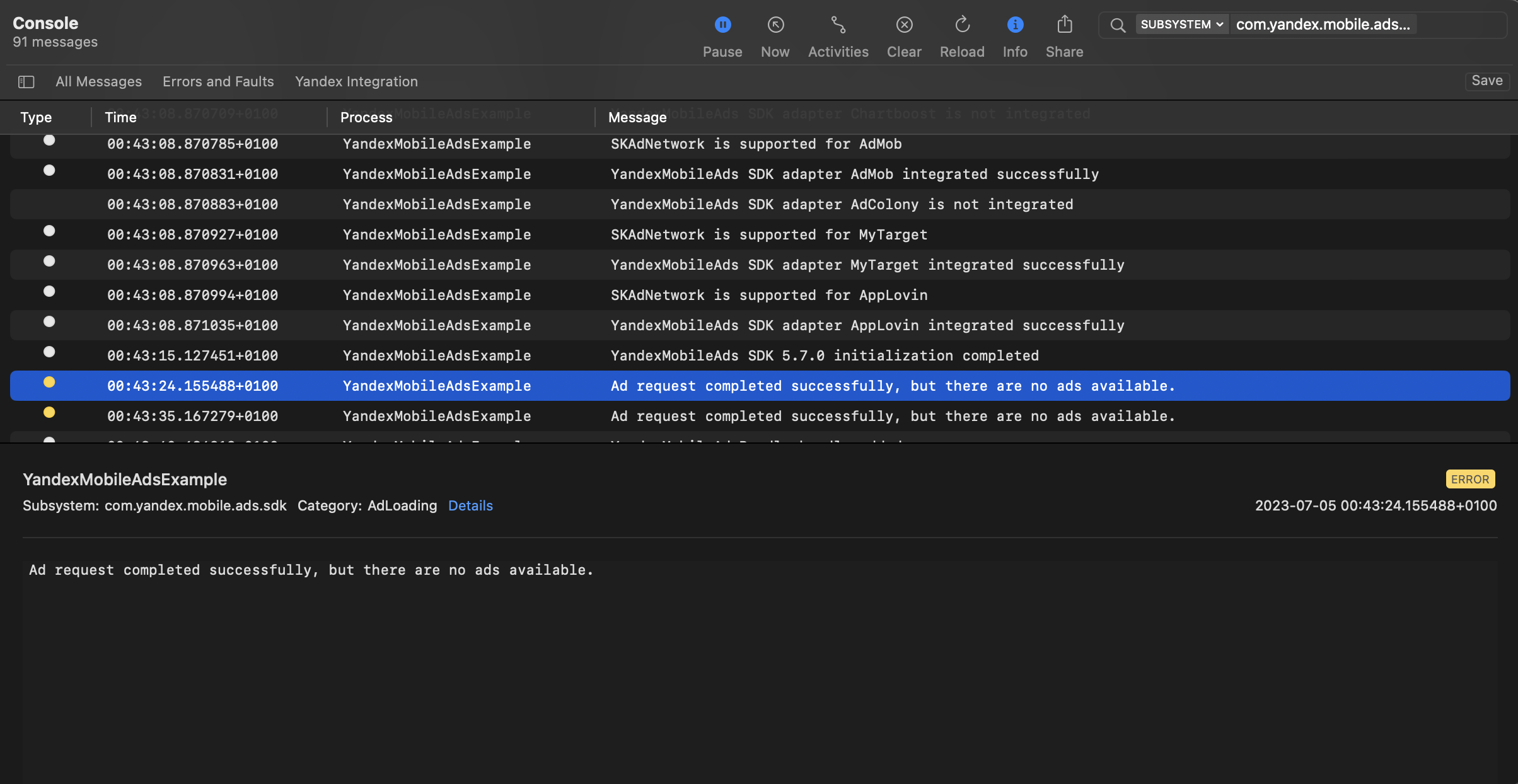
You can test your ad integration using the native Console tool.
To view detailed logs, call the `MobileAds` class's `enableLogging` method.
```swift
MobileAds.enableLogging()
```
To view SDK logs, go to the Console tool and set `Subsystem = com.mobile.ads.ads.sdk`. You can also filter logs by category and error level.
If you're having problems integrating ads, you'll get a detailed report on the issues and recommendations for how to fix them.
{% endcut %}
This guide shows how to integrate adaptive sticky banners into iOS apps.
Besides code samples and instructions, it contains format-specific recommendations and links to additional resources.
## Prerequisite {#pre}
1. Follow the SDK integration steps described under [Quick start](https://ads.yandex.com/helpcenter/en/dev/ios7/quick-start.md).
2. First, you need to [initialize](https://ads.yandex.com/helpcenter/en/dev/ios7/quick-start.md#init) the advertising SDK.
3. Make sure you're using the [latest version of the Yandex Mobile Ads SDK](https://ads.yandex.com/helpcenter/en/dev/platforms.md), and if you're using mediation, update to the most recent version of the [unified build](https://ads.yandex.com/helpcenter/en/dev/platforms.md).
## Implementation {#implement}
Key steps to integrate an adaptive sticky banner:
- Create an AdView class instance.
- Implement the delegate methods.
- Load the ad.
- Pass [additional settings](https://ads.yandex.com/helpcenter/en/dev/ios7/target-adfox.md) if you're using Adfox.
- Receive the ad in the delegate method and render it.
## Features of adaptive sticky banner integration {#features}
1. All calls to Yandex Mobile Ads SDK methods must be made from the main thread.
2. We strongly advise against attempting to load a new ad when receiving an error in the `func adViewDidFailLoading(_ adView: AdView, error: Error)` delegate method. If you need to load an ad from `func adViewDidFailLoading(_ adView: AdView, error: Error)`, restrict ad load retries to avoid recurring failed ad requests due to network connection constraints.
3. To make sure your adaptive sticky banners work correctly, use [Auto Layout](https://developer.apple.com/library/archive/documentation/UserExperience/Conceptual/AutolayoutPG/AnatomyofaConstraint.html). Using a fixed-sized frame for the view may result in incorrect ad rendering.
4. Adaptive sticky banners work best when utilizing the full available width. In most cases, this will be the full width of the device screen. Be sure to consider the padding parameters set in your app and the display's safe area.
5. Adaptive sticky banners are designed for placement in scrollable content. Their height can be the same as the device screen or limited by the maximum height, depending on the API.
6. To get the ad size, use the `BannerAdSize.stickySize(withContainerWidth: CGFloat)` method, passing the available ad container width as an argument.
7. The `BannerAdSize` object, which is calculated using the `BannerAdSize.stickySize(withContainerWidth: CGFloat)` method, contains constant ad width and height values for identical devices. When testing your app's layout on a specific device, you can be sure that the ad size for that device will remain the same.
8. The height of an adaptive sticky banner never exceeds 15% of the screen height and can't be less than 50 dp.
## Creating an AdView class instance
To display banner ads, create an `AdView` class instance, passing the ad size and ad ID to it. You also need to define a delegate for `AdView`, by implementing the `AdViewDelegate` protocol for your class.
Ads are calculated for devices using the `BannerAdSize.stickySize(withContainerWidth:)` SDK method. As an argument, pass the maximum permissible width of the ad container. We recommend using the entire width of the device screen or the width of the parent container. Be sure to consider the padding parameters set in your app and the display's safe area.
You will also need the ad unit ID (adUnitId) from the Yandex Advertising Network interface.
Example of creating an `AdView` instance in the View Controller:
```swift
final class StickyBannerViewController: UIViewController {
private lazy var adView: AdView = {
let width = view.safeAreaLayoutGuide.layoutFrame.width
let adSize = BannerAdSize.stickySize(withContainerWidth: width)
let adView = AdView(adUnitID: "R-M-XXXXX-YY", adSize: adSize)
adView.delegate = self
adView.translatesAutoresizingMaskIntoConstraints = false
return adView
}()
}
extension StickyBannerViewController: AdViewDelegate {
func adViewDidLoad(_ adView: AdView) {
// Called when the ad loads successfully.
}
func adViewDidFailLoading(_ adView: AdView, error: Error) {
// Called when the ad fails to load with an error.
}
}
```
## Loading ads
Once `AdView` is created, the ad needs to be loaded.
To notify when ads load or fail to load and to track the adaptive sticky banner's life cycle, you need to set delegate properties for the `AdView` class object and implement the `AdViewDelegate` protocol.
You can expand ad request parameters through `AdRequest`, by passing user interests, contextual page data, location, or other additional info. Adding extra context to ad requests can greatly improve ad relevance. To learn more, see [Ad targeting](https://ads.yandex.com/helpcenter/en/dev/ios7/target.md).
The following example shows how to load an adaptive sticky banner. After successful loading, the `func adViewDidLoad(_ adView: AdView)` method for the `AdViewDelegate` delegate is called:
```swift
final class StickyBannerViewController: UIViewController {
private lazy var adView: AdView = {
let width = view.safeAreaLayoutGuide.layoutFrame.width
let adSize = BannerAdSize.stickySize(withContainerWidth: width)
let adView = AdView(adUnitID: "R-M-XXXXX-YY", adSize: adSize)
adView.delegate = self
adView.translatesAutoresizingMaskIntoConstraints = false
return adView
}()
func loadAd() {
adView.loadAd()
}
}
```
## Ad display
After successfully loading the ad, you need to render it. There are two ways to do that:
{% list tabs %}
- Using autolayout constraints
Take the adView you got from the delegate method and add it to your container. Then add autolayout constraints so the banner is displayed where you want it.
```swift
final class StickyBannerViewController: UIViewController {
private lazy var adView: AdView ={
let width = view.safeAreaLayoutGuide.layoutFrame.width
let adSize = BannerAdSize.stickySize(withContainerWidth: width)
let adView = AdView(adUnitID: "R-M-XXXXX-YY", adSize: adSize)
adView.delegate = self
adView.translatesAutoresizingMaskIntoConstraints = false
return adView
}()
func showAd(){
view.addSubview(adView)
NSLayoutConstraint.activate([
adView.topAnchor.constraint(equalTo: loadButton.bottomAnchor, constant: 100),
adView.centerXAnchor.constraint(equalTo: view.centerXAnchor)
])
}
}
```
- Using the displayAtTop(in:) and displayAtBottom(in:) methods
The banners will be added on top of all the controller's views, centered horizontally, and placed at the top or bottom of the container, respectively.
```swift
final class StickyBannerViewController: UIViewController {
private lazy var adView: AdView ={
let width = view.safeAreaLayoutGuide.layoutFrame.width
let adSize = BannerAdSize.stickySize(withContainerWidth: width)
let adView = AdView(adUnitID: "R-M-XXXXX-YY", adSize: adSize)
adView.delegate = self
adView.translatesAutoresizingMaskIntoConstraints = false
return adView
}()
func showAd(){
adView.displayAdBottom(in: view)
}
}
```
{% endlist %}
## Testing adaptive sticky banner integration {#test}
### Using demo ad units for ad testing
We recommend using test ads to test your ad integration and your app itself.
To make sure that test ads are returned for each ad request, we created a special demo ad placement ID designed to help you test your ad integration.
Demo adUnitId: `demo-banner-yandex`.
{% note warning %}
Before publishing your app in the store, make sure to replace the demo placement ID with the real ID you obtained in the interface Yandex Advertising Network.
{% endnote %}
For the list of all available demo ad placement IDs, see [Demo ad units for testing](https://ads.yandex.com/helpcenter/en/dev/ios7/demo-blocks.md).
### Testing ad integration
You can test your ad integration using the native Console tool.
To view detailed logs, call the `MobileAds` class's `enableLogging` method.
```swift
MobileAds.enableLogging()
```
To view SDK logs, go to the Console tool and set `Subsystem = com.mobile.ads.ads.sdk`. You can also filter logs by category and error level.
If you're having problems integrating ads, you'll get a detailed report on the issues and recommendations for how to fix them.
 ## Additional resources {#resources}
*
Link to [GitHub](https://github.com/yandexmobile/yandex-ads-sdk-ios/blob/master/Examples/YandexMobileAdsExample/YandexMobileAdsExample/Yandex/Banner/StickyBannerViewController.swift).
## Additional resources {#resources}
*
Link to [GitHub](https://github.com/yandexmobile/yandex-ads-sdk-ios/blob/master/Examples/YandexMobileAdsExample/YandexMobileAdsExample/Yandex/Banner/StickyBannerViewController.swift).