Integrating the Mobile Ads Unity plugin
System: Yandex Advertising Network, Adfox
Unity is a cross-platform game development environment developed by Unity Technologies.
Mobile Ads Unity is a plugin for the Unity3D game platform that supports the Yandex Mobile Ads SDK.
App requirements
- To use this SDK, your app's Target API Level must be set to 31 or above.
- To load any type of ad, iOS version 15 or higher is required.
- Use Xcode 16.4 or higher.
Prerequisites
Registering your app in the Yandex Advertising Network
Register your app as a Yandex Advertising Network app:
- Log in to your account or sign up for the Yandex Advertising Network.
- Register your app in the Yandex Advertising Network.
Installing Unity
-
Download UnityHub from the official site and install it.
-
Open UnityHub, go to Installs, and click Add in the upper-right corner.
-
Select a Unity version. We recommend selecting from the latest LTS (long term support) versions. Click Install next to the version you want to use.
-
Select the options:
- Android Build Support, including OpenJDK and Android SDK & NDK Tools.
- iOS Build Support.
Disable the Documentation option.
Complete the installation.
-
Open UnityHub and go to Projects.
-
Select New project, then 2D-core. Click Create project.
You've downloaded Unity and created a project.
Configuring apps
-
Download the yandex-ads-unity-plugin directory and add the package
yandex-mobileads-lite-8.6.0.unitypackage. You will also be prompted to install the Google resolver. If you've already added the Google resolver to your project, uncheck the box.How to add a package
Select the required plugin (Assets → Import Package → Custom Package) and click Import.
-
Use the Google resolver to install dependencies: enable "auto-resolve" or select the menu item Assets → External Dependency Manager → Android Resolver → Resolve.
-
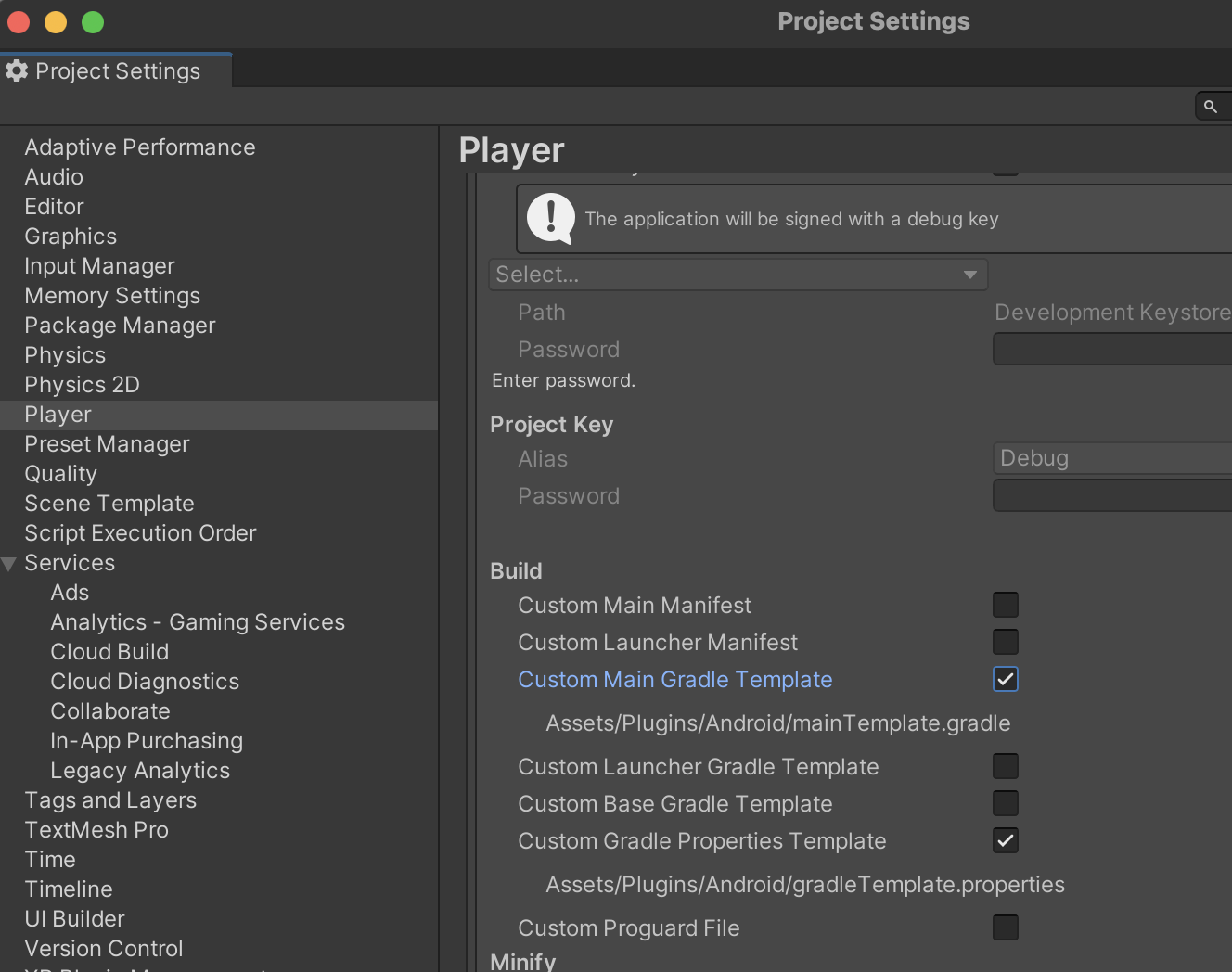
For proper operation, enable custom templates for the generated project. To do this, in the build settings (Build Settings → Player Settings → Publishing Settings → Build), select Custom Main Gradle Template.
We recommend that you always enable Custom Main Gradle Template and Custom Gradle Properties Template when building a Unity app to avoid other potential errors.
-
To test the Mobile Ads Unity plugin, use one of the demo scripts in the samples directory of the yandex-ads-unity-plugin repository. Copy the script to the project directory and add it as a Component to the main camera.
Platform-specific setup
Downgrading Target API Level
To downgrade the Target API Level to version 30, add an explicit downgrade to mainTemplate.gradle and launcherTemplate.gradle (if you are using launcherTemplate in your project):
configurations.all {
    resolutionStrategy{
        force 'androidx.core:core:1.6.0'
        force 'androidx.core:core-ktx:1.6.0'
      }
}
However, we recommend upgrading to Target API Level version 31 because Google imposes restrictions on releasing updates for apps with outdated Target API Level versions. For more information, see this article.
SKAdNetwork support
Add the ad network identifiers to your app's Info.plist file. For more information, see SKAdNetwork.
Testing SDK integration
You can verify the success of the library integration using the SDK's built-in integration testing tool.
To do so, after adding the dependency and initializing the SDK, rebuild the project.
Open Logcat and search for the “Yandex Ads” keyword.
The command outputs the integration status logs. You'll see a message indicating whether the integration was successful. If there's a problem, you'll see a detailed description along with steps to resolve it. Sample command output:
mobileads$ adb logcat | grep 'Yandex Ads' -i
[Yandex Ads]  I  Yandex Mobile Ads 8.6.0 integrated successfully
[Yandex Ads]  I  Yandex Mobile Ads 8.6.0 initialized successfully
The log shows two separate events:
integrated successfully: Integration check (SDK hasn't been initialized yet).initialized successfully: Successful SDK initialization.
You can check the logs to make sure your SDK integration is correct.
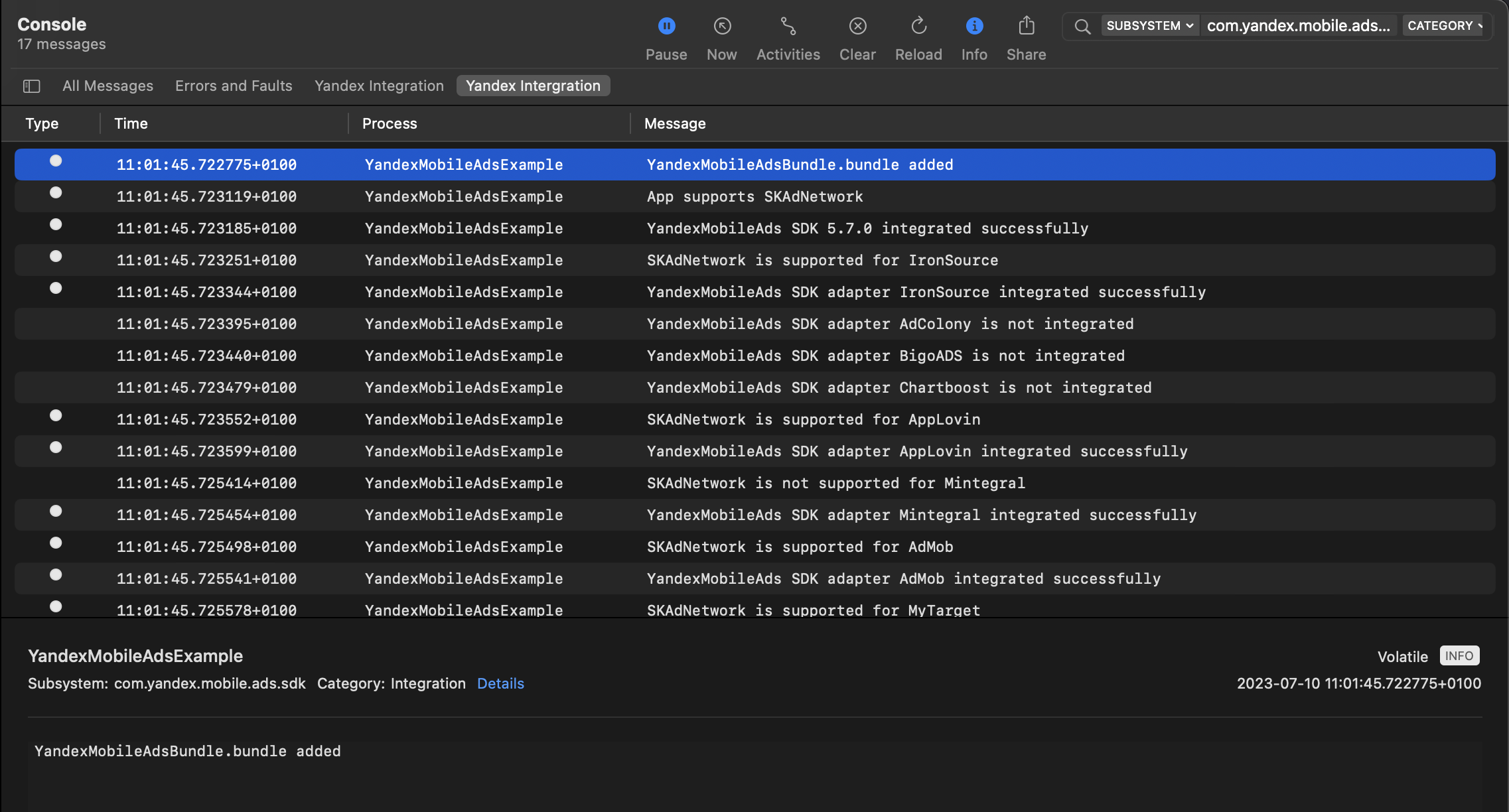
To view logs, go to the Console tool and set Subsystem = com.mobile.ads.ads.sdk. You can filter logs by category, leaving only the ones related to the ad SDK integration. Set Category = Integration. Save the query and select it from the filter line whenever you need debugging.
You will see messages about successful integration: enabling YandexMobileAdsBundle.bundle, initializing the SDK, and connecting SKAdNetwork and Mobile Mediation adapters (if you use them in your project).
If there are any problems during SDK integration, you will see a detailed issue report.
Next steps
You have successfully integrated the Mobile Ads Unity Plugin and can now implement your ad formats.
Select one of the following types of ads that best suits your app:
|
Ad format |
Yandex Advertising Network |
Adfox |
Description |
|
|
|
An adaptive inline banner is a flexible banner ad format that ensures maximum efficiency by optimizing ad size for each device. The banner height is selected automatically and can reach the height of the device screen. Typically, this format is used in feed-based apps or contexts where it's acceptable to primarily focus user attention on ads. |
|
|
|
|
An adaptive sticky banner is a small, automatically updated ad placed at the bottom or top of the app screen. It doesn't overlap the main content and is often used in gaming apps. The height of the sticky banner is determined automatically, adapting to the device screen size and not exceeding 15% of the screen height. |
|
|
|
|
Interstitial advertising is a full-screen ad format embedded within the app content during natural pauses, such as transitioning between game levels or completing a target action. When users see interstitial ads, their attention is entirely focused on the ads, which results in a higher cost for such impressions. Overuse of this format can worsen user interaction. |
|
|
|
|
Rewarded ads are a popular fullscreen ad format where users receive incentives for viewing ads. Ad impressions are opt-in: for example, users can initiate them to get game bonuses or extra lives. Strong user motivation makes this ad format the most popular and profitable adoption in free apps. |
|
|
|
|
App open ads are a special ad format for monetizing app load screens. These ads can be closed at any time and are designed to be served:
|

