Native ads
Native ads are an ad format where the appearance of ads can be determined on the app side. Use this feature to adjust the visual style and placement of ads so that they match the design of your app.
Note
Examples showing how all the format types work are available in the demo project.
|
Entity |
Description |
|
|
If |
|
|
Use:
|
Example of creating a native ad
Key steps for integrating native ads:
- Create and configure a
NativeAdLoader. - Register an ad load event listener.
- Load the ad.
- Render the loaded ad.
Specifics of native ad integration
-
All calls to Yandex Mobile Ads SDK methods must be made from the main thread.
-
If the
onAdFailedToLoad()callback returns an error, don't try to load a new ad again. If there's no other option, limit the number of ad load retries. This will help avoid constant unsuccessful requests and connection issues if there are limitations. -
We recommend maintaining a strong reference to the ad and its loader throughout the lifespan of the screen where the ad interaction is taking place.
-
The size of the ad container should be based on the ad content. After the ad has finished loading, you need to render all of its assets. You can get the list of available ad assets from the NativeAd advertising object.
-
Video ads usually yield the best results. To display video ads, the size of the ad container and the
MediaViewcomponent must be at least 300 × 160 dp (density-independent pixels). -
We recommend using a layout that includes all the possible components. In practical terms, such layouts result in higher conversion rates.
Loading ads
To load your native ads, create a NativeAdLoader object.
The ad request parameters are configured via the AdRequest.Builder class object. You can improve ad relevance by passing parameters such as the ad unit ID, image loading method, and other relevant data as request parameters.
To receive notifications about ad loading results, create a NativeAdLoadListener instance and pass it to the loadAd() method.
To load the ad, call the loadAd() method.
The example below shows how to load native ads from the Activity:
class CustomNativeAdActivity : AppCompatActivity(R.layout.activity_custom_native_ad) {

  private val nativeAdView get() = binding.nativeAd.root

  private var nativeAdLoader: NativeAdLoader? = null

  private lateinit var binding: ActivityCustomNativeAdBinding

  override fun onCreate(savedInstanceState: Bundle?) {
      super.onCreate(savedInstanceState)
      binding = ActivityCustomNativeAdBinding.inflate(layoutInflater)
      setContentView(binding.root)

      nativeAdLoader = NativeAdLoader(this)
      nativeAdLoader?.loadAd(
          // Methods in the AdRequest.Builder class can be used here to specify individual options settings.
          AdRequest.Builder("your-ad-unit-id").build(),
          object : NativeAdLoadListener {
              override fun onAdLoaded(p0: NativeAd) {
                  // The ad was loaded successfully. Now you can show loaded ad.
              }

              override fun onAdFailedToLoad(p0: AdRequestError) {
                  // Ad failed to load with AdRequestError.
                  // Attempting to load a new ad from the onAdFailedToLoad() method is strongly discouraged.
              }
          })
  }
}
class CustomNativeAdActivity extends AppCompatActivity {
  private NativeAdView mNativeAdView = mBinding.nativeAd.getRoot();

  @Nullable private NativeAdLoader mNativeAdLoader = null;

  private ActivityCustomNativeAdBinding mBinding;

  @Override
  public void onCreate(@Nullable Bundle savedInstanceState) {
      super.onCreate(savedInstanceState);
      mBinding = ActivityCustomNativeAdBinding.inflate(getLayoutInflater());
      setContentView(mBinding.getRoot());

      mNativeAdLoader = new NativeAdLoader(this);
      // Methods in the AdRequest.Builder class can be used here to specify individual options settings.
      mNativeAdLoader.loadAd(
              new AdRequest.Builder("your-ad-unit-id").build(),
              new NativeAdLoadListener() {
                  @Override
                  public void onAdLoaded(@NonNull final NativeAd nativeAd) {
                      // The ad was loaded successfully. Now you can show loaded ad.
                  }

                  @Override
                  public void onAdFailedToLoad(@NonNull final AdRequestError error) {
                      // Ad failed to load with AdRequestError.
                      // Attempting to load a new ad from the onAdFailedToLoad() method is strongly discouraged.
                  }
              }
      );
  }
}
Rendering ads
After the ad has finished loading, you need to render all of its assets. You can get the list of available ad assets from the NativeAd advertising object.
Tip
We recommend using a layout that includes all the possible components. In practical terms, such layouts result in higher conversion rates.
For each ad asset, provide a View through an instance of the NativeAdViewBinder.Builder class. The class accepts the NativeAdView container as an argument. Make sure to define all the ad assets as this container's subview.
Link the created ad layout to the NativeAd object.
Sample code
private fun showAd(nativeAd: NativeAd) {
    val nativeAdViewBinder = binding.nativeAd.run {
        NativeAdViewBinder.Builder(nativeAdView)
            .setAgeView(age)
            .setBodyView(body)
            .setCallToActionView(callToAction)
            .setDomainView(domain)
            .setFaviconView(favicon)
            .setFeedbackView(feedback)
            .setIconView(icon)
            .setMediaView(media)
            .setPriceView(price)
            .setRatingView(rating)
            .setReviewCountView(reviewCount)
            .setSponsoredView(sponsored)
            .setTitleView(title)
            .setWarningView(warning)
            .build()
    }

    when (val result = nativeAd.bindNativeAd(nativeAdViewBinder)) {
        is AdBindingResult.Failure -> {
            Logger.error(result.exception.message.orEmpty())
        }
        AdBindingResult.Success -> {
            nativeAd.setNativeAdEventListener(NativeAdEventLogger())
        }
    }
}

private inner class NativeAdEventLogger : NativeAdEventListener {

    override fun onAdClicked() {
        // Called when a click is recorded for an ad.
    }

    override fun onImpression(data: ImpressionData?) {
        // Called when an impression is recorded for an ad.
    }
}
private void showAd(@NonNull final NativeAd nativeAd) {
    final NativeAdViewBinder nativeAdViewBinder = new NativeAdViewBinder.Builder(mNativeAdView)
            .setAgeView(age)
            .setBodyView(body)
            .setCallToActionView(callToAction)
            .setDomainView(domain)
            .setFaviconView(favicon)
            .setFeedbackView(feedback)
            .setIconView(icon)
            .setMediaView(media)
            .setPriceView(price)
            .setRatingView(rating)
            .setReviewCountView(reviewCount)
            .setSponsoredView(sponsored)
            .setTitleView(title)
            .setWarningView(warning)
            .build();
    AdBindingResult result = nativeAd.bindNativeAd(nativeAdViewBinder);
    if (result instanceof AdBindingResult.Failure) {
        Log.e("TAG", ((AdBindingResult.Failure) result).getException().getMessage());
    } else {
        nativeAd.setNativeAdEventListener(new CustomNativeAdActivity.NativeAdEventLogger());
    }
}

private class NativeAdEventLogger implements NativeAdEventListener {
    @Override
    public void onAdClicked() {
        // Called when a click is recorded for an ad.
    }

    @Override
    public void onImpression(@Nullable ImpressionData data) {
        // Called when an impression is recorded for an ad.
    }
}
Testing native ad integration
Using demo ad units for ad testing
Use test ads to check your native ad integration and the app itself.
To make sure that test ads are returned for each ad request, we created a special demo ad placement ID designed to help you test your ad integration.
Demo adUnitId for Combinatorial ads: demo-native-content-yandex.
Demo adUnitId for ads for mobile apps: demo-native-app-yandex.
Warning
Before publishing your app in the store, make sure to replace the demo placement ID with the real ID you obtained in the interface Yandex Advertising Network.
Testing ad integration
You can check if your native ads are integrated correctly using the SDK's built-in analyzer.
This tool checks whether native ads are enabled properly and outputs a detailed report to a log.
To view the report, search the keyword YandexAds in Logcat, a tool for debugging Android apps.
adb logcat -v brief '*:S YandexAds'
If the integration is successful, the following message is returned:
adb logcat -v brief '*:S YandexAds'
mobileads$ adb logcat -v brief '*:S YandexAds'
I/YandexAds(13719): [Integration] Ad type native was integrated successfully
If there are any native ad integration issues, you'll get a detailed issue report and troubleshooting recommendations.
Indicator of correct native ad integration
Using this indicator, you can find out whether the native ad integration was successful. If not, you can get debug info describing the cause of the issue.
To enable the indicator's display in debug mode, call the enableDebugErrorIndicator method set to true:
YandexAds.enableDebugErrorIndicator(true)
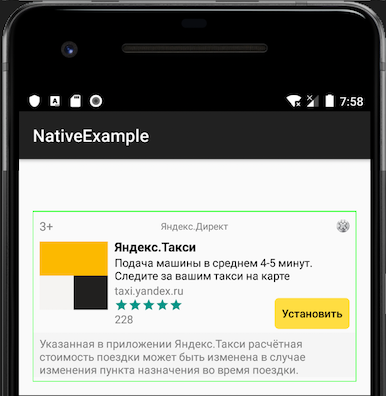
If the integration was successful, a light-green border will appear over the ad in debug mode.
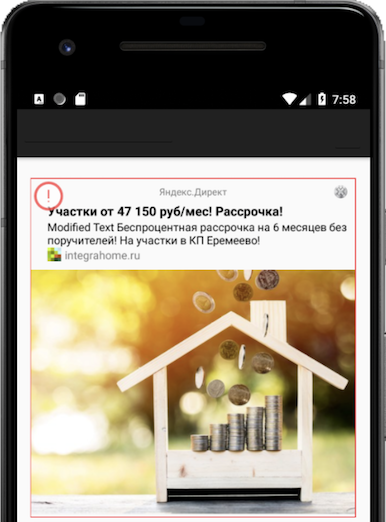
If there's an error in native ad integration, the indicator will appear over the ad in debug mode. Click the indicator to see the debug message, which should point you to the root cause of the problem. Clicking the indicator again hides the message.
|
|
|
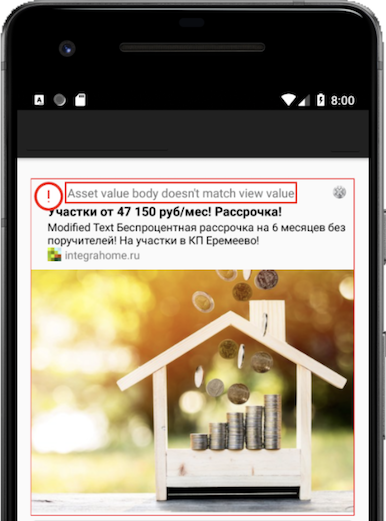
To disable the indicator in debug mode, call the enableDebugErrorIndicator method set to false:
YandexAds.enableDebugErrorIndicator(false)