---
metadata:
- name: generator
content: Diplodoc Platform v5.52.0
alternate:
- https://ads.yandex.com/helpcenter/en/dev/ios/interstitial.md
- https://ads.yandex.com/helpcenter/pt/dev/ios/interstitial.md
- https://ads.yandex.com/helpcenter/ru/dev/ios/interstitial.md
- https://ads.yandex.com/helpcenter/zh/dev/ios/interstitial.md
- href: zh/dev/ios/interstitial.md
type: text/markdown
title: Markdown version
- href: llms.txt
type: text/markdown
title: llms.txt
---
> **Documentation Index:** Fetch the complete configuration index at https://ads.yandex.com/helpcenter/zh/llms.txt
# 插屏广告
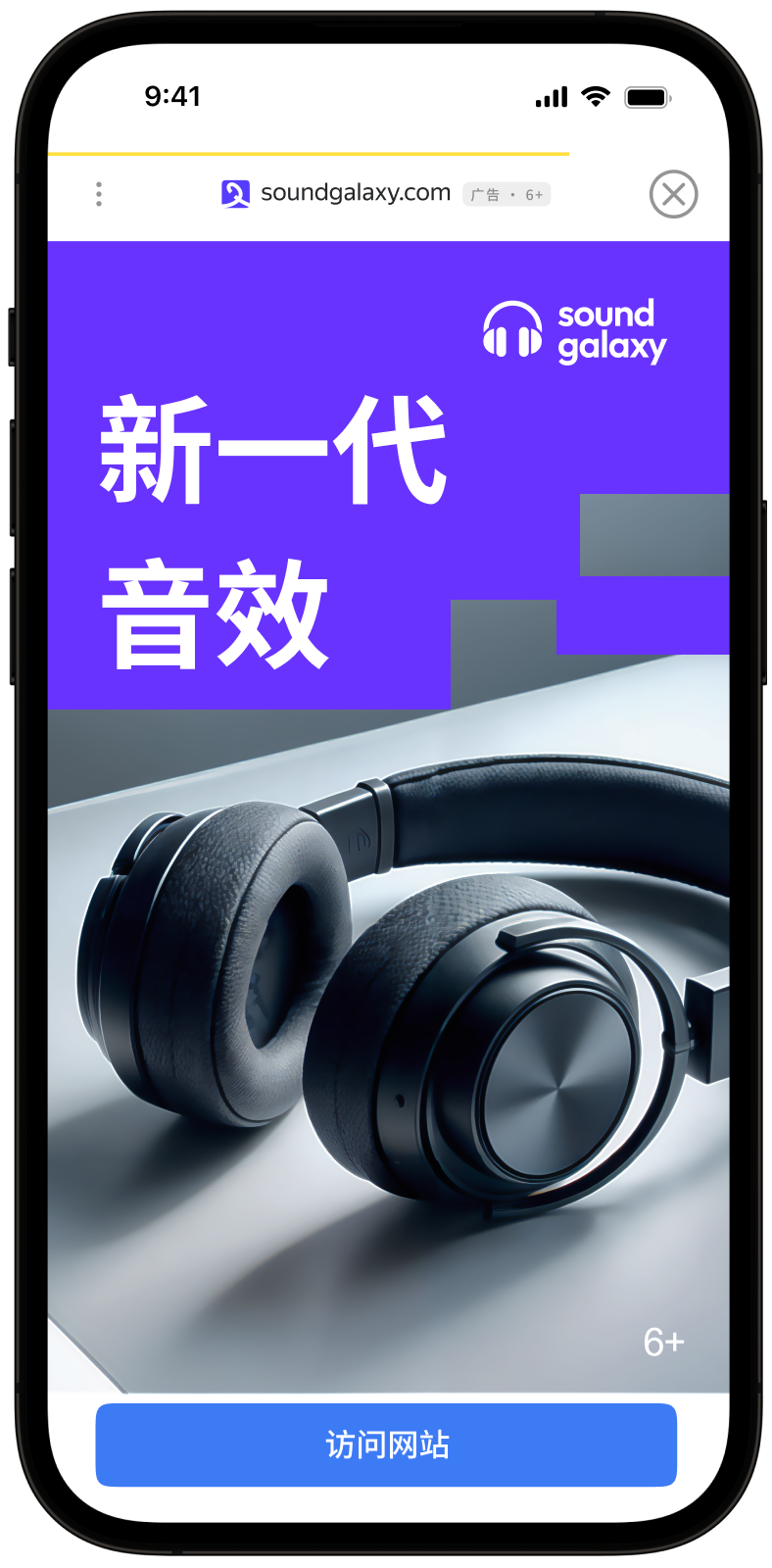
插屏广告是一种全屏广告格式,嵌入在应用内容中,在自然暂停时显示,例如在游戏关卡之间过渡或完成目标操作时。
当应用呈现插屏广告时,用户有两个选择:点击广告并前往广告商网站或关闭广告并返回应用。
插屏广告中,用户注意力会完全集中在广告上,因此展示成本较高。
{% cut "外观" %}
 {% endcut %}
本指南将展示如何将插屏广告集成到 iOS 应用中。除了代码示例和说明之外,它还包含特定格式的建议和其他资源的链接。
## 前提条件 {#pre}
1. 请按照 [快速入门](https://ads.yandex.com/helpcenter/zh/dev/ios/quick-start.md) 中描述的 SDK 集成步骤进行操作。
2. 提前 [初始化](https://ads.yandex.com/helpcenter/zh/dev/ios/quick-start.md#init) 您的广告 SDK。
3. 确保您运行的是最新的 [Yandex Mobile Ads SDK](https://ads.yandex.com/helpcenter/zh/dev/platforms.md) 版本。如果您使用聚合,请同时确保您运行的是最新版本的 [统一构建](https://ads.yandex.com/helpcenter/zh/dev/platforms.md)。
## 实施 {#implement}
集成插屏广告的关键步骤:
- 创建并配置 `InterstitialAdLoader` 广告加载器。
- 设置委托并实施所需的 `AdInterstitialAdLoaderDelegate` 方法。
- 加载广告。
- 如果您使用 Adfox,请传递 [其他设置](https://ads.yandex.com/helpcenter/zh/dev/ios/target-adfox.md)。
- 如果需要,请设置广告对象的委托并实施所需的 `AdInterstitialAdDelegate` 方法。
- 呈现广告。
## 插屏广告集成的特点 {#features}
1. 所有调用 Yandex Mobile Ads SDK 方法的操作必须在主线程中完成。
2. 我们强烈建议您不要在 `func interstitialAdLoader(_ adLoader: InterstitialAdLoader, didFailToLoadWithError error: AdRequestError)` 回调中收到错误时尝试加载新广告如果您需要从 `func interstitialAdLoader(_ adLoader: InterstitialAdLoader, didFailToLoadWithError error: AdRequestError)` 加载广告,请限制广告加载重试,以避免由于网络连接限制而重复出现失败的广告请求。
3. 我们建议您在与广告交互的屏幕的整个生命周期内保持对广告及其加载器的强引用。
## 加载广告
要加载插屏广告,您需要创建 `InterstitialAdLoader` 类的实例。
要在广告加载成功或失败时发出通知,请设置 `InterstitialAdLoader` 类的委托属性并实施 `InterstitialAdLoaderDelegate` 委托。
```swift
final class InterstitialViewController: UIViewController {
private lazy var interstitialAdLoader: InterstitialAdLoader = {
let loader = InterstitialAdLoader()
loader.delegate = self
return loader
}()
}
extension InterstitialViewController: InterstitialAdLoaderDelegate {
func interstitialAdLoader(_ adLoader: InterstitialAdLoader, didLoad interstitialAd: InterstitialAd) {
// 加载成功后将调用该方法
}
func interstitialAdLoader(_ adLoader: InterstitialAdLoader, didFailToLoadWithError error: AdRequestError) {
// 加载广告时出现任何错误后将调用此方法
}
}
```
要加载广告,您需要来自 Yandex Advertising Network 界面 的广告单元 ID (adUnitId)。
您可以通过 `AdRequestConfiguration` 传递用户兴趣、上下文页面数据、位置详细信息或其他信息来扩展广告请求参数。请求中提供的其他上下文数据可以显著提高您的广告质量。请参阅[广告定位](https://ads.yandex.com/helpcenter/zh/dev/ios/target.md)版块了解更多信息。
以下示例展示了如何从视图控制器加载插屏广告:
```swift
final class InterstitialViewController: UIViewController {
private lazy var interstitialAdLoader: InterstitialAdLoader = {
let loader = InterstitialAdLoader()
loader.delegate = self
return loader
}()
func loadAd() {
let configuration = AdRequestConfiguration(adUnitID: "R-M-XXXXX-YY")
interstitialAdLoader.loadAd(with: configuration)
}
}
```
## 广告呈现
插屏广告应在应用运行的自然暂停期间展示。一个不错的选择是在游戏关卡之间或转换后(例如,下载文件时)插入插屏广告。
插屏广告加载成功后,将调用 `func interstitialAdLoader(_ adLoader: InterstitialAdLoader, didLoad interstitialAd: InterstitialAd)` 方法。用此方法来显示插屏广告。
```swift
final class InterstitialViewController: UIViewController {
private var interstitialAd: InterstitialAd?
func showAd() {
interstitialAd?.show(from: self)
}
}
extension InterstitialViewController: InterstitialAdLoaderDelegate {
func interstitialAdLoader(_ adLoader: InterstitialAdLoader, didLoad interstitialAd: InterstitialAd) {
self.interstitialAd = interstitialAd
self.interstitialAd.delegate = self
showAd()
}
}
```
## 测试插屏广告集成
### 使用演示广告单元进行广告测试
我们建议使用测试广告来测试您的广告集成和应用本身。
为了保证为每个广告请求返回测试广告,我们创建了一个特殊的演示广告版位 ID。用它来检查您的广告集成。
演示广告单元 ID:`demo-interstitial-yandex`。
{% note warning %}
在商店中发布您的应用程序之前,确保将演示版位 ID 替换为您在 Yandex Advertising Network 界面中获得的真实 ID。
{% endnote %}
您可以在 [用于测试的演示广告单元](https://ads.yandex.com/helpcenter/zh/dev/ios/demo-blocks.md) 部分找到可用的演示广告版位 ID 列表。
### 测试广告集成
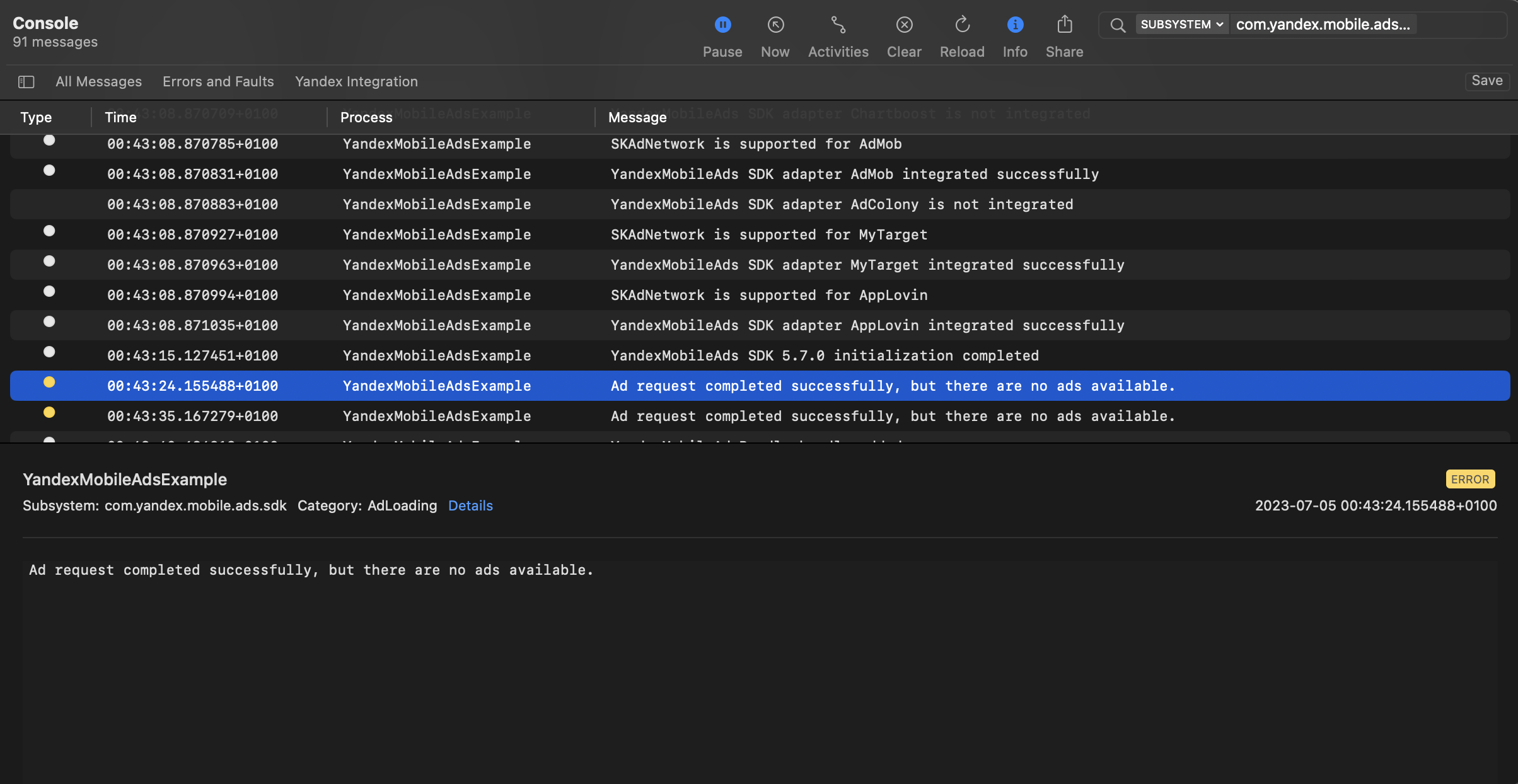
您可以使用本机控制台工具测试广告集成。
要查看详细日志,请调用 `YMAMobileAds` 类的 `enableLogging` 方法。
```swift
YMAMobileAds.enableLogging()
```
要查看 SDK 日志,请前往控制台工具并设置 `Subsystem = com.mobile.ads.ads.sdk`。您还可以按类别和错误级别过滤日志。
如果您在集成广告时遇到问题,您将获得有关问题的详细报告以及如何解决这些问题的建议。
{% endcut %}
本指南将展示如何将插屏广告集成到 iOS 应用中。除了代码示例和说明之外,它还包含特定格式的建议和其他资源的链接。
## 前提条件 {#pre}
1. 请按照 [快速入门](https://ads.yandex.com/helpcenter/zh/dev/ios/quick-start.md) 中描述的 SDK 集成步骤进行操作。
2. 提前 [初始化](https://ads.yandex.com/helpcenter/zh/dev/ios/quick-start.md#init) 您的广告 SDK。
3. 确保您运行的是最新的 [Yandex Mobile Ads SDK](https://ads.yandex.com/helpcenter/zh/dev/platforms.md) 版本。如果您使用聚合,请同时确保您运行的是最新版本的 [统一构建](https://ads.yandex.com/helpcenter/zh/dev/platforms.md)。
## 实施 {#implement}
集成插屏广告的关键步骤:
- 创建并配置 `InterstitialAdLoader` 广告加载器。
- 设置委托并实施所需的 `AdInterstitialAdLoaderDelegate` 方法。
- 加载广告。
- 如果您使用 Adfox,请传递 [其他设置](https://ads.yandex.com/helpcenter/zh/dev/ios/target-adfox.md)。
- 如果需要,请设置广告对象的委托并实施所需的 `AdInterstitialAdDelegate` 方法。
- 呈现广告。
## 插屏广告集成的特点 {#features}
1. 所有调用 Yandex Mobile Ads SDK 方法的操作必须在主线程中完成。
2. 我们强烈建议您不要在 `func interstitialAdLoader(_ adLoader: InterstitialAdLoader, didFailToLoadWithError error: AdRequestError)` 回调中收到错误时尝试加载新广告如果您需要从 `func interstitialAdLoader(_ adLoader: InterstitialAdLoader, didFailToLoadWithError error: AdRequestError)` 加载广告,请限制广告加载重试,以避免由于网络连接限制而重复出现失败的广告请求。
3. 我们建议您在与广告交互的屏幕的整个生命周期内保持对广告及其加载器的强引用。
## 加载广告
要加载插屏广告,您需要创建 `InterstitialAdLoader` 类的实例。
要在广告加载成功或失败时发出通知,请设置 `InterstitialAdLoader` 类的委托属性并实施 `InterstitialAdLoaderDelegate` 委托。
```swift
final class InterstitialViewController: UIViewController {
private lazy var interstitialAdLoader: InterstitialAdLoader = {
let loader = InterstitialAdLoader()
loader.delegate = self
return loader
}()
}
extension InterstitialViewController: InterstitialAdLoaderDelegate {
func interstitialAdLoader(_ adLoader: InterstitialAdLoader, didLoad interstitialAd: InterstitialAd) {
// 加载成功后将调用该方法
}
func interstitialAdLoader(_ adLoader: InterstitialAdLoader, didFailToLoadWithError error: AdRequestError) {
// 加载广告时出现任何错误后将调用此方法
}
}
```
要加载广告,您需要来自 Yandex Advertising Network 界面 的广告单元 ID (adUnitId)。
您可以通过 `AdRequestConfiguration` 传递用户兴趣、上下文页面数据、位置详细信息或其他信息来扩展广告请求参数。请求中提供的其他上下文数据可以显著提高您的广告质量。请参阅[广告定位](https://ads.yandex.com/helpcenter/zh/dev/ios/target.md)版块了解更多信息。
以下示例展示了如何从视图控制器加载插屏广告:
```swift
final class InterstitialViewController: UIViewController {
private lazy var interstitialAdLoader: InterstitialAdLoader = {
let loader = InterstitialAdLoader()
loader.delegate = self
return loader
}()
func loadAd() {
let configuration = AdRequestConfiguration(adUnitID: "R-M-XXXXX-YY")
interstitialAdLoader.loadAd(with: configuration)
}
}
```
## 广告呈现
插屏广告应在应用运行的自然暂停期间展示。一个不错的选择是在游戏关卡之间或转换后(例如,下载文件时)插入插屏广告。
插屏广告加载成功后,将调用 `func interstitialAdLoader(_ adLoader: InterstitialAdLoader, didLoad interstitialAd: InterstitialAd)` 方法。用此方法来显示插屏广告。
```swift
final class InterstitialViewController: UIViewController {
private var interstitialAd: InterstitialAd?
func showAd() {
interstitialAd?.show(from: self)
}
}
extension InterstitialViewController: InterstitialAdLoaderDelegate {
func interstitialAdLoader(_ adLoader: InterstitialAdLoader, didLoad interstitialAd: InterstitialAd) {
self.interstitialAd = interstitialAd
self.interstitialAd.delegate = self
showAd()
}
}
```
## 测试插屏广告集成
### 使用演示广告单元进行广告测试
我们建议使用测试广告来测试您的广告集成和应用本身。
为了保证为每个广告请求返回测试广告,我们创建了一个特殊的演示广告版位 ID。用它来检查您的广告集成。
演示广告单元 ID:`demo-interstitial-yandex`。
{% note warning %}
在商店中发布您的应用程序之前,确保将演示版位 ID 替换为您在 Yandex Advertising Network 界面中获得的真实 ID。
{% endnote %}
您可以在 [用于测试的演示广告单元](https://ads.yandex.com/helpcenter/zh/dev/ios/demo-blocks.md) 部分找到可用的演示广告版位 ID 列表。
### 测试广告集成
您可以使用本机控制台工具测试广告集成。
要查看详细日志,请调用 `YMAMobileAds` 类的 `enableLogging` 方法。
```swift
YMAMobileAds.enableLogging()
```
要查看 SDK 日志,请前往控制台工具并设置 `Subsystem = com.mobile.ads.ads.sdk`。您还可以按类别和错误级别过滤日志。
如果您在集成广告时遇到问题,您将获得有关问题的详细报告以及如何解决这些问题的建议。
 ## 其他资源 {#resources}
*
[GitHub](https://github.com/yandexmobile/yandex-ads-sdk-ios/blob/master/Examples/YandexMobileAdsExample/YandexMobileAdsExample/Yandex/Interstitial/InterstitialAdViewController.swift) 链接。
## 其他资源 {#resources}
*
[GitHub](https://github.com/yandexmobile/yandex-ads-sdk-ios/blob/master/Examples/YandexMobileAdsExample/YandexMobileAdsExample/Yandex/Interstitial/InterstitialAdViewController.swift) 链接。