---
metadata:
  - name: generator
    content: Diplodoc Platform v5.50.6
alternate:
  - https://ads.yandex.com/helpcenter/en/monetization/ad-unit/banner.md
  - https://ads.yandex.com/helpcenter/ru/monetization/ad-unit/banner.md
  - https://ads.yandex.com/helpcenter/zh/monetization/ad-unit/banner.md
---
> **Documentation Index:** Fetch the complete configuration index at https://ads.yandex.com/helpcenter/zh/llms.txt

# 横幅广告

<!-- source: zh/_includes/common/ad-unit/banner.md -->
<!--
ГОТОВО
Текст в РМП: mobile-ads/zh/monetization/ad-unit/banner.md
Текст в Trustmon: —
-->

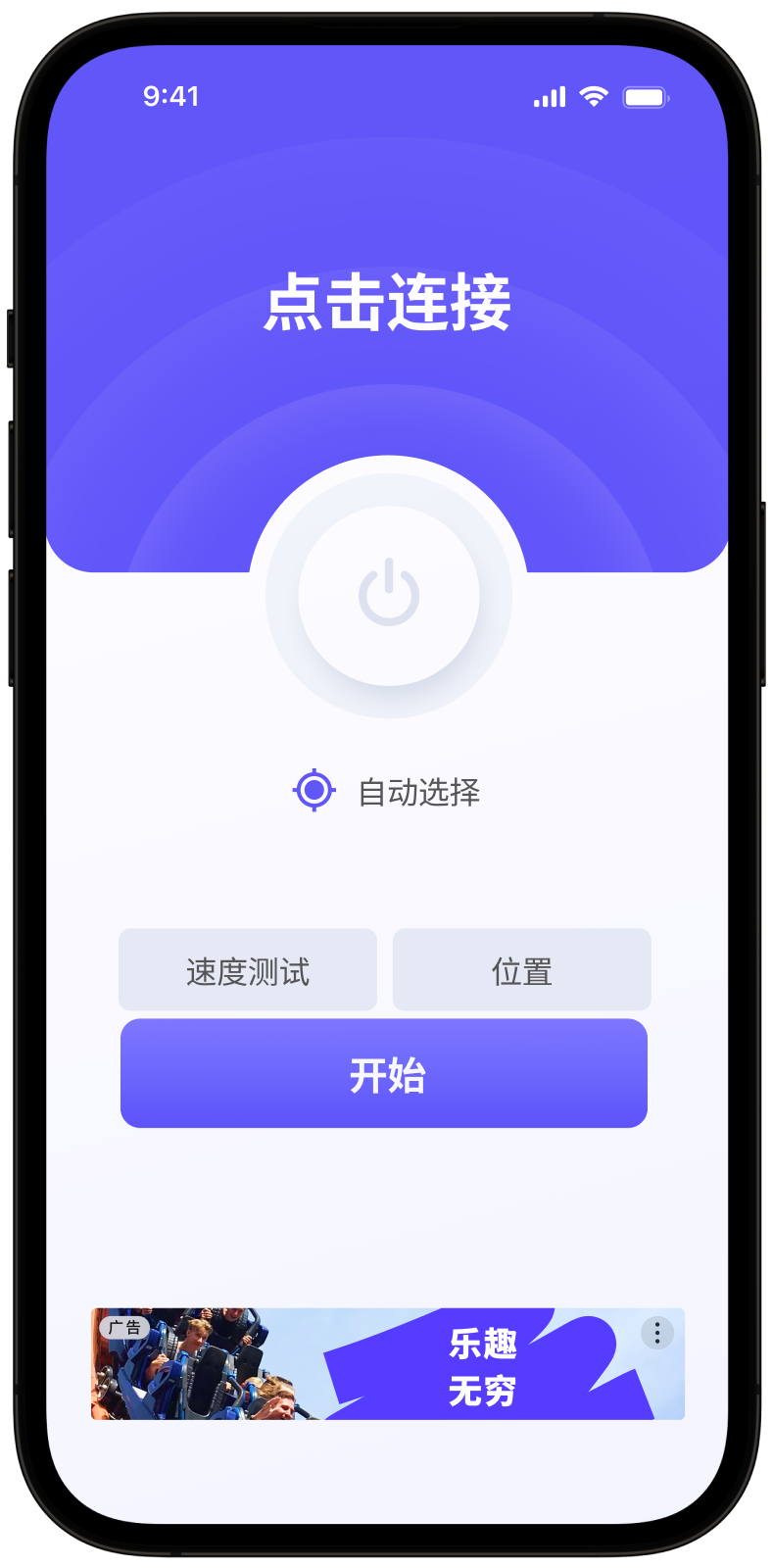
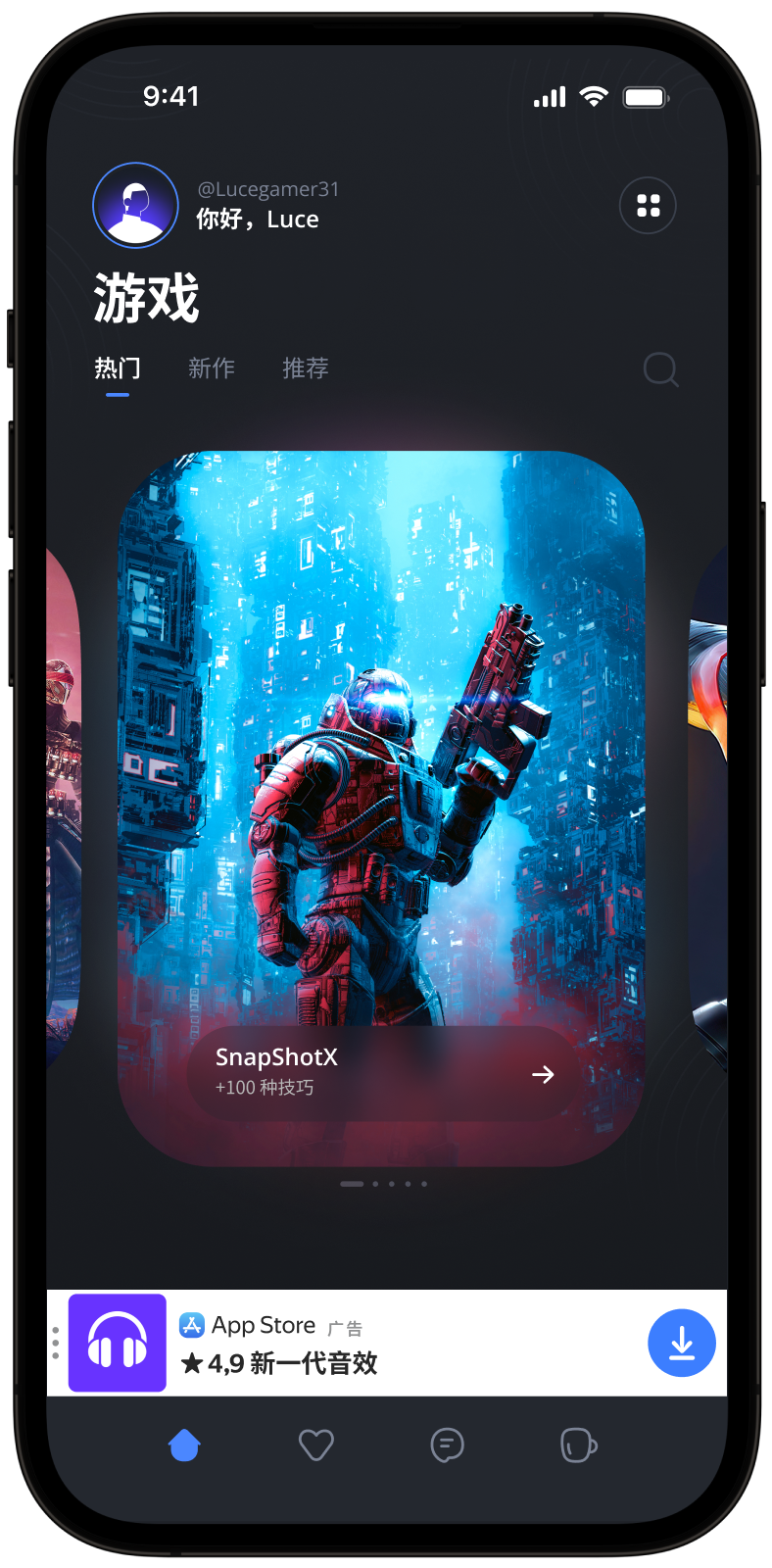
**横幅广告**：可以显示文字和图片广告、展示广告或视频广告的广告单元格式。您可以设置允许的广告单元大小。广告数量和字体大小根据设置的大小自动确定。

<div class="bs-none">

#|
|| **自适应粘性横幅**{align="center"}            | **自适应内联横幅**{align="center"}         ||
|| <img src="https://yastatic.net/s3/doc-binary/src/docs/support/mobile-ads/zh/monetization/_images/banner-sticky-zh-ex.png" width="200"> | <img src="https://yastatic.net/s3/doc-binary/src/docs/support/mobile-ads/zh/monetization/_images/banner-inline-zh-ex.png" width="200"> ||
|#

</div>

{% note alert %}

支持视频播放的单元的最小尺寸为 300 × 160 或 160 × 300 dp（密度无关像素）。

{% endnote %}


## 创建广告单元 {#create-unit}

{% list tabs %}

- 从应用列表中

  1. <!-- source: zh/_includes/common/ad-unit/creation-steps.md -->
     在左侧菜单中，前往 **Ads in apps** → **Applications**。点击所需应用旁边的 **Add**。
     <!-- endsource: zh/_includes/common/ad-unit/creation-steps.md -->

  1. 选择 **Banner** 格式。

  1. <!-- source: zh/_includes/common/ad-unit/creation-steps.md -->
     输入广告单元的名称：这样可以更轻松地在 Yandex Advertising Network 界面中查找该单元。
     <!-- endsource: zh/_includes/common/ad-unit/creation-steps.md -->
  
  1. <!-- source: zh/_includes/common/ad-unit/creation-steps.md -->
     <!-- source: zh/monetization/_includes/cpm-settings.md -->
     定义每千次展示成本设置。在 **CPM strategy** 字段中，选择：

     * **Maximum revenue**：如果您不想限制广告单元中的展示成本。

     * **eCPM floor**：如果要在广告单元中设置最低展示成本。选择此选项时，也请指定卢布、美元或欧元的底价值。您可以在 [账户设置](https://ads.yandex.com/helpcenter/zh/monetization/account/currency.md) 中更改底价采用的币种形式。
     <!-- endsource: zh/monetization/_includes/cpm-settings.md -->


       {% cut "它在界面中的显示效果" %}

       ![](../_images/banner-app.png)

       {% endcut %}
     <!-- endsource: zh/_includes/common/ad-unit/creation-steps.md -->
  
  1. <!-- source: zh/_includes/common/ad-unit/creation-steps.md -->
     如有必要，请通过 Adfox 或 [Yandex 聚合](https://ads.yandex.com/helpcenter/zh/monetization/yandex-mediation/index.md) 启用直接销售。

       {% cut "如何将外部广告网络连接到广告单元" %}

       <!-- source: zh/monetization/_includes/mobmed-setup.md -->
       1. 在页面底部的广告单元设置中，点击 **Add network**。
       1. 选择聚合类型：[应用内竞价](https://ads.yandex.com/helpcenter/zh/monetization/yandex-mediation/types.md#in-app-bidding) 或 [智能瀑布流](https://ads.yandex.com/helpcenter/zh/monetization/yandex-mediation/types.md#smart-waterfall)。随即将显示支持所选聚合类型的网络列表。
       1. 选择一个广告网络，并设置在该广告网络界面创建的广告单元的参数：

          - **Currency**：针对外部广告网络的广告单元设置的 CPM 阈值的币种。

          - 您在步骤 1 中从外部广告网络获得的应用 ID 和广告单元 ID。根据您选择的广告网络填写以下字段：

             #|
             || **广告网络** |**聚合类型**| **应用 ID** | **单元 ID** ||
             || BIGO Ads |应用内竞价、智能瀑布流| App ID | Slot ID ||
             || Google AdMob (ex. AdMob) |智能瀑布流| — | Ad Unit ID ||
             || Liftoff (ex. Vungle) |应用内竞价、智能瀑布流| App ID | Placement ID||
             || Mintegral |应用内竞价、智能瀑布流| Placement ID, App ID, AppKey | Unit ID ||
             || Start.io |智能瀑布流| Account ID, App ID | 广告标记||
             || VK Ads (ex. myTarget) |应用内竞价、智能瀑布流| — | Placement ID ||
             |#

          - **eCPM**：添加的单元的 CPM 阈值（仅适用于通过智能瀑布流对接的网络）。
       2. 如有必要，请设置广告单元投放地理位置：前往 **Geography** 选项卡并指定所选区域的 CPM 阈值。
       <!-- endsource: zh/monetization/_includes/mobmed-setup.md -->

       {% endcut %}

       {% cut "如何通过 Adfox 启用直接销售" %}

       <!-- source: zh/monetization/_includes/direct-sales-setup.md -->
       在 **Advertising networks** 下的单元设置中，打开 **Yandex** Advertising Network 设置并启用 **Connect Adfox** 选项。添加 Adfox 后，您无法将其从单元中删除。

       详情请参见 [通过 Adfox 启用直接销售](https://ads.yandex.com/helpcenter/zh/monetization/adfox/connection.md)。
       <!-- endsource: zh/monetization/_includes/direct-sales-setup.md -->

       {% endcut %}
     <!-- endsource: zh/_includes/common/ad-unit/creation-steps.md -->
  
  1. <!-- source: zh/_includes/common/ad-unit/creation-steps.md -->
     点击 **Save**。

       具有唯一 ID 的新单元将出现在应用页面的列表中。单元 ID (`ID`) 由产品 ID (`R-M`)、应用 ID 和单元索引号组成。

       {% note info %}

       一款应用最多可以拥有 200 个活跃广告单元。将未使用的单元移至存档。如果您需要添加超过 200 个单元，请联系 [支持部门](https://ads.yandex.com/helpcenter/zh/support/contact.md)。

       {% endnote %}
     <!-- endsource: zh/_includes/common/ad-unit/creation-steps.md -->
  
  1. <!-- source: zh/_includes/common/ad-unit/creation-steps.md -->
     根据变现方法，将广告单元集成到应用程序中：

       * 若要仅展示 Yandex Advertising Network 广告，请按照以下说明集成该单元：
          * [Android](https://ads.yandex.com/helpcenter/zh/dev/android/quick-start.md)
          * [iOS](https://ads.yandex.com/helpcenter/zh/dev/ios/quick-start.md)
          * [Unity](https://ads.yandex.com/helpcenter/zh/dev/unity/quick-start.md)
          * [Flutter](https://ads.yandex.com/helpcenter/zh/dev/flutter/quick-start.md)
          * [React Native](https://ads.yandex.com/helpcenter/zh/dev/react-native/quick-start.md)
       * 若要在 Yandex 聚合内展示广告，请参阅以下说明：
          * [Android](https://ads.yandex.com/helpcenter/zh/dev/android/quick-start-mm.md)
          * [iOS](https://ads.yandex.com/helpcenter/zh/dev/ios/quick-start-mm.md)
          * [Unity](https://ads.yandex.com/helpcenter/zh/dev/unity/quick-start-mm.md)
          * [Flutter](https://ads.yandex.com/helpcenter/zh/dev/flutter/quick-start-mm.md)
          * [React Native](https://ads.yandex.com/helpcenter/zh/dev/react-native/quick-start-mm.md)
       * 如果您使用第三方聚合服务，请将该单元连接到在第三方聚合中为 Yandex Advertising Network 创建的单元。

       [了解更多变现方法](https://ads.yandex.com/helpcenter/zh/monetization/methods.md)。
     <!-- endsource: zh/_includes/common/ad-unit/creation-steps.md -->

- 从应用页面

  1. <!-- source: zh/_includes/common/ad-unit/creation-steps.md -->
     在左侧菜单中，前往 **Ads in apps** → **Applications** 并打开所需的页面。在应用名称下，点击 **New ad unit**。
     <!-- endsource: zh/_includes/common/ad-unit/creation-steps.md -->

  1. 选择 **Banner** 格式。

  1. <!-- source: zh/_includes/common/ad-unit/creation-steps.md -->
     输入广告单元的名称：这样可以更轻松地在 Yandex Advertising Network 界面中查找该单元。
     <!-- endsource: zh/_includes/common/ad-unit/creation-steps.md -->
  
  1. <!-- source: zh/_includes/common/ad-unit/creation-steps.md -->
     <!-- source: zh/monetization/_includes/cpm-settings.md -->
     定义每千次展示成本设置。在 **CPM strategy** 字段中，选择：

     * **Maximum revenue**：如果您不想限制广告单元中的展示成本。

     * **eCPM floor**：如果要在广告单元中设置最低展示成本。选择此选项时，也请指定卢布、美元或欧元的底价值。您可以在 [账户设置](https://ads.yandex.com/helpcenter/zh/monetization/account/currency.md) 中更改底价采用的币种形式。
     <!-- endsource: zh/monetization/_includes/cpm-settings.md -->


       {% cut "它在界面中的显示效果" %}

       ![](../_images/banner-app.png)

       {% endcut %}
     <!-- endsource: zh/_includes/common/ad-unit/creation-steps.md -->
  
  1. <!-- source: zh/_includes/common/ad-unit/creation-steps.md -->
     如有必要，请通过 Adfox 或 [Yandex 聚合](https://ads.yandex.com/helpcenter/zh/monetization/yandex-mediation/index.md) 启用直接销售。

       {% cut "如何将外部广告网络连接到广告单元" %}

       <!-- source: zh/monetization/_includes/mobmed-setup.md -->
       1. 在页面底部的广告单元设置中，点击 **Add network**。
       1. 选择聚合类型：[应用内竞价](https://ads.yandex.com/helpcenter/zh/monetization/yandex-mediation/types.md#in-app-bidding) 或 [智能瀑布流](https://ads.yandex.com/helpcenter/zh/monetization/yandex-mediation/types.md#smart-waterfall)。随即将显示支持所选聚合类型的网络列表。
       1. 选择一个广告网络，并设置在该广告网络界面创建的广告单元的参数：

          - **Currency**：针对外部广告网络的广告单元设置的 CPM 阈值的币种。

          - 您在步骤 1 中从外部广告网络获得的应用 ID 和广告单元 ID。根据您选择的广告网络填写以下字段：

             #|
             || **广告网络** |**聚合类型**| **应用 ID** | **单元 ID** ||
             || BIGO Ads |应用内竞价、智能瀑布流| App ID | Slot ID ||
             || Google AdMob (ex. AdMob) |智能瀑布流| — | Ad Unit ID ||
             || Liftoff (ex. Vungle) |应用内竞价、智能瀑布流| App ID | Placement ID||
             || Mintegral |应用内竞价、智能瀑布流| Placement ID, App ID, AppKey | Unit ID ||
             || Start.io |智能瀑布流| Account ID, App ID | 广告标记||
             || VK Ads (ex. myTarget) |应用内竞价、智能瀑布流| — | Placement ID ||
             |#

          - **eCPM**：添加的单元的 CPM 阈值（仅适用于通过智能瀑布流对接的网络）。
       2. 如有必要，请设置广告单元投放地理位置：前往 **Geography** 选项卡并指定所选区域的 CPM 阈值。
       <!-- endsource: zh/monetization/_includes/mobmed-setup.md -->

       {% endcut %}

       {% cut "如何通过 Adfox 启用直接销售" %}

       <!-- source: zh/monetization/_includes/direct-sales-setup.md -->
       在 **Advertising networks** 下的单元设置中，打开 **Yandex** Advertising Network 设置并启用 **Connect Adfox** 选项。添加 Adfox 后，您无法将其从单元中删除。

       详情请参见 [通过 Adfox 启用直接销售](https://ads.yandex.com/helpcenter/zh/monetization/adfox/connection.md)。
       <!-- endsource: zh/monetization/_includes/direct-sales-setup.md -->

       {% endcut %}
     <!-- endsource: zh/_includes/common/ad-unit/creation-steps.md -->
  
  1. <!-- source: zh/_includes/common/ad-unit/creation-steps.md -->
     点击 **Save**。

       具有唯一 ID 的新单元将出现在应用页面的列表中。单元 ID (`ID`) 由产品 ID (`R-M`)、应用 ID 和单元索引号组成。

       {% note info %}

       一款应用最多可以拥有 200 个活跃广告单元。将未使用的单元移至存档。如果您需要添加超过 200 个单元，请联系 [支持部门](https://ads.yandex.com/helpcenter/zh/support/contact.md)。

       {% endnote %}
     <!-- endsource: zh/_includes/common/ad-unit/creation-steps.md -->
  
  1. <!-- source: zh/_includes/common/ad-unit/creation-steps.md -->
     根据变现方法，将广告单元集成到应用程序中：

       * 若要仅展示 Yandex Advertising Network 广告，请按照以下说明集成该单元：
          * [Android](https://ads.yandex.com/helpcenter/zh/dev/android/quick-start.md)
          * [iOS](https://ads.yandex.com/helpcenter/zh/dev/ios/quick-start.md)
          * [Unity](https://ads.yandex.com/helpcenter/zh/dev/unity/quick-start.md)
          * [Flutter](https://ads.yandex.com/helpcenter/zh/dev/flutter/quick-start.md)
          * [React Native](https://ads.yandex.com/helpcenter/zh/dev/react-native/quick-start.md)
       * 若要在 Yandex 聚合内展示广告，请参阅以下说明：
          * [Android](https://ads.yandex.com/helpcenter/zh/dev/android/quick-start-mm.md)
          * [iOS](https://ads.yandex.com/helpcenter/zh/dev/ios/quick-start-mm.md)
          * [Unity](https://ads.yandex.com/helpcenter/zh/dev/unity/quick-start-mm.md)
          * [Flutter](https://ads.yandex.com/helpcenter/zh/dev/flutter/quick-start-mm.md)
          * [React Native](https://ads.yandex.com/helpcenter/zh/dev/react-native/quick-start-mm.md)
       * 如果您使用第三方聚合服务，请将该单元连接到在第三方聚合中为 Yandex Advertising Network 创建的单元。

       [了解更多变现方法](https://ads.yandex.com/helpcenter/zh/monetization/methods.md)。
     <!-- endsource: zh/_includes/common/ad-unit/creation-steps.md -->

{% endlist %}

<!-- source: zh/monetization/_includes/add-app-and-unit.md -->
## 广告单元操作 {#actions-with-units}


在主菜单中，进入 **Ads in apps** → **Ad Units**。

{% list tabs %}

- 单个广告单元操作

  从列表中选择一个广告单元并选择所需操作：

  * **Duplicate**：使用相同设置但不同 ID，在广告单元列表中创建另一个单元。
  * **Send to archive**：将单元移至归档。若要恢复广告单元，使用状态筛选器找到该单元，并点击 **Restore**。

- 多个广告单元操作

  为简化您的操作，广告单元列表中提供筛选和批量操作功能：

  - 若要仅显示所需的广告单元，请点击 <svg width="44" height="44" viewBox="0 0 44 44" fill="none" xmlns="http://www.w3.org/2000/svg"><path d="M0 14C0 6.26801 6.26801 0 14 0H30C37.732 0 44 6.26801 44 14V30C44 37.732 37.732 44 30 44H14C6.26801 44 0 37.732 0 30V14Z" fill="white"/><path d="M25 21C23.1362 21 21.5701 19.7252 21.126 18H13C12.4477 18 12 17.5523 12 17C12 16.4477 12.4477 16 13 16H21.126C21.5701 14.2748 23.1362 13 25 13C26.8638 13 28.4299 14.2748 28.874 16H31C31.5523 16 32 16.4477 32 17C32 17.5523 31.5523 18 31 18H28.874C28.4299 19.7252 26.8638 21 25 21ZM13 26C12.4477 26 12 26.4477 12 27C12 27.5523 12.4477 28 13 28H15.126C15.5701 29.7252 17.1362 31 19 31C20.8638 31 22.4299 29.7252 22.874 28H31C31.5523 28 32 27.5523 32 27C32 26.4477 31.5523 26 31 26H22.874C22.4299 24.2748 20.8638 23 19 23C17.1362 23 15.5701 24.2748 15.126 26H13ZM25 19C26.1046 19 27 18.1046 27 17C27 15.8954 26.1046 15 25 15C23.8954 15 23 15.8954 23 17C23 18.1046 23.8954 19 25 19ZM21 27C21 28.1046 20.1046 29 19 29C17.8954 29 17 28.1046 17 27C17 25.8954 17.8954 25 19 25C20.1046 25 21 25.8954 21 27Z" fill="#1E242E"/></svg> 并选择筛选器。
  - 若要进入批量操作，请选择所需的广告单元。此时将打开包含可用操作的上下文菜单：
    - **Send to archive**：将所选广告单元移至归档。
    - **Restore**：将所选广告单元取消归档。
    - **Statistics**：转至该广告单元组的[报告](https://ads.yandex.com/helpcenter/zh/monetization/statistics/reports.md)。
    - **Geography**：为所选广告单元设置[地区瞄准](#geography)。

  {% note tip %}

  批量操作仅适用于当前页面中列出的广告单元。如需一次性处理更多广告单元，请滚动至列表底部，将每页显示行数设为 100。

  {% endnote %}


{% endlist %}
<!-- endsource: zh/monetization/_includes/add-app-and-unit.md -->

## 单元设置 {#unit-settings}

<!-- source: zh/monetization/_includes/add-app-and-unit.md -->
### 基于地点的广告投放 {#geography}

您可限制特定地区的应用程序用户对某个单元的收视。为此，请在应用页面或广告单元列表中打开该广告单元，进入 **Regions**。

在区域树中，选择一个或多个区域。在**CPMV** 字段中以卢布或 [所选币种](https://ads.yandex.com/helpcenter/zh/monetization/account/currency.md) 设置 CPMV 价格，不含增值税。较高级别区域的 CPMV 价格会自动应用于其所有嵌套区域。

如需完全禁用某个地区的广告收视，请选中该地区并选择 **Block** 选项。
<!-- endsource: zh/monetization/_includes/add-app-and-unit.md -->


<!-- source: zh/monetization/_includes/add-app-and-unit.md -->
### 禁用横幅广告中的视频 {#video}

您可在横幅广告单元的设置中禁用视频播放。为此，请在广告单元页面上打开 **General** 选项卡，并禁用 **Show video in the ad unit** 选项。
<!-- endsource: zh/monetization/_includes/add-app-and-unit.md -->


<!-- source: zh/monetization/_includes/table-style.md -->

<!-- endsource: zh/monetization/_includes/table-style.md -->
<!-- endsource: zh/_includes/common/ad-unit/banner.md -->


<!-- source: zh/monetization/_includes/support.md -->
[联系支持部门](../../support/contact){.button}


<!-- endsource: zh/monetization/_includes/support.md -->


[*CPMV_floor]: <!-- source: zh/_includes/popups.md -->
广告单元每千次展示已观看成本。如果广告单元的至少一个像素位于屏幕的可见区域内，则算作一次展示。
<!-- endsource: zh/_includes/popups.md -->